
In this post, we will show you how to prevent webpages from showing images in Google Chrome using Group Policy or Registry Editor on Windows 11/10 computers. Once you set the required action, no webpage will display or load images. Instead, a broken image icon will appear, along with alt text (if added), for all images on the web pages you open.
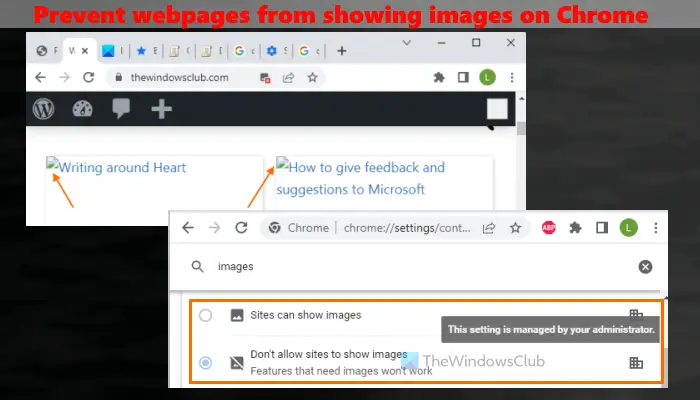
By default, like any other modern browser, Google Chrome shows images on all websites. Google Chrome also has a setting to allow or block images by site, and to set which sites are allowed or not allowed to show images. But once this method is applied, that setting, along with all such options, will be disabled completely, and no site will be able to show images at all. You can also undo all the changes when you need to.
Prevent webpages from showing Images in Google Chrome
Here are two native options in Windows 11/10 to disable webpages from showing images on the Chrome browser:
It is advised to create a system restore point first so that you can easily recover from unexpected changes (if any). Now let’s check these two options.
1] Prevent webpages from showing images on Google Chrome using Group Policy Editor
Before trying this option, you must integrate Google Chrome with Group Policy so you can apply Group Policy settings to Chrome. After that, you can follow these steps:
- Open Group Policy Editor
- Select the Content settings folder
- Open Default images setting
- Use the Enabled option
- Select Do not allow any site to show images option
- Press the OK button.
Let’s check all these steps in detail.
Use the Windows Search box, write gpedit, and hit the Enter key to open the Group Policy Editor window.
Now select the Content settings folder. To do that, use this path:
Computer Configuration > Administrative Templates > Classic Administrative Templates (ADM) > Google > Google Chrome > Content settings
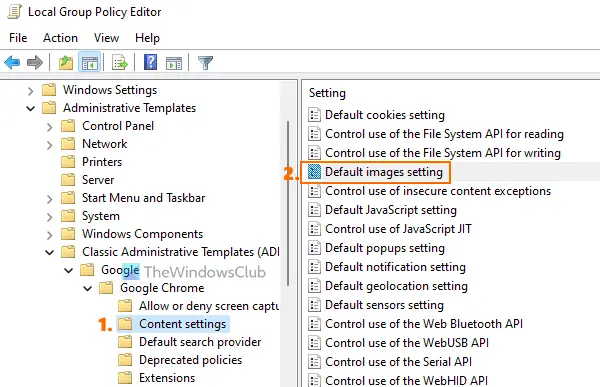
Open the Default images setting from the right section by double-clicking on it. This will open a separate window for that setting. There, first, select the Enabled option. After that, use the drop-down menu available on the left-middle part of that window, and select the Do not allow any site to show images option.
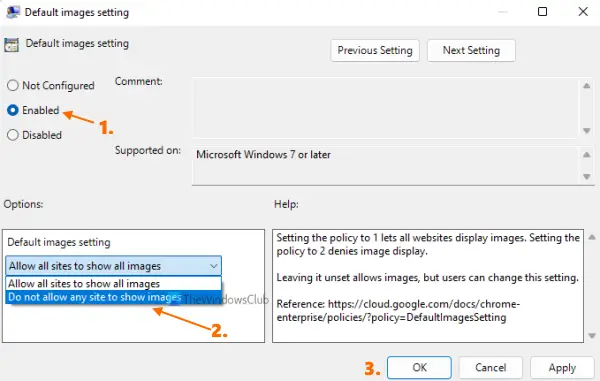
Press the OK button.
Refresh the open tabs (if any), and you will see that images no longer open on any webpage. If the changes aren’t visible for some reason, restart Chrome and try again.
To enable webpages to show images in Google Chrome again, repeat the steps above and open the Default images settings window. After that, use the Not Configured option, and press the OK button. Restart the Chrome browser to apply the changes.
Related: How to browse in Text-Only Mode in Chrome, Edge, or Firefox.
2] Disable webpages from showing images on Google Chrome using Registry Editor
The steps are as follows:
- Open Registry Editor
- Select the Policies key
- Create a Google key
- Generate a Chrome key
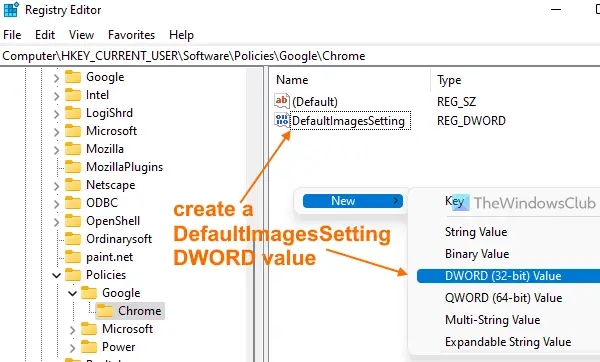
- Create a DefaultImagesSetting DWORD value
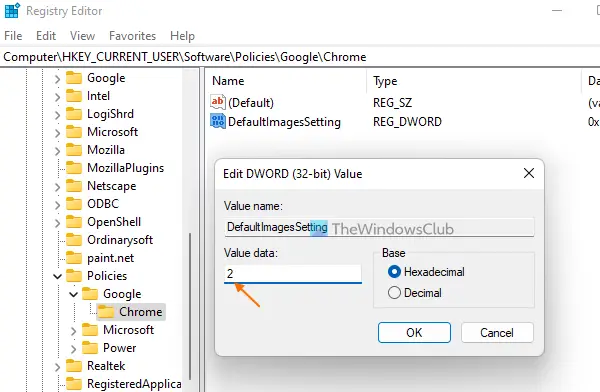
- Add 2 in its Value data
- Use the OK button
- Restart the Chrome browser.
In the first step, type regedit in Windows Search box, and press the Enter key to open Registry Editor.
In that window, select the Policies key. Here is its path:
HKEY_CURRENT_USER\Software\Policies
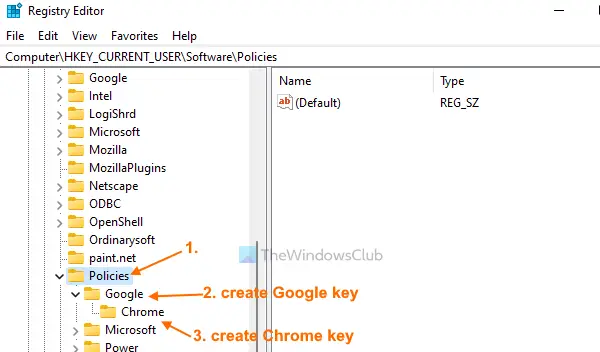
Create a new Registry key under the Policies key and rename it as Google. After that, create another Registry key in Google key and rename it to Chrome.
Under the Chrome key, create a DefaultImagesSetting DWORD value on the right-hand section. For that, open the right-click menu, expand the New menu, and use the DWORD (32-bit) Value option. When the new value is added, change its name to DefaultImagesSetting.
Now add Value data for DefaultImagesSetting. In order to do that, double-click on that DWORD value. You will see a small box with Value data filed. Add 2 in that field, and use the OK button to close that box.
Finally, restart the Chrome browser to apply the changes and sites will not show images anymore.
To enable sites to show images again in Google Chrome, follow the steps above and delete the Google key.
Restart Google Chrome, and you will be able to see webpage images once again.
How do I stop websites from loading images?
You can block or disable images in Chrome, Firefox, and Microsoft Edge. If you use these browsers and want to stop websites from loading images, you can do this by going to your browser’s Settings page. Each browser has different steps. For example, to turn off image loading in Chrome, go to the Images section under Site Settings. Similarly, you can find the setting for the browser you use and prevent websites from loading images.
How do I stop Chrome from saving images as WebP?
If you want to stop the Chrome browser from saving images as WebP, then you can try the following options:
- Change the file extension or format to JPG, PNG, etc., when downloading images from Chrome to your computer. For example, while saving an image from Chrome using the right-click menu, you can save it as abc.png
- Use a free Chrome extension that lets you convert WebP images to some other image format. One such extension is Save Image As PNG. That extension provides a right-click menu option to convert WebP to PNG so that you can download a WebP image as a PNG format file.
Read next: Can’t download or save images from Google Chrome.
