
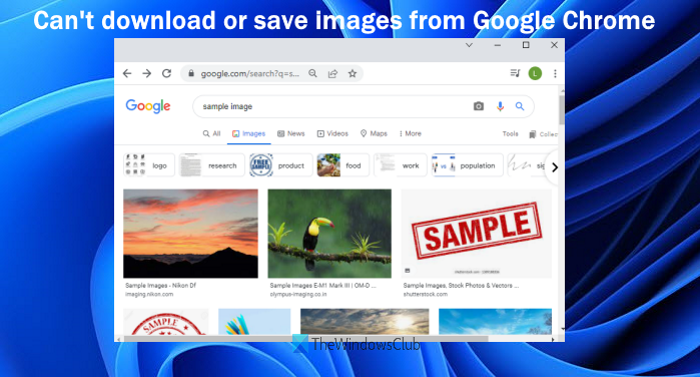
Like any other browser, Google Chrome also provides the option to download or save images from Google Image search results and other sites. However, some users have complained that they can’t download or save images from Google Chrome. If you are also having this problem on your Windows 11/10 computer, then the solutions covered in this post will help you.
Can’t download or save images from Google Chrome
If you can’t download or save images or pictures from Google Chrome, then one of these suggestions is sure to help you fix the problem.
- Clear browsing data
- Turn off installed extensions
- Turn on Sites can show images option
- Drag and drop image to the desktop
- Update Google Chrome
- Re-install Chrome browser.
Let’s check all these options.
Images not downloading in Chrome
1] Clear browsing data
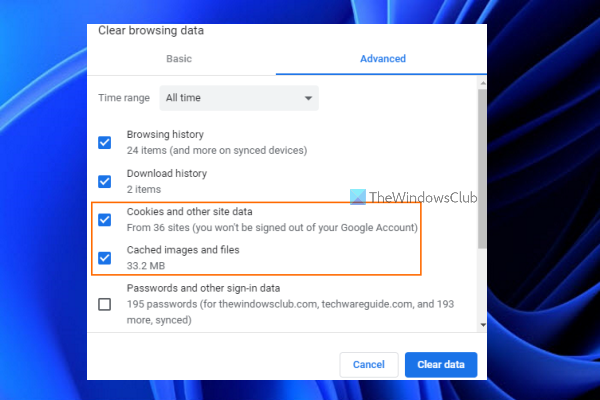
It might be that the cache of images, files and/or cookies is causing this problem. If this is the case, you should clear such browsing data. For that, here are the steps:
- Open Google Chrome browser
- Click on the three vertical dots (Customize and control Google Chrome) icon present on the top-right corner of the Google Chrome browser
- Place the mouse cursor on the More tools menu to expand it
- Click on the Clear browsing data… option
- A Clear browsing data pop-up will open
- There, select Cookies and other sites data option
- Select Cached images and files option
- Press the Clear data button.
Now, wait until the Chrome browser clears the selected options. After this, relaunch the Chrome browser, and now you should be able to download images using Chrome browser.
2] Turn off installed extensions
If this problem is occurring because of an extension installed on your Chrome browser, check whether you can download images after turning off that extension. So, this will be a manual process. Turn off installed extensions one by one and check whether you can download the images. If yes, then you should remove that specific extension from your Chrome browser.
3] Turn on Sites can show images option
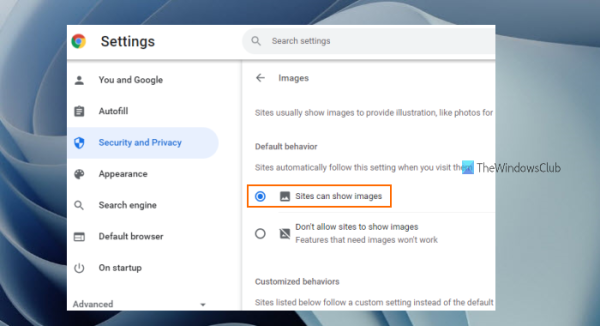
If the option to show images by sites is turned off, then you may also face this issue. So, you should turn on the Sites can show images option. The steps are as follows:
- Open Chrome browser
- Click on the Customize and control Google Chrome option (three vertical dots icon) available on the top right corner of the Chrome browser
- Click on the Settings option
- In the Settings window, click on the Security and Privacy category available on the left section
- Access the Site Settings option
- Scroll down the Site Settings page
- Access the Images section
- Under the Default behavior section, select the Sites can show images radio button
- Restart the Chrome browser.
Related: Chrome blocking downloads with Network failed error.
4] Drag and drop image to the desktop
This is not a direct solution, but it is helpful when other options are not working. What you need to do is just press and hold an image (using the left mouse) that you want to save, drag it to your desktop, and drop it. The image will be saved successfully.
5] Update Google Chrome
Sometimes, an outdated version of a program or application can cause various issues with that particular program/application. This might also happen because you’re unable to download or save images in Google Chrome. Keeping programs and other items up to date on your Windows 11/10 computer helps secure your computer and most programs. So, it is good to update Google Chrome, and then check if your issue is resolved.
6] Re-install Google Chrome
This might be the last solution for you to follow. If none of the options work, you should uninstall the Chrome browser from your computer and delete its leftovers (Registry entries, empty folders, etc.). After that, download the setup file of the Chrome browser from its official website and install it.
Hope these solutions will help.
Why can’t I save images from Google Chrome?
There could be any number of reasons you are unable to save images in Google Chrome. For example, it might be happening because of cache files or cookies, or because an extension is interfering with the saving process. To solve this problem, you can try fixes such as temporarily disabling extensions, updating the Chrome browser and clearing cookies and cache files. All such solutions are also listed in the post above.
Read: Images not loading in Chrome, Firefox, and Edge
Why are my downloads failing on Chrome?
If you are having trouble downloading images in Google Chrome, you can try options such as clearing browsing data, disabling extensions, updating the Chrome browser and enabling the option to let sites show images. However, if your download fails for all types of files, it could be due to a network error, the file you are trying to download no longer exists, or a download block error because Windows Internet Security might have blocked it. In such a case, you should run a virus scan, check that your IP address is not blocked, remove any unwanted software blocking the download, verify that you have permission to download the file, free up storage space on your computer, etc.
Read next: How to Fix File Download Errors on Chrome browser.
