
Sometimes you are in an area with poor network reception and low bandwidth, and you need to find something quickly. In that case, we recommend you disable images in your browser as that will improve your experience and make browsing much quicker since images take longer to load and render than text. In this post, we will show how one can disable images in Chrome, Edge or Firefox while browsing.
How to disable Images in Chrome on Windows PC

To disable images in Google Chrome, go to your browser’s Advanced Settings and make the required changes. Follow the steps mentioned below to do the same.
- Click on the three lines in the top right corner of your browser and select Settings.
- Now, go to Privacy and security.
- Scroll down to reach Content and click on Images.
- Check Don’t allow sites to show images.
Now, you can close Chrome’s settings, and you will not see images when browsing.
TIP: You can block or prevent webpages from showing images in Chrome using the Group Policy or Registry Editor.
How to disable Images in Microsoft Edge while browsing
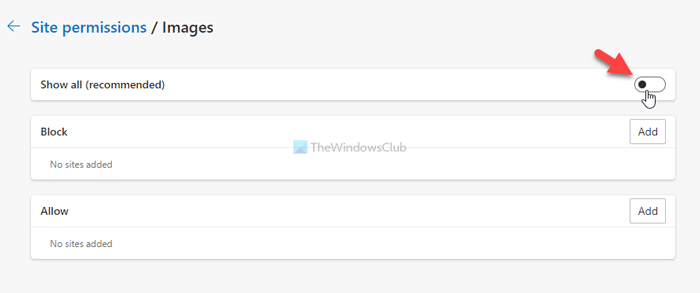
To disable images in Microsoft Edge, follow the steps below.
- Open Edge.
- Click on the three dots and click on Settings.
- Next, switch to the Cookies and site permissions tab and find out Images from under the All permissions section.
- Open the Images setting and disable the Show all toggle to block images from loading in the Microsoft Edge browser.
Edge will not load images until you enable the option again.
Disable Images in Firefox while browsing
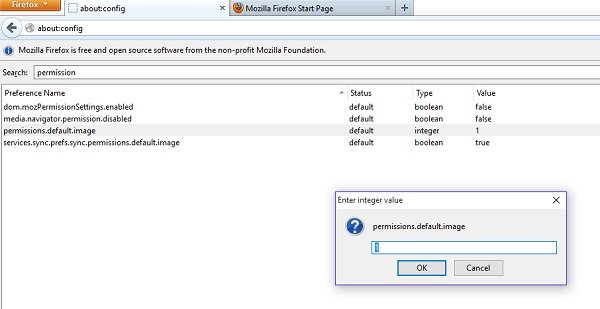
If you use Firefox as your default web browser, adjust the settings via about:config. Open Firefox and type ‘about: config’ in the address bar. Search for ‘permissions.default.image’ and adjust the value from 0-1. The value is set to 1 by default.
- 1: Allow all images to load
- 2: Block all images from loading and
- 3: Prevent third-party images from loading.
This will do the job for you.
Disable Image while browsing in Internet Explorer
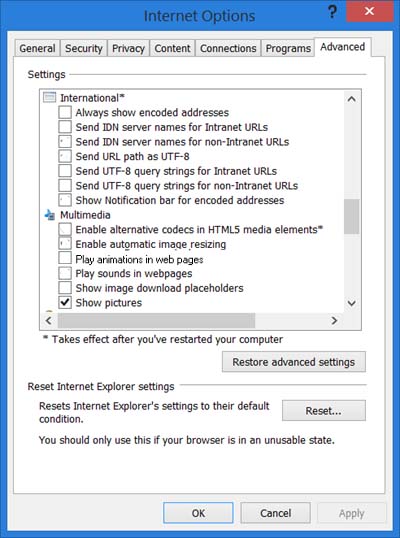
To disable images while browsing in Internet Explorer, you need to open Internet Options and go to the Advanced Tab. Scroll down to the Multimedia Section and uncheck the Show Pictures checkbox, click Apply and Exit.
TIP: Video Blocker for Chrome, Edge & Firefox lets you block unwanted YouTube Video Channels.
Read: How to browse in Text-Only Mode in Chrome, Edge, or Firefox
How do I disable images in my Web browser?
The process for disabling images in a web browser varies by browser. However, you can go to the browser’s privacy settings and disable the image option. For exact steps, refer to the guide above.
Read: How to Import/Export History in Chrome, Edge, Firefox, Brave
How do I turn off images in Edge browser?
To turn off images in Edge, open the browser and then go to Settings. Then go to Cookies and site permissions > Images, and disable the Show all toggle to stop images from loading when browsing in Edge.
Also Read: Cannot open particular website in Chrome, Edge or Firefox.
