
One of the major annoyances you deal with while running Discord on Windows is the automatic launch of the service. As soon as you start your computer, a screen appears on your computer display prompting you to launch the service. If you would like to stop this behavior, read this post. It will help you stop Discord from launching at Startup in Windows PC.
Stop Discord from launching at Startup in Windows 11
Discord is a social gaming platform you can use to chat with your friends and talk with people in servers while playing games. Like many other downloadable programs, Discord too has permission to automatically run upon system startup but if you do not prefer this behavior or find it annoying, here’s how you can disable it.
- Open Task Manager.
- Hit the More Details drop-down button.
- Switch to the Startup tab.
- Find the Discord entry.
- Right-click it and select the Disabled option.
- Alternatively, go to Discord’s User Settings> Windows Settings.
- Disable the Open Discord option.
Using Task Manager
Please note that when the Open Discord entry under Windows Settings is disabled, the Discord entry won’t be visible to you under the Startup tab in Task Manager.
Assuming you have the Discord application installed, press Ctrl+Shift+Esc in combination to open the Task Manager directly.
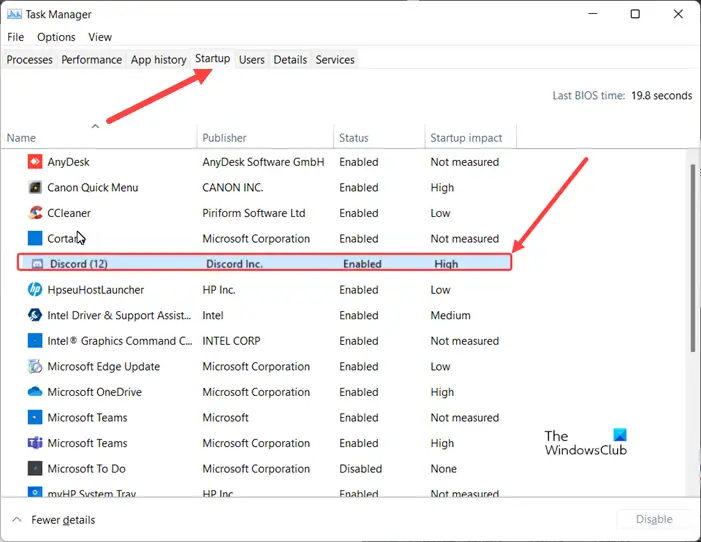
Then, switch to the Startup tab of the Task Manager. Scroll down to locate the Discord entry.
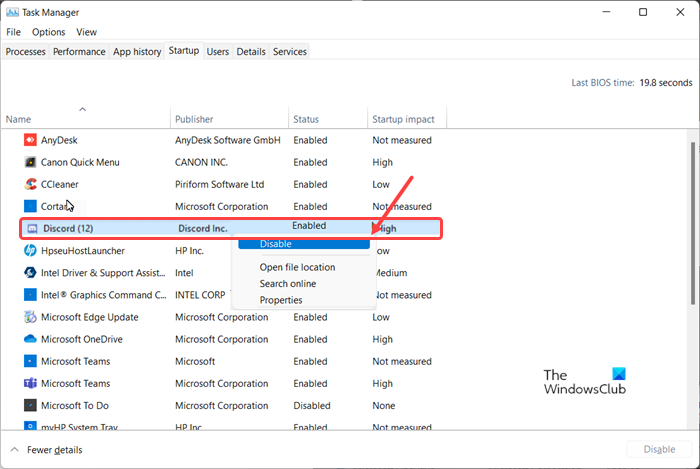
When found, right-click it and choose the Disable option from the list displayed.
Via Windows Settings
Alternatively, you can disable Discord from launching during Startup through Windows Settings.
Click the Profile icon in the bottom right corner of the app screen to open the User Settings menu.
Then, scroll down to the Windows Settings option under the side panel on the left.
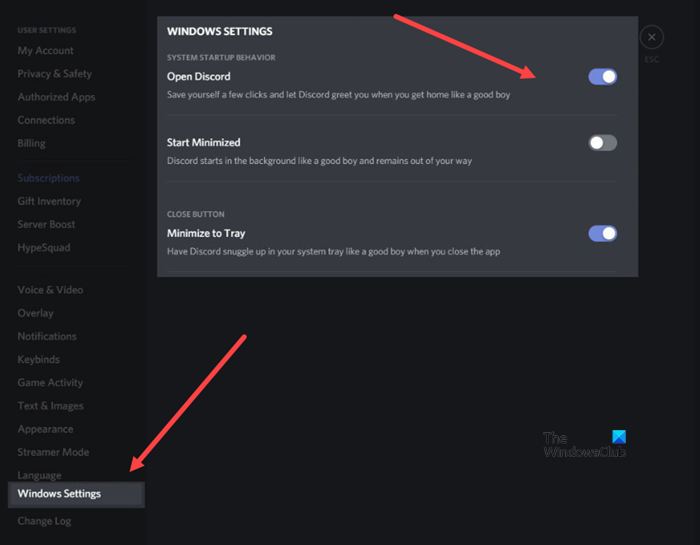
Under the System Startup behavior heading disable the toggle next to the Open Discord entry.
The action, when confirmed, will stop Discord from launching at Startup in Windows.
What is Discord used for?
Discord is a free voice, video, and text chat app that’s used by millions of people ages 13+ to talk and hang out with their communities and friends. People generally use social gaming technology to talk about many things, ranging from art projects and family trips to homework and mental health support. It’s a home for communities of any size, but it’s most widely used by small, active groups who talk regularly.
Related: Disable Startup programs in Windows using Task Manager, WMIC, GPEDIT, Task Scheduler, MSCONFIG, Settings
What is a Group in Discord?
A Discord group is a space for friends and communities to stay in touch and spend time together. There are larger, more open communities, generally centered around specific topics such as popular games like Minecraft and Fortnite. All conversations that take place in the group are opt-in, so people have total control over who they interact with and what their experience on Discord is like.
Related: Stop apps from opening or running at startup
What is the largest server in Discord?
The largest server on Discord is Fortnite which has over 827,000 members. Second on the list is Genshin Impact with 800,000 members, followed by Minecraft and Valorant with 800,00 members each.
