
At times, the information Windows Defender or Windows Security displays is quite difficult to understand. If you use this security shield on your computer and want to comprehend all the information provided by this app, you can use the Windows Event Viewer, PowerShell or WinDefLogView (Windows Defender Log Viewer). The latter is a free tool that fetches data from the event log and displays all the information generated by Windows Defender.
Whether you run a Quick scan or Full scan, Windows Security scans for potential threats, malicious files, virus, malware, etc. If it finds anything suspicious, it flags the file immediately. Then you can find details such as the file location, the associated Registry path, the service and Task Scheduler information. However, at times it might be complex to handle certain threats.
How to read Windows Defender Event Log
Using Windows Event Viewer
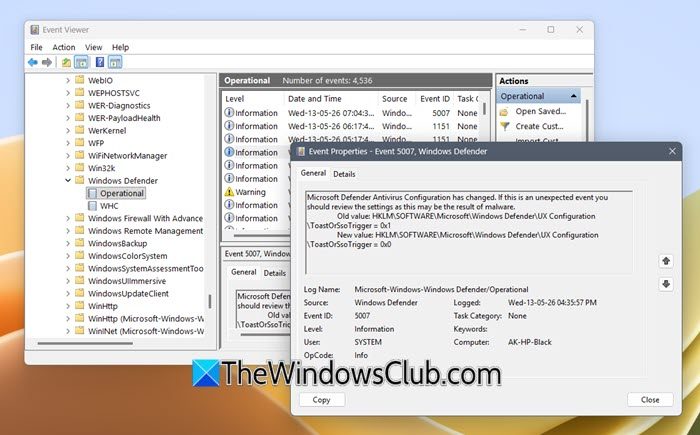
To access Windows Defender Logs, open Event Viewer and navigate to the Defender logs here: Applications and Services Logs > Microsoft > Windows > Windows Defender > Operational.
The middle pane will show all Defender events like Scans, detections, updates, and actions taken. You can double‑click any event to see detailed information.
Using PowerShell
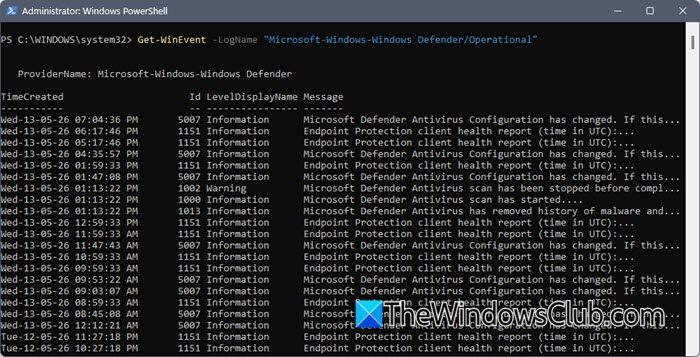
Open an administrative PowerShell window and execute the following:
Get-WinEvent -LogName "Microsoft-Windows-Windows Defender/Operational"
This will list recent Defender events directly in the console.
Using WinDefLogView
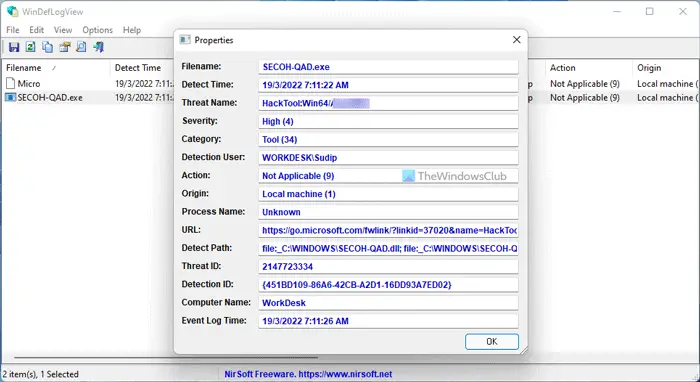
You can use WinDefLogView, which simplifies everything and displays all the details in an organized format. For your information, it shows the following things:
- File name
- Threat name
- Detection time, Severity
- Category
- Detection user
- Action
- Origin
- Process name
- URK
- Detect path
- Threat ID
- Detection ID
- Computer name
- Event Log Time
It displays the computer name because it can fetch data from external sources when connected to a network. Whether Windows Security recognized one or multiple threats, it can fetch everything from the corresponding log file. For your information, Windows Security stores the log file here: C:\ProgramData\Microsoft\Windows Defender\Support.
To read Windows Defender Event Log using WinDefLogView, follow these steps:
- Download the app and double-click on the executable file.
- Go to File > Choose Data Source.
- Select the source and click OK.
- Click the Refresh button.
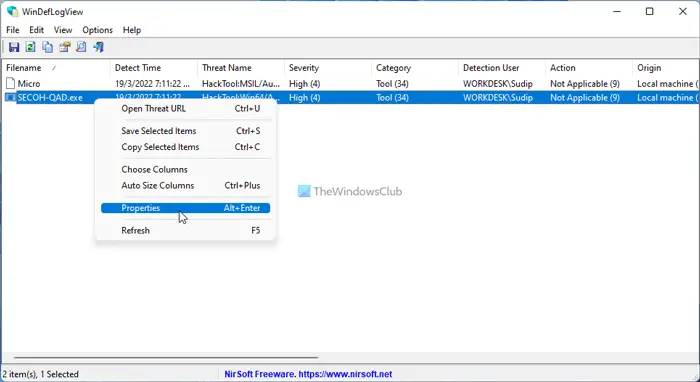
- Right-click on the threat and select Properties.
- Find all the details here.
To know more about the process, continue reading.
First, you need to download the app from the official website nirsoft.net, extract it, and double-click on the WinDefLogView.exe file.
Then, you need to choose the data source. For that, click on File and select the Choose Data Source option.
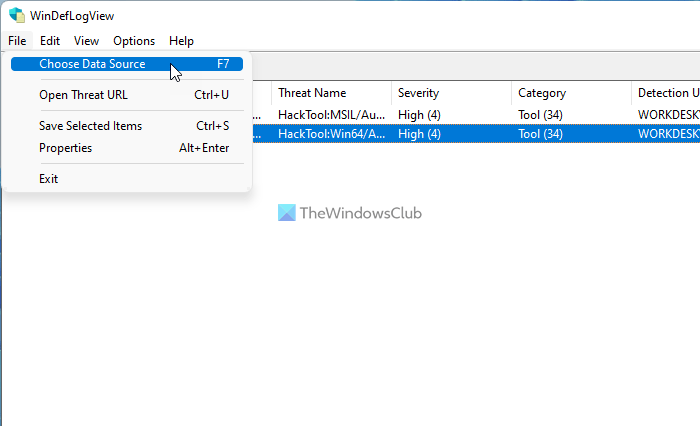
For your information, it can detect data from these sources:
- This System
- External Folder
- Remote Computer
- Multiple Remote Computers
- Shadow Copy
As you are using your own computer, choose the This System option and click the OK button.
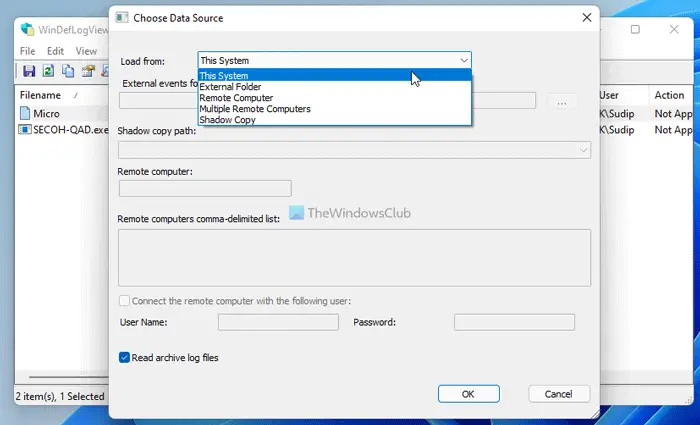
Next, click on the Refresh button. Then, it displays all the detected threats on your screen. You can right-click on any threat and select the Properties option to find all the details.
It is possible to copy all the data to the clipboard so that you can share them with anybody for further troubleshooting.
On the other hand, if it shows tons of threats and you want to find a particular one, you can use the search option. For that, click on the search icon, and enter the keyword as per your requirements.
That’s all! I hope this guide helped.
Read: Where is Windows Defender logs location?
How do I read Windows Defender logs?
There are mainly two ways to view Windows Defender or Windows Security logs on Windows 11 or Windows 10. First, you can use Event Viewer. It stores all the information regarding the Windows Security scans performed on your PC. However, if that is time-consuming for you, you can download WinDefLogView, a portable application that makes it easy to read Windows Defender logs. You can also use PowerShell, though!
Read: How to use Windows Security in Windows 11 for best protection.
Does Windows Defender have a log file?
Yes, Windows Defender has multiple log files. It creates a log whenever you scan your PC. Whether it is a Quick scan, Full scan, Custom scan, or Microsoft Defender Offline scan, Windows Defender creates a log every time. You can find the log files here: C:\ProgramData\Microsoft\Windows Defender\Support. However, if you want to read the log files in a user-friendly way, you can make use of WinDefLogView.
Read next: How to use Event Viewer to check unauthorized use of Windows computer.
