
Some users encountered the “BIOS recovery files cannot be found or the files are corrupted” error when they booted their computer. This error indicates a BIOS problem and occurs when your system unexpectedly shuts down during a BIOS update. In this scenario, the system is trying to restore the BIOS from a backup image, but it can’t locate the required files or that the files are corrupted. That’s why it is always recommended to provide a continuous power supply to a computer while updating the BIOS. If you encounter this error, you cannot boot into Windows until you fix it. This article will guide you on how to fix this error.
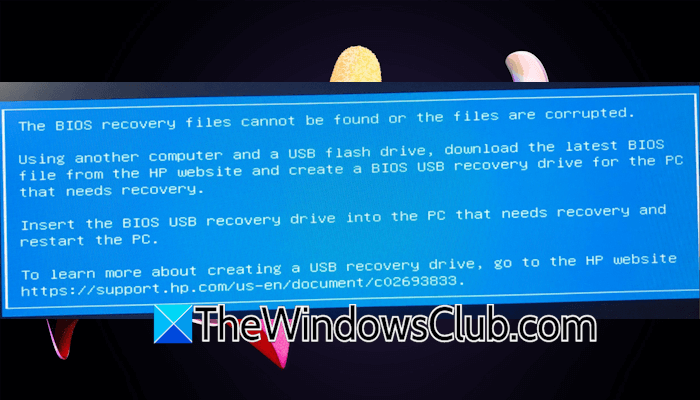
The BIOS recovery files cannot be found or the files are corrupted
Use the following fixes for the “BIOS recovery files cannot be found or the files are corrupted” error in Windows 11/10:
- Perform a hard reset
- Reset CMOS
- Try manual BIOS recovery
- Download the latest BIOS recovery files
- Recover BIOS using a bootable USB flash drive
- Contact support
All these fixes are explained in detail below:
1] Perform a hard reset
This is the first fix that you can try. Perform a hard reset. The instructions are provided below:
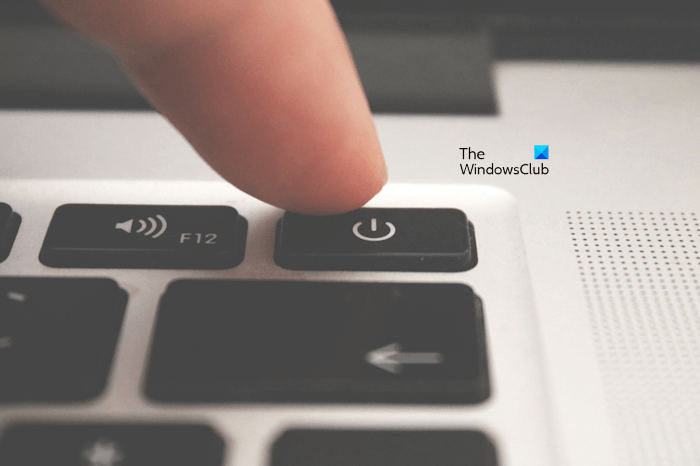
- Force shut down your computer.
- Disconnect the power cord and peripherals. If you have a laptop, remove its battery and charger.
- Press and hold the power button for 30 seconds.
- Connect the power cord and charger. Turn on your computer.
2] Reset CMOS
If the hard reset does not help, reset the CMOS. CMOS is a small coin-shaped battery on your computer motherboard that supplies a continuous power to the BIOS chip when your computer is turned off.
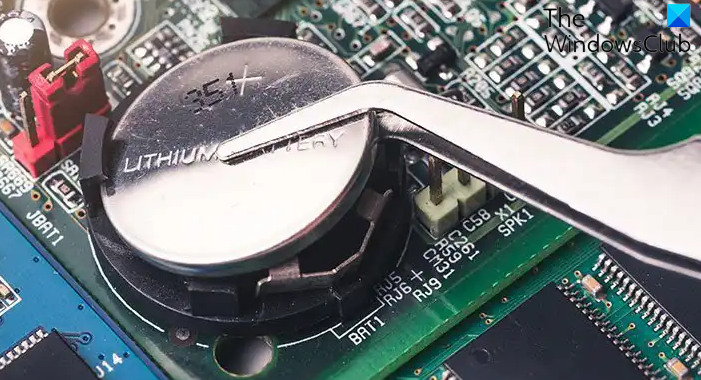
Clearing CMOS usually resolves boot issues. You can also try this. Turn off your computer and wait for a few minutes. Now, open your computer case and gently remove the CMOS battery from the socket. Wait a few minutes, then install the battery with the correct polarity. Now turn on your computer and see what happens.
3] Try manual BIOS recovery
If the two fixes above do not work, your BIOS might be corrupted. Try to recover the BIOS manually. The manual BIOS recovery method is not available for all computer brands. Since it is available for HP computers, I have explained the steps below:
- Force shut down your computer by pressing and holding the power button. Do not turn off the power supply. If you have a laptop, connect its charger and turn on the switch.
- When your computer is turned off, press and hold the Win + B keys. After that, press and hold the power button for 3 seconds.
- Release the power button after 3 seconds, but do not release the Win + B keys. Keep them pressed until you hear a beep sound.
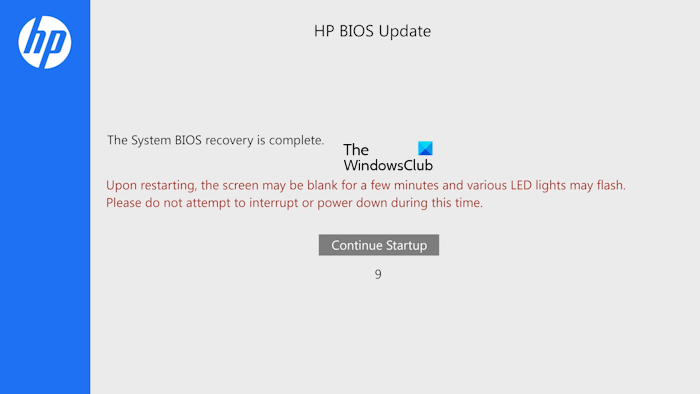
- Release the Win + B keys when you hear the beep sound. Your HP computer will turn on, and the screen will remain blank for 60 seconds. After that, the BIOS recovery process should start.
4] Download the latest BIOS recovery files
You can go to your PC or motherboard manufacturer’s website to download the latest BIOS recovery files, if available. Alternatively, see if their BIOS update utility specific to your model is of any help.
5] Recover BIOS using a bootable USB flash drive
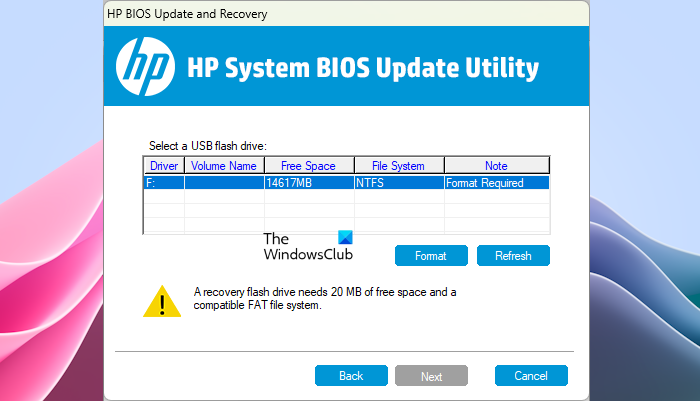
If the BIOS recovery process does not start, recover your BIOS using a bootable USB flash drive. To do this, you need to create a bootable USB flash drive containing the BIOS image. If the USB flash drive contains your important files, back them up before proceeding, as it will be formatted during this process.
Provide a continuous power supply to your computer during the BIOS recovery process. Laptop users are recommended to connect the charger and turn on the switch, even if the laptop is fully charged. An interruption in the power supply during the BIOS recovery process will damage your motherboard.
6] Contact support
If you cannot recover your BIOS, the problem might be with your computer’s motherboard. The power outage or unexpected shutdown of your PC during the BIOS update process might have damaged your motherboard. Take your computer to a professional computer repair technician for further assistance.
That’s it. I hope this helps.
How to recover a corrupted BIOS?
To recover the corrupted BIOS, you have to create a bootable USB flash drive with the BIOS recovery file. You will find instructions for recovering your BIOS on your computer manufacturer’s official website.
Can BIOS be recovered?
Yes, a corrupted BIOS can be recovered. You need to create a bootable USB flash drive with the BIOS file. To download the BIOS file, visit your computer manufacturer’s official website. This post shows what to do if you see the message BIOS corruption has been detected, and Auto-Recovery is triggered.
Read next: How to enable AVX in BIOS in Windows.
