
AVX stands for Advanced Vector Extensions. It is a set of CPU instructions designed to speed up complex CPU tasks. Many games require the AVX instruction set to function properly. Therefore, if AVX is disabled on your system, you will encounter issues with such games. This article explains how to enable AVX in the BIOS in Windows 11.

How to check if your CPU supports AVX
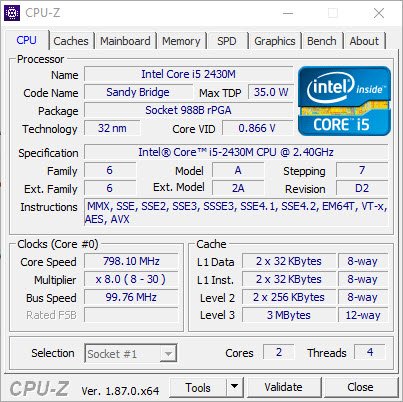
To check if your CPU supports AVX, you can use a third-party tool, like HWINFO or CPU-Z. Once you install any of these tools, launch it. In CPU-Z, the supported instructions are listed under the CPU tab. If you see AVX there, it means your CPU supports it.
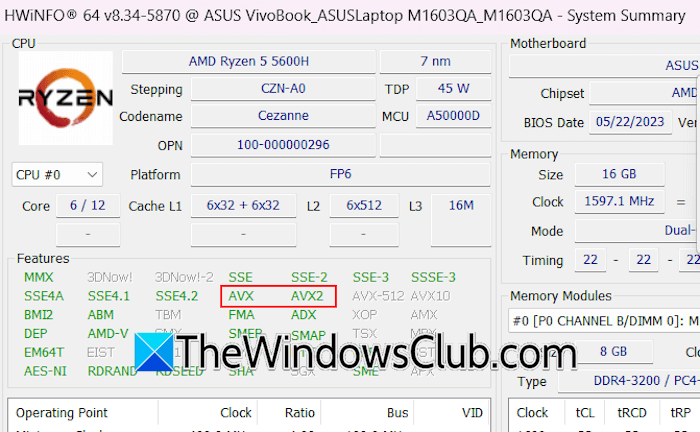
If you have installed HWiNFO, launch it, and you will see your CPU specs in System Summary. If the System Summary window does not appear automatically, click Summary. If the AVX feature is green, it means your CPU supports AVX.
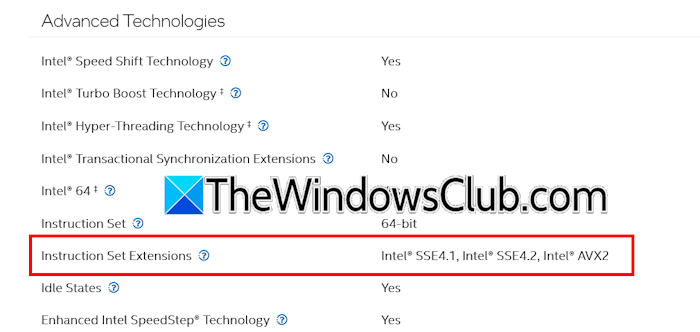
Alternatively, you can also read the official documentation of your CPU. Note down your CPU model name and visit the official manufacturer’s website. Now, read its specifications. Some CPU manufacturers show CPU instruction sets in the documentation.
How to enable AVX in BIOS in Windows 11
Once you confirm that your CPU supports AVX, you can enable it in the BIOS. Motherboards of different brands have different steps to allow AVX to in BIOS. I have explained the steps for the same for the following motherboards:
- ASUS ROG
- MSI
- Gigabyte
Let’s start. To enter your system BIOS, you have to use the right BIOS key. Refer to your motherboard’s user manual to find the correct key to enter BIOS.
1] Enable AVX in ASUS ROG BIOS
In ASUS computers, the F2 key is used to enter BIOS. Press and hold the F2 key and then press the power button. Keep holding the F2 key until you enter the BIOS. If this does not work, refer to the user manual of your ASUS motherboard to know the right key to enter BIOS.

Once you are in BIOS, press F7 or click the Advanced Mode link on the bottom right side. Now, navigate to Extreme Tweaker. You will see the AVX Related Controls menu there. Click on it and then select Enabled in the drop-down menu.
2] Enable AVX in MSI BIOS
If you have an MSI motherboard, follow these steps:
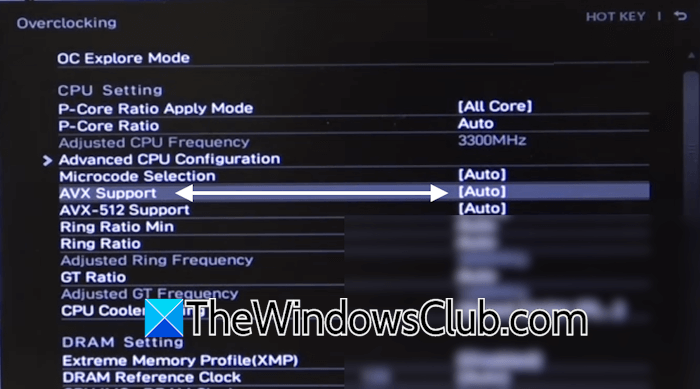
- Enter the MSI BIOS.
- Open the advanced settings.
- Navigate to the OC mode.
- You will see the AVX Support option there. Click on it and select Enabled.
3] Enable AVX in the Gigabyte BIOS
To enable the AVX mode in your Gigabyte motherboard, follow these steps:

- Open BIOS settings.
- Switch to the Advanced Mode.
- Navigate to Tweaker.
- Click Advanced CPU settings.
- Now, click AVX Settings and select User Defined.
- Click AVX and select Enabled.
If your computer supports AVX mode but the option to enable or disable it is not available in the BIOS, it means your computer manufacturer has not provided that option. Generally, high-end gaming PCs have this option in BIOS settings. If your CPU supports AVX mode, it is enabled by default.
That’s it. I hope this helps.
Do AMD CPUs have AVX?
If you have an AMD CPU, you can check whether it supports AVX using a third-party tool, such as HWiNFO or CPU-Z. Install any of these tools on your system and launch it. If the AVX mode is green, your AMD CPU supports AVX.
How do I enable AVX on my CPU?
You do not need to enable AVX on your CPU. If your CPU supports AVX, it is enabled by default. On high-end gaming PCs, this mode is set to Automatic by default. However, you can change this setting in the BIOS. If the option to enable or disable AVX is not available in your system’s BIOS, it means your computer manufacturer did not provide it.
Read next: How to take a Screenshot in BIOS or UEFI.
