
In this tutorial, we will show you how to take a screenshot in BIOS or UEFI. Although we have numerous options to take a screenshot on a Windows PC, none of them help capture BIOS settings or the UEFI BIOS Utility. While we always have the simple option of using a camera or our smartphone to capture the BIOS screen, it is not convenient, and the output doesn’t come as needed; we then need to fix the captured image. Thankfully, there’s a workaround that allows us to capture the screen while in BIOS. This post covers step-by-step instructions for that workaround.
Can I take a screenshot in BIOS?
Yes, you can take a screenshot in BIOS. You will need a USB flash drive or a pendrive for this purpose. If your motherboard supports it, you can save a screenshot from the BIOS screen to a USB drive directly. The older motherboards don’t support this facility, though.
How to take a Screenshot in BIOS or UEFI
Here are the steps to take a screenshot in BIOS or UEFI:
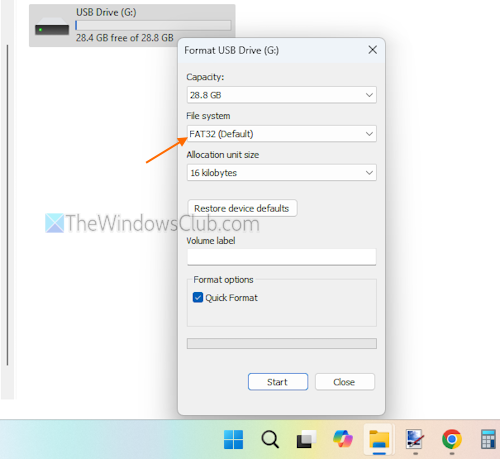
- Insert a pendrive or USB drive into your Windows 11/10 PC. You need to format your drive with the FAT32 File system
- Right-click on USB drive > select Format…
- Set the File system to FAT32 (default)
- Press the Start button and complete the format process. Now you can keep the USB drive plugged in or insert it later
- Restart your PC to enter into BIOS using the BIOS key. It would be F10, Esc, or F2, etc., depending on your PC model
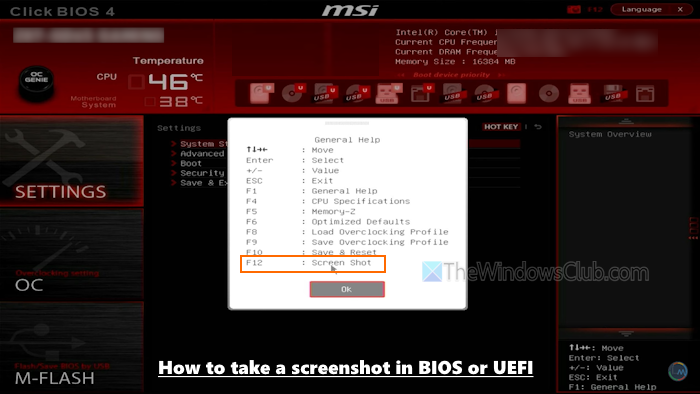
- Access and use BIOS settings and open the General Help. This is needed to check which hotkey is supported to capture screenshots. You can open it using F1 or another key. The list of hotkeys will open
- You will see the F12: Print Screen option indicating that you need to use the F12 key to take a screenshot. If not this, use the PrtScn key
- Your screenshot will be saved to the connected USB drive. In case you have multiple USB drives plugged in, then you will see a Select USB device box
- Select your USB drive and hit Enter
- Give a name to the captured screenshot. This option may not be available on all PCs
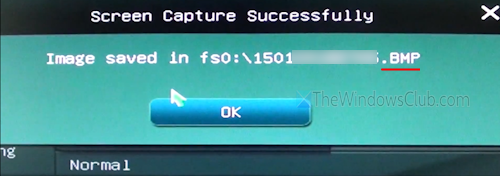
- You should see a Screen Capture Successfully message, as visible in the image below.
This way, you can take more screenshots in BIOS or UEFI.
Now, exit the BIOS setup and log in to your Windows PC. Open the USB drive, and your screenshots will be there, saved as BMP images.
While there are some external hardware devices and KVM over IP tools (paid options), as well as a third-party tool like CrScreenshotDxe (UEFI DXE driver) that requires integration into the DXE volume of UEFI firmware, this straightforward option is better and safer to use.
That’s all. Hope this helps.
TIP: This post shows how to take a screenshot of the Lock Screen & Login Screen in Windows.
How do you take a screenshot in ASUS BIOS?
In the ASUS BIOS or the ASUS UEFI BIOS Utility, switch from EZ Mode to Advanced Mode (F7), and confirm your action using the OK button. Press the F12 key, and a Please select the USB flash drive window will open. Select your USB drive from the list and press Enter to save the captured screenshot.
TIP: There are also some cool free Screen Capture software for Windows that you may want to check out.
