
Format is a very popular and well-known term among computer users. We all have done that, especially with USB drives. That said, what people are sometimes afraid of is formatting the hard disk and its partitions. After all, we have data on them and do not want to lose it. In this post, we will share how to format a Hard Drive or Disk. We will also look into the types of Formats and tools that can help you delete files so they cannot be recovered.
Types of File Systems in Windows
When you format using any tool, you will get the option to choose a format type. The standard formats are FAT32 and NTFS, which are used on Windows. FAT32 was extremely popular but has been replaced with NTFS. The latter offers enhancements and security. Another significant advantage of using NTFS is that it can be read by macOS as well.
How to format a Hard Drive or Disk in Windows 11
These are some of the best ways to format a hard drive or disk in Windows 11/10. Make sure to take a backup before formatting anything. Once the formatting is complete, it cannot be recovered easily.
- Using File Explorer
- Disk Management Tool
- Diskpart
- Disk Management Software (OEM and Third-Party)
- Connect to another computer.
If you wish to format part of a hard drive or hard disk, use the first two methods; if you want to format the entire drive, use any of the last two methods.
1] Using File Explorer
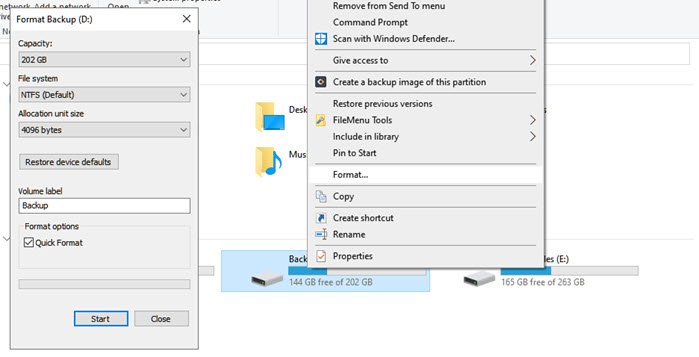
The easiest way to format a drive is to right-click it and choose Format. It will open the format window where you can select the default option, Quick Format or Full Format, and choose to format. The window also lets you add a drive name, but you can always do it later.
Quick Format is fast but leaves data recoverable, while Full Format is slower, scans for bad sectors, and overwrites data, making recovery much harder. You should use Quick Format for convenience when reusing a drive, and Full Format for security or when preparing a drive for resale.
Windows 11/10 now offers NTFS for hard disk, but for external storage, you should use other options such as exFAT and FAT 32. The first one is for Linux.
2] Disk Management Tool
If you wish to do more than just formatting a drive, you can try the Disk Management tool. It’s an advanced tool that will need admin privileges. It allows you to create, delete, merge partition(s).
If your goal is to increase the partition of the primary drive because you are running out of space, then you can use this tool. However, it is time-consuming and should only be used when you have no other option.
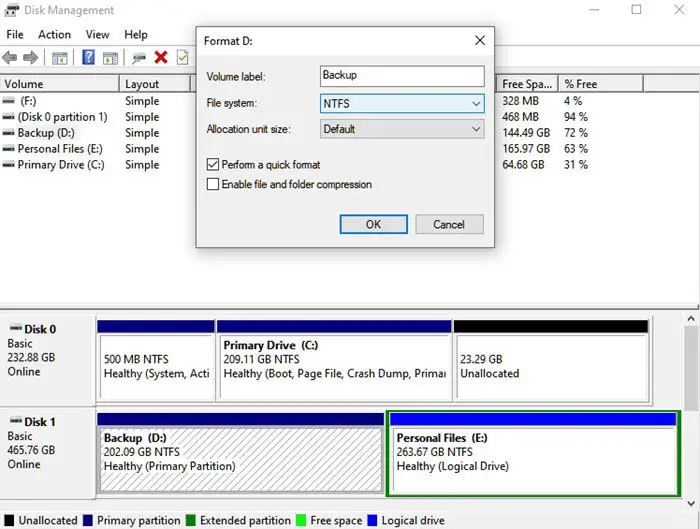
Type Disk Management ” in the Start menu, and then select “Create and format hard disk partitions” from the list. The disk management window will display a list of connected storage devices and partitions.
- Right-click on the partition you want to format
- Select Format to open the options window.
- Choose what works for you, and click ok.
Once the process is complete, the drive will be ready to use. You can do it for any number of partitions except for the primary drive where Windows is installed.
3] Diskpart Tool
Diskpart is a built-in system tool offered by Windows, which can easily format drives, but it has to be used with great care as there is no user interface. Open the Run prompt (Win +R) and type cmd. Then, use Shift + Enter to launch a command prompt with admin privileges. Execute the command in the same order as below.
Diskpart

list disk

select disk #

format fs=ntfs quick label=backup

exit
Where # is the partition number, the last command will format the partition and then name the label as “backup.”
4] Disk Management Software (OEM and Third-Party)
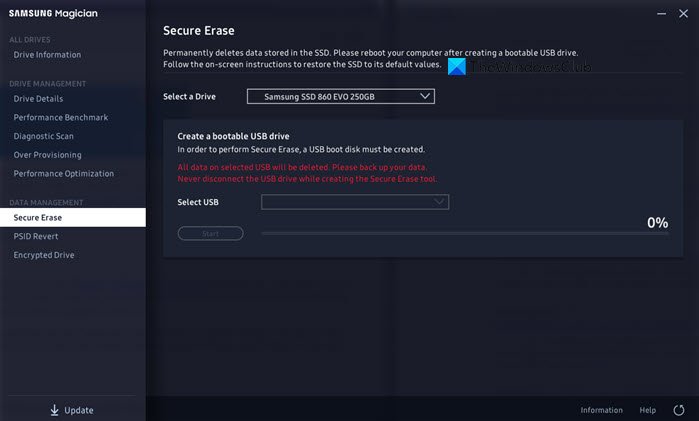
Most OEMs offer software for HDDs and SSDs. These software offer options to format drives along with other tools.
For example, I am using the Samsung SSD tool that comes with Samsung Magician. The software allows you to format the entire drive and create a bootable USB drive if you wish to reinstall Windows after formatting is complete.
You can try other free disk & partition management software that can offer a better user interface and clear options. However, make sure to understand what you do with the software.
5] Connect to another computer
Another way to format a hard drive completely is by using another computer. Once you connect, use the disk management tool to first delete all partitions on your drive, then, if needed, recreate them. If you do not create partitions, Windows Setup can help you do that when you install it.
So, these are the methods you can use to format the hard disk or hard drive. I hope the post was easy to follow and you make sure to perform this carefully, especially after you take a backup.
Read: How to use Mac-formatted HFS+ Drive on Windows computer
How to format the System Drive?
If you need to format the primary drive, then read our guide on how to format a Computer completely. You can do it using the Windows Reset PC option, a bootable USB drive or even third-party software.
