
The BIOS update must be installed, as it improves system stability and hardware compatibility. Sometimes the BIOS update gets stuck at a specific percentage. This article discusses this issue where the BIOS update gets stuck at 0 or 100%. If you encounter this issue, this article will help.
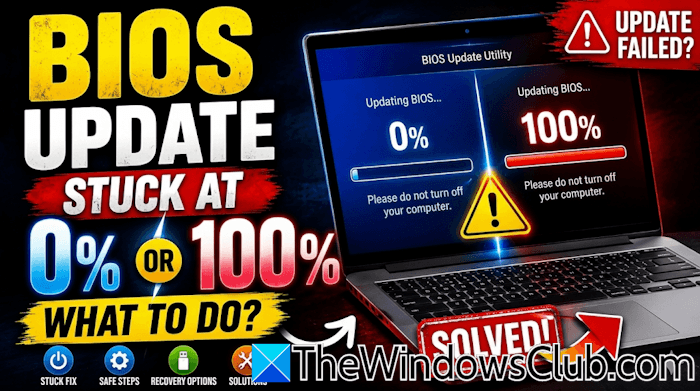
BIOS update stuck at 0 or 100 on Windows computer
Use the following fixes if the BIOS update gets stuck at 0 or 100% in Windows 11/10:
- Wait for some time
- Connect the charger
- Disconnect all peripherals
- Force BIOS Recovery
- Does your motherboard have a Self-Healing BIOS feature?
- Drain your laptop battery
- Perform a hard reset
- Clear CMOS
- Contact support.
All these fixes are explained in detail below.
1] Wait for some time
Turning off the computer during the BIOS update is not recommended. Therefore, if the BIOS update gets stuck at a particular percentage, we suggest you wait a while and see what happens. Wait up to 30 or 40 minutes and see if the issue is resolved.
2] Connect the charger
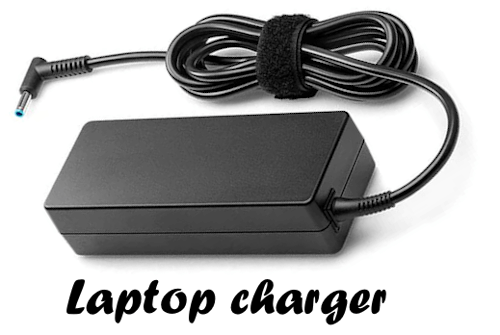
During a BIOS update, you need to provide a continuous power supply to your system. An interrupted power supply may break your motherboard. If you haven’t connected the charger yet, connect it and see if that helps.
Read: Accidentally turned off PC during BIOS update on Windows 11
3] Disconnect all peripherals
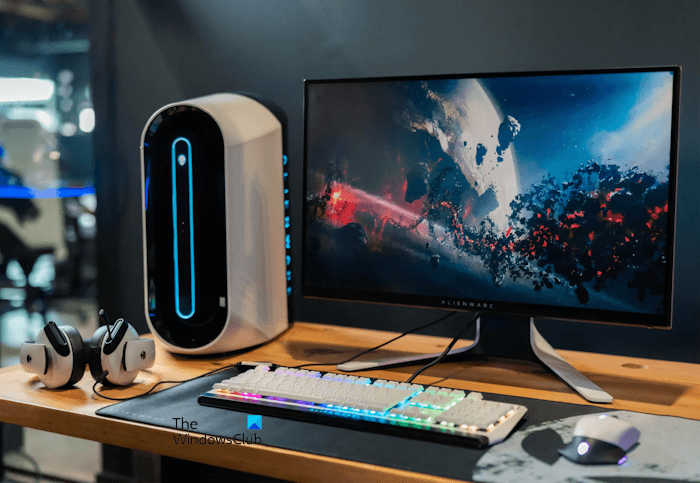
If the issue persists, you can try disconnecting all the peripherals. External devices, such as USB devices, docking stations, SD cards, and printers, may interfere with the firmware initialization process. Therefore, disconnecting all the peripherals can help. Keep only the power adapter connected to your laptop.
4] Force BIOS Recovery
If your system does not boot into Windows or you get a black screen after performing the above fixes, you need to recover your BIOS. Laptops of different brands have different processes to recover the BIOS. Refer to the user manual of your computer or visit the official website to know the correct process to recover BIOS.
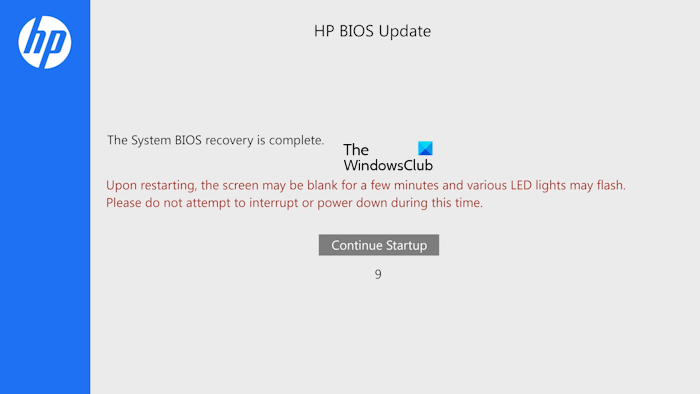
If your BIOS update is stuck at 0% or 100% on an HP laptop, perform a BIOS recovery using the keyboard shortcut (Win + B + Power):
- Press and hold Win+B keys
- While holding, also press and hold the Power button for 2–3 seconds
- Release the Power button but keep holding Wi+B until the BIOS recovery screen appears
- Follow on-screen instructions to restore BIOS.
If this fails, try Win+V instead of Win+B.
This post shows how to recover the BIOS on HP, ASUS, Dell, and other laptops
5] Does your motherboard have a Self-Healing BIOS feature?
When the BIOS update is stuck, you will have the following two options:
- Wait till it resumes by itself
- Force shut down your computer
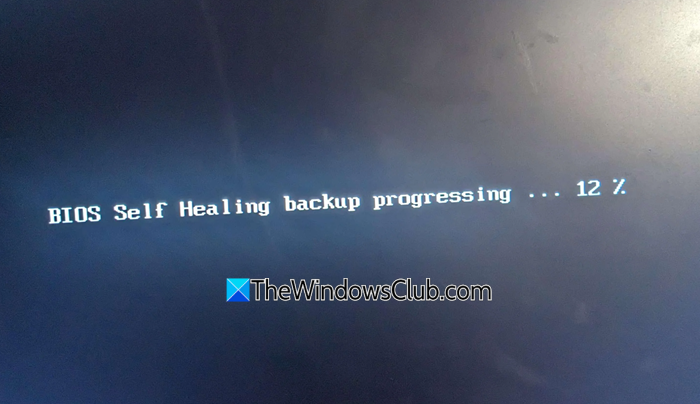
Force-shutting down a computer during a BIOS update is usually not recommended because it may make your system unbootable. However, if your motherboard has a Self-healing BIOS feature, you can take this risk. The self-healing BIOS is a recovery feature built into modern computers that automatically repairs a corrupted BIOS. Refer to your motherboard’s user manual to know if it has this feature. If so, force shut down your system by pressing and holding the power button. Now, wait a few minutes, then turn it on. The Self-healing BIOS should trigger automatically and start the BIOS recovery.
6] Drain your laptop battery
Computer manufacturers strongly recommend connecting the laptop charger while updating the BIOS. However, in this case, the BIOS update is stuck. Therefore, you can disconnect the charger and let the laptop battery drain to 0%. When the battery is completely drained, your laptop will shut down. Now, connect the charger and turn your laptop on. See what happens.
7] Perform a hard reset
Since the BIOS update has been stuck at a specific percentage, you are left with no option but to perform a hard reset. Follow these steps:
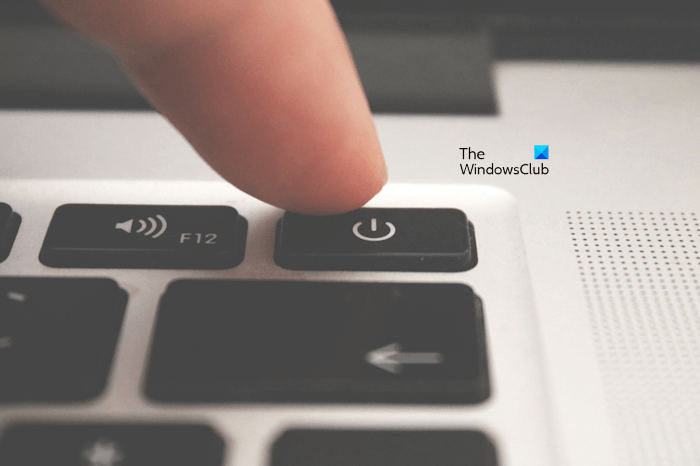
- Force shut down your PC by pressing and holding the power button.
- Remove all peripherals and disconnect the power cord. Disconnect the charger (if you have a laptop).
- Press and hold the power button for up to 30 seconds.
- Connect the power cord or charger and turn on your system.
If your computer boots into Windows, you can download the BIOS firmware again and start installing the update.
8] Clear CMOS
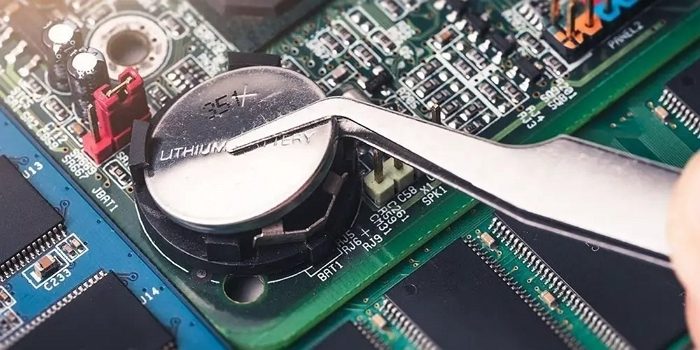
If the issue persists, you can try clearing the CMOS. This step will also reset the BIOS. Force shut down your computer and wait for a few minutes. Disconnect the charger (if it is a laptop) or power cord (if it is a PC). Open your system and locate the small coin-shaped battery. Remove it gently and wait for a few minutes. Reinstall the battery with the right polarity and turn on your system.
9] Contact support
If the issue persists, the last resort is to contact your computer manufacturer’s support for further assistance.
That’s it. I hope this helps.
How to fix Windows update stuck at 0?
If the Windows Update is stuck at 0, it might be due to a corrupt Windows Update file cache. Clearing the Windows Update file cache can help. Apart from this, you can also try running Windows Update Troubleshooter or resetting the Windows Update Components.
Can I fix a corrupted BIOS?
Yes, a corrupted BIOS can be fixed. For this, you have to recover the BIOS. The BIOS Recovery process varies by brand. Therefore, visit the support website to know the exact BIOS Recovery process.
Read next: Black screen when entering BIOS on Windows computer.
