
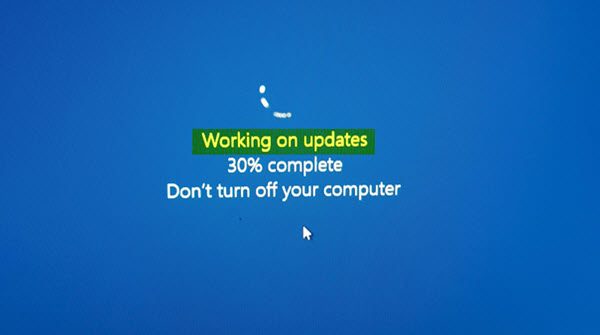
If your Windows 11/10 Updates are stuck on the – Working on updates, Don’t turn off your computer – screen, during their installation, which seems to be taking forever to complete, this fix will help you resolve the issue.
There are many other places where Windows get stuck. Some scenarios are where Windows is stuck while downloading updates or Ready to Install or stuck at the login screen after upgrade on Windows 11/10. This post offers solutions to resolve the issue Windows 11/10 is stuck on Working on updates.
Windows 11/10 stuck on Working on updates
When you see the message ‘Working on updates’, it is best to keep it that way for a couple of hours. The whole process seems to be very slow and seems to be taking forever. Sometimes it is even more than 100%!
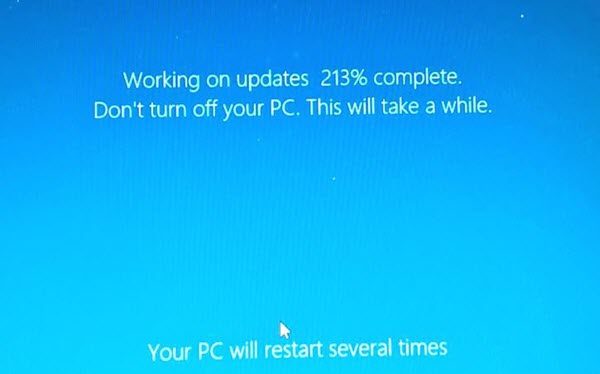
If you have already waited for a long time – say overnight – and still face this issue, then the only way out is to force the shutdown of your PC with a long press on the power button or Laptop. Then reboot, and see if your computer boots normally and takes you to your login screen. If yes, then let’s follow the methods below. However, if it starts updating again, we will need to use Safe Mode to Restore Windows to a state where everything should be working fine. We will discuss it later. So, assuming you are back to your account, follow these suggestions.
If you can boot to Desktop
If you could boot to your desktop, then it’s a good thing, and the issue, in all likelihood, could have been resolved on its own. Nevertheless, as a matter of abundant precaution, so that you do not face Windows update or upgrade problems in the future, I suggest you do the following.
1] Delete the Windows Update file cache
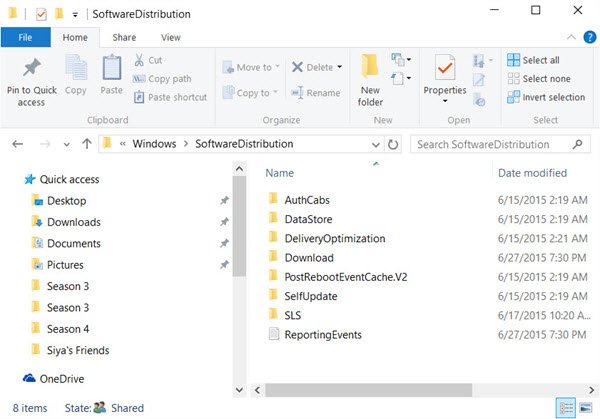
Windows manages a cache folder where it downloads all the updates. It is possible that after an update, the files are still present, and Windows is unable to install them because they have already been installed. You will need to clear the cache files manually from there.
The default location of Windows Update is C:\Windows\SoftwareDistribution. The SoftwareDistribution folder is where everything gets downloaded and later installed.
- Open a command prompt with admin privileges and type the following command —
net stop wuauserv - Go to the Software distribution folder, and delete all files from there, and empty the recycle bin.
- Type the following command
net start wuauservand hit enter in the command prompt. - Restart your PC
Related read: How to delete downloaded, failed, and pending Windows Updates.
2] Run Windows Update Troubleshooter
Windows has an inbuilt Windows Update Troubleshooter as well. Go to Settings > Update and Security > Troubleshoot > Windows Update. Run this, and see if it can resolve your issue.
3] Reset Windows Update Components
We have covered this in full detail about how you can almost reset Windows Update. You will need to have admin privileges and use PowerScript to accomplish this.
Related: Stuck on Updates are underway, Please keep your computer on
4] Run Windows Module Installer
The Windows Module Installer is a built-in Windows 10 service. It lets you fix the Windows updates which are stuck.
To use this, open a command prompt with admin privileges.
Type the following and hit Enter:
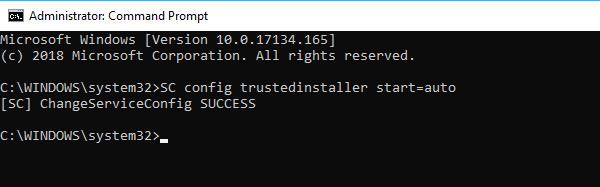
SC config trustedinstaller start=auto
Once successfully executed, you should see [SC] ChangeServiceConfig SUCCESS display within the Command Prompt console.
Exit the command prompt, and check if the buttons are back to normal.
5] Run Windows Update
Run Windows Update to see if any updates are available still.
Related posts:
6] Add Safe Mode to your Boot Menu
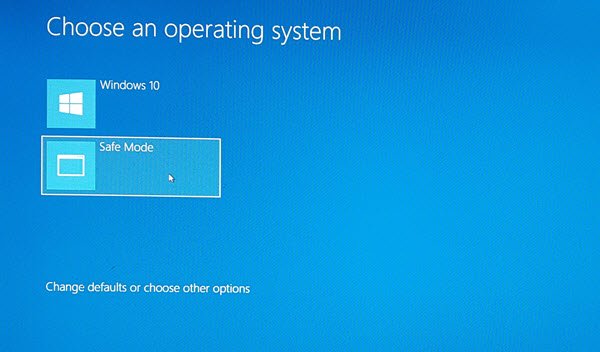
If you add Safe Boot to your Boot menu then if ever your Windows is stuck in a loop this Safe Boot entry can be of immense.
If you cannot access Desktop
Now say even after restarting your computer after the hard shutdown, you find yourself still stuck on the Working on updates screen, then you need to find a way to boot Windows in Safe Mode. The options include:
- Press Shift and click Restart to boot you into the Advanced startup options screen
- Open Settings > Update & Security > Recovery > Advanced startup > Restart now.
- Type shutdown /r /o in an elevated CMD prompt to reboot your computer into Advanced Boot options or Recovery console.
If you had already enabled the F8 key earlier, things are easier as you press F8 while booting, to enter Safe Mode.
If you cannot enter Safe Mode, then you may then have to boot into Windows 11/10 with your Windows Installation Media or Recovery Drive and select Repair your computer to enter Troubleshoot > Advanced Startup Options > Command Prompt. You can now use CMD to run commands.
You may use a Windows 11/10 DVD or a bootable USB drive, or you can burn Windows 11/10 ISO to a USB drive using another computer. You can also try Automatic Repair option to see if that works for you before restoration.
Let us know if any of these helped to fix this problem on your PC.
Read: Windows Update stuck on Updates are underway.
Why is my Windows 11 taking so long to update?
Windows 11 updates may take a long time due to the system performing critical tasks, such as halting processes, backing up data, and updating drivers. Additionally, your hard drive or SSD works intensively during these updates, ensuring system stability, which can slow the process even if the CPU and RAM aren’t fully utilized.
Read: Windows 11 stuck at Ready to install
Why is my computer stuck on working on updates?
Your computer may be stuck on “Working on updates” due to failed or incomplete installations caused by software conflicts, corrupted update files, or insufficient disk space. These issues prevent Windows from finalizing updates, leading to a hang at 100% completion. Restarting in Safe Mode or using the Windows Troubleshooter can help resolve the problem.
