
This post will show you how to remove, delete, rename, or empty the contents of the Software Distribution folder in Windows 11/10.
The SoftwareDistribution folder in Windows is located in the Windows directory and is used to temporarily store files required to install Windows Update on your computer. It is thus required by Windows Update and maintained by WUAgent.
SoftwareDistribution folder location
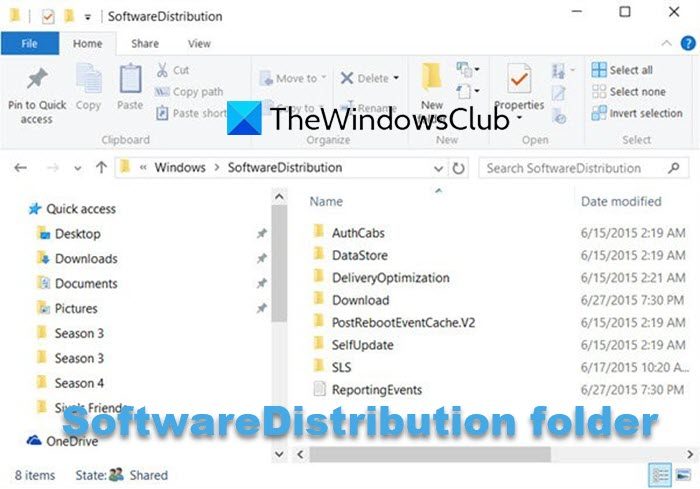
The Software Distribution folder in Windows 11/10/8/7 is situated in the following location in File Explorer:
C:\Windows\SoftwareDistribution
On my computer, it’s around 50 MB, but it could vary.
Is it safe to delete SoftwareDistribution folder
While you do not want to touch this folder under normal conditions, you may need to empty its contents if you find that your system’s Datastore and the Download folder have become desynchronized, resulting in Windows Updates not working properly.
It is generally safe to delete the contents of the Software Distribution folder once all files required for installing Windows Update have been used. Even if you delete files otherwise, they will be automatically downloaded. If you were to delete the folder itself, it would be re-created automatically, and the required WU components would be downloaded.
However, this data store also contains your Windows Update History files. If you delete them, you will lose your Update history. Moreover, the next time you run Windows Update, it will take longer to complete.
If your Windows Update is not working properly or not working at all or if you find that the size of this folder has really grown large, then you can consider deleting the Software Distribution folder in Windows 11/10.
If it is just the size, then if you use Disk Cleanup Tool and opt to Clean up System Files on your System Drive, and then Windows Update components & Delivery Optimization files , you will find that the size of this folder will get substantially reduced. But if you are facing Windows Update issues, then you flushing this folder has been known to help fix several issues like Windows Update not working, Windows Updates fail to install, Failure configuring Windows updates, Windows Update stuck downloading updates, We couldn’t complete the updates, Windows keeps installing the same update and so on.
How to delete Software Distribution folder in Windows 11
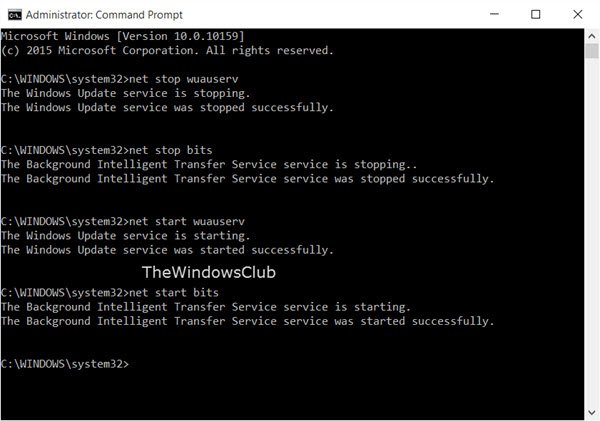
To delete the contents of the Software Distribution folder, in Windows 11/10, from the WinX Menu, open Command Prompt (Admin). Type the following one after the other and hit Enter:
net stop wuauserv
net stop bits
This will stop the Windows Update Service and the Background Intelligent Transfer Service.
Now browse to the C:\Windows\SoftwareDistribution folder and delete all the files and folders inside.
You may press Ctrl+A to Select All and then click on Delete.
If the files are in use and you are unable to delete some of them, restart your device. After rebooting, run the above commands again. You can now delete the files from the Software Distribution folder mentioned.
After you have emptied this folder, you may restart your computer or you may type the following commands, one at a time in the CMD, and hit Enter to restart the Windows Update related Services.
net start wuauserv
net start bits
Now that the folder has been flushed, it will now get populated afresh.
Rename SoftwareDistribution folder
If you wish to rename the Software Distribution folder, open an elevated command prompt window, type the following commands one after the other, and hit Enter:
net stop wuauserv
net stop bits
rename c:\windows\SoftwareDistribution SoftwareDistribution.bak
net start wuauserv
net start bits
Alternatively, you may also boot Windows into Safe Mode, and rename SoftwareDistribution to SoftwareDistribution.bak or SoftwareDistribution.old.
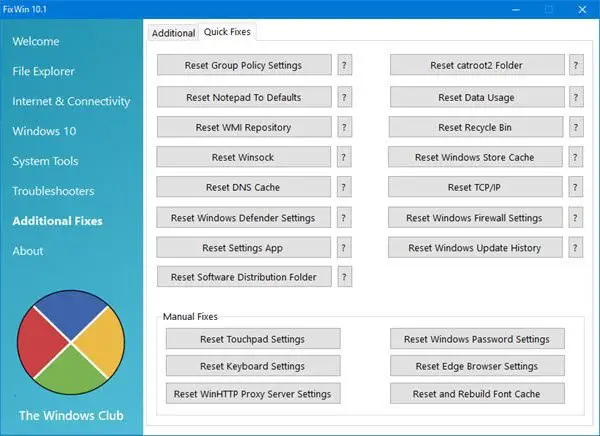
TIP: Our portable freeware FixWin allows you to reset this and most other Windows settings or functions with a single click.
I hope you find the post useful.
What is the DataStore folder in Windows?
The DataStore folder in Windows stores temporary files and LOG files associated with Windows Updates and Update history. It is located inside the SoftwareDistribution folder.
Want to learn more about the following folders?
$SysReset folder | $Windows.~BT & $Windows.~WS folders | | Windows.old folder | Catroot & Catroot2 folders | REMPL folder | $WinREAgent folder | System32 and SysWOW64 folders.
