
If you have enabled the showing of hidden files and folders on your Windows PC and you open the C Drive, you may have seen a hidden $SysReset folder. Maybe you have wondered what this folder contains and if it is safe to delete it. This post explains what the $SysReset folder is and how you can delete it.
$SysReset Folder in Windows 11/10
The $SysReset folder is created when you perform a System Refresh or Reset on your Windows 11/10 computer. It is a hidden folder and so to be able to see it, you will have to make Windows show Hidden files & folders. This folder, located on the C Drive, contains information ranging from log files to migration XML documents, all of which provide useful information to a forensic investigator.
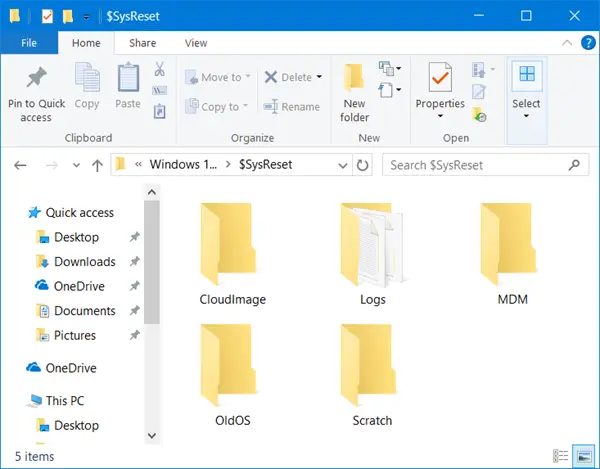
This $SysReset folder also contains an additional folder called Logs, which contains a .etl file. It also creates a .etl file of a different name (sysreset_exe_BootUX.etl) inside C:\Recovery\Logs, which can help a user to find and collect the report and error.
Using this report, you can try the troubleshooting steps to identify why the Reset operation may have failed. If you don’t intend to use the logged information in the folder, you may safely delete it.
Can you delete $SysReset folder?
Yes, it is safe to delete the $SysReset folder on your Windows PC. Just follow the process laid out in this post to directly delete the folder.
Read: What is $GetCurrent folder and is it safe to delete it?
How to delete $SysReset Folder?
Deleting it is simple. Simply right-click on the $SysReset folder, and then select the Delete option to move the folder to Recycle Bin. If you would like to remove the folder completely, select the folder, hold down the Shift key and then press the Delete key.
In certain cases, you might be unable to remove all files and see a pop-up message requesting that you seek permission from Administrators to delete the files.
Restart your computer, log in as Administrator and then delete the folder.
If you still cannot delete it, you may use some freeware to delete undeletable & locked folders.
Read next about the $Windows.~BT & $Windows.~WS folders.
