
Some users cannot access or modify BIOS settings because their system displays a black screen when attempting to enter the BIOS. However, the display works when booting into Windows. Although their computer successfully boots into the BIOS, no visual output appears on the screen. This prevents them from viewing or changing the BIOS settings. If you see a black screen when entering BIOS, this article will help.

Black screen when entering BIOS on Windows computer
If you get a Black Screen when entering the BIOS on MSI, ASUS, Gigabyte, Lenovo, Asrock, etc. PCs, but Windows works fine, use the following suggestions to fix the issue.
- Use the correct method
- Perform a hard reset
- Clear CMOS
- Check your cable
- Disconnect all other monitors and output devices
- Force your system to use the integrated GPU (if applicable)
- Update your graphics card driver
All these fixes are explained in detail below.
1] Use the correct method
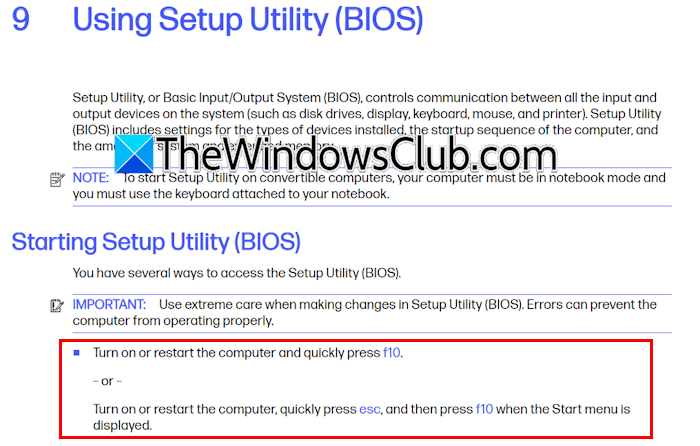
To boot into the BIOS, you need to use the correct method. If you use the incorrect method, you may encounter issues. You might not be using the BIOS key correctly. For example, to access the ASUS BIOS, press and hold the F2 key. If you keep pressing the F2 key instead of holding it down, you may not access the BIOS. The right BIOS key for your brand and how to use it are described in your computer’s user manual.
2] Perform a hard reset
If the problem persists, perform a hard reset. The following instructions will help you with that:
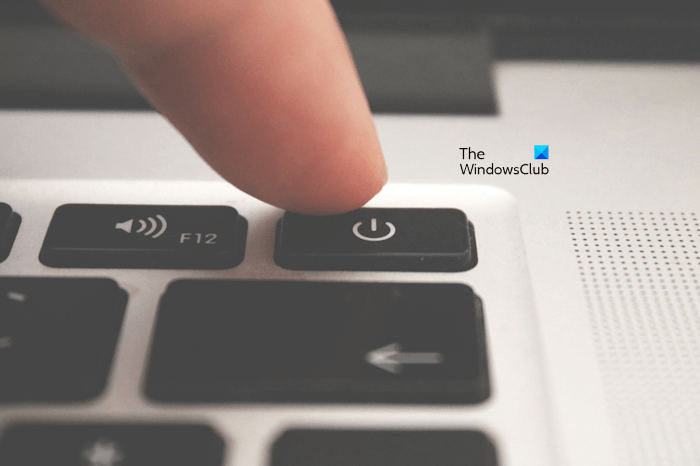
- Shut down your system.
- Remove all the peripherals and disconnect the power cord. If it is a laptop, disconnect the charger and remove the battery.
- Press and hold the power button for up to 30 seconds.
- Connect the power cord and turn on your system.
Now, check if the issue persists.
3] Clear CMOS
If the issue persists, you can try clearing the CMOS. This step will also reset the BIOS settings to their default values. Therefore, if you do not want to reset your BIOS, you can skip this fix and apply it after trying all other troubleshooting fixes explained here.
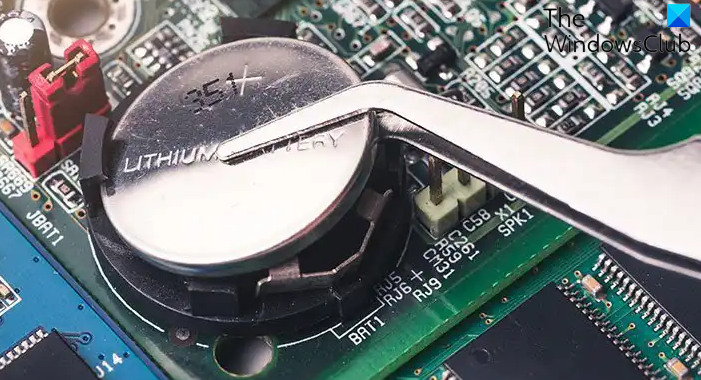
To clear the CMOS, you need to open your computer case. Turn off your computer and open its case. Gently pull out the small coin-shaped CMOS battery from its socket and wait for a few minutes. Now, reinstall the battery into the slot with the right polarity. Turn on your PC and see if the issue persists.
4] Check your cable
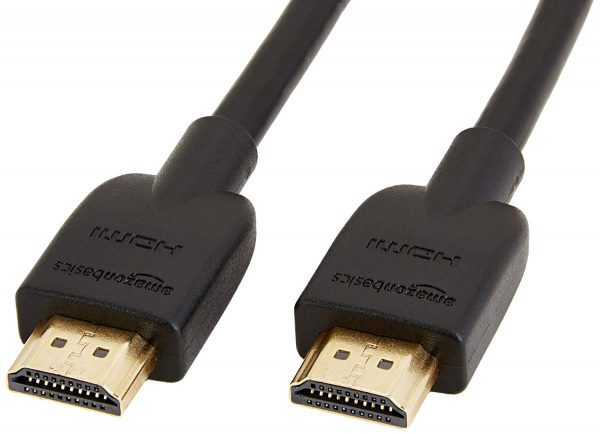
Your cable might be faulty. If you have another cable, you can use it to check whether the issue is related to the cable. Additionally, you can switch from an HDMI to a DisplayPort cable and vice versa.
5] Disconnect all other monitors and output devices
If you have a multi-monitor setup, disconnect all other monitors except the main monitor, then check whether this fixes the issue. If you have connected a video output device other than a monitor, such as a Virtual Reality headset, disconnect it too. Now, boot into BIOS and see if you see the BIOS screen.
6] Force your system to use the integrated GPU (if applicable)
If your system has a dual-GPU setup, the problem might be related to the dedicated graphics card driver. To check this, you can force your system to use the integrated graphics card to display the BIOS screen. For this, turn off your computer and open its case. Now, disconnect the dedicated graphics card and turn on your computer.
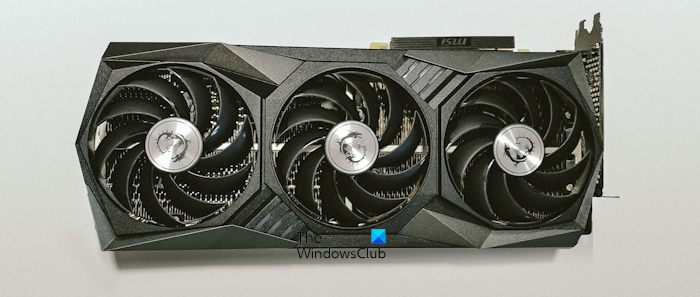
If the display appears in BIOS, it means that the issue is with the dedicated GPU driver. In such a case, updating the graphics card driver can help.
7] Update your graphics card driver
The issue may be with your graphics card driver. In this case, updating or reinstalling it can help. Visit the official website of your computer manufacturer and download the latest version of your graphics card driver from there. Now, run the installer file to update your GPU driver.
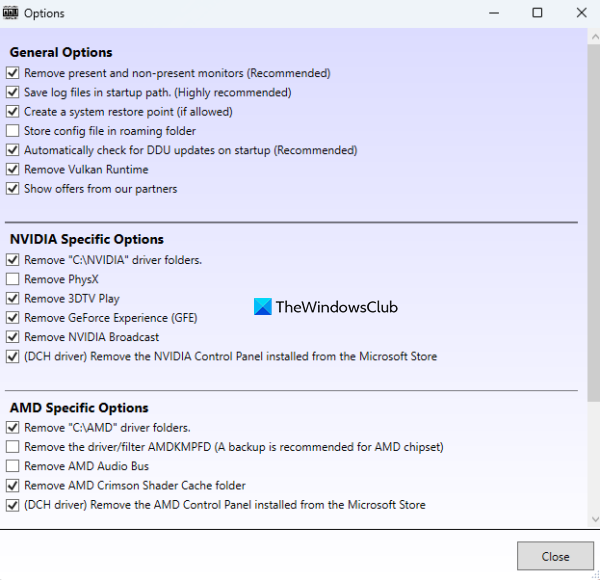
If this does not help, perform a clean installation of the GPU driver. For this, you need to download a third-party tool, such as DDU (Display Driver Uninstaller). Now, run this tool to completely remove the GPU driver. After that, run the installer file to install the GPU driver from scratch.
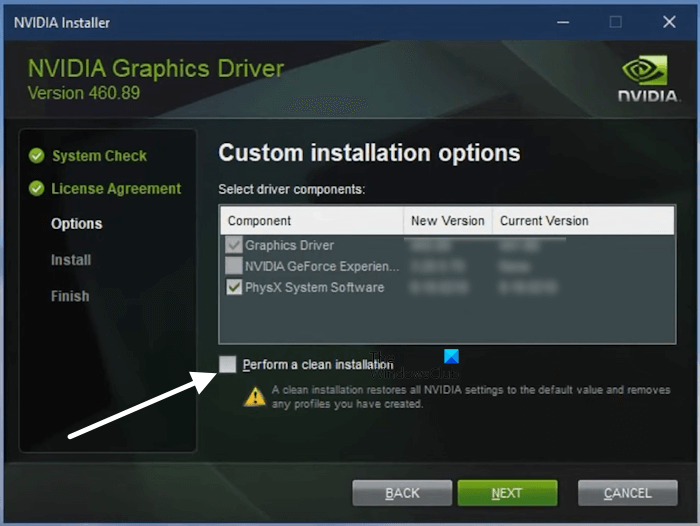
Alternatively, you can use the dedicated software from your GPU manufacturer for a clean installation. For example, the clean installation of the NVIDIA GPU can be done directly through the NVIDIA installer.
I hope this helps.
Related: Windows unable to boot into BIOS.
Can a BIOS cause no display?
Yes, a BIOS can cause a no display problem. If you turn off your system during a BIOS update, that could lead to BIOS corruption, resulting in boot failure. In the worst case, it can damage your motherboard.
Can a bad RAM cause no display?
Yes, a faulty RAM can cause no display. Sometimes, this problem occurs due to improper RAM installation. Most motherboards have a dedicated LED indicator to show problems with hardware such as the CPU and RAM. If the RAM LED on your motherboard glows, it may mean your RAM is faulty.
Read next: The amount of system memory has changed error when turning on the computer.
