
If you encounter the “The amount of system memory has changed, If you did not change your memory” error when turning on your Windows computer, the solutions provided in this article will help you. According to the reports, this error is associated with Dell or Alienware computers.
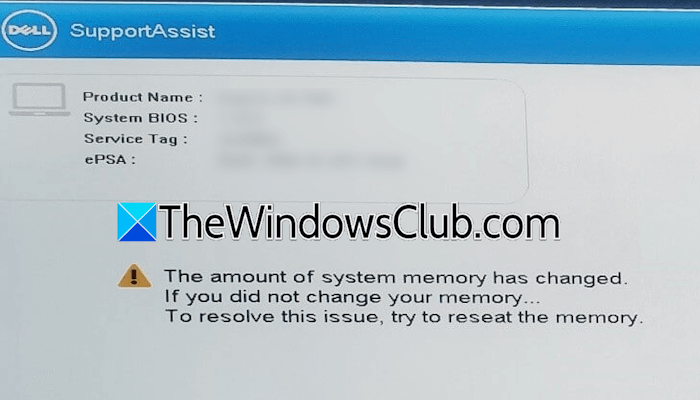
The complete error message is:
The amount of system memory has changed.
If you did not change your memory…
To resolve this issue, try to reseat the memory.
The amount of system memory has changed
Use the following suggestions to fix the “The amount of system memory has changed, If you did not change your memory” error on your Dell or Alienware computer:
- Reseat your RAM stick(s)
- Perform a hard reset
- Clear CMOS
- Uninstall and reinstall Dell SupportAssist
- Test your RAM
- Hardware fault
All these fixes are explained in detail below.
1] Reseat your RAM stick(s)
The error message guides you to reseat the RAM sticks. This fix is helpful if the RAM sticks are not making proper contact with the RAM slots or are dirty. For this, completely turn off your system, then open its case. Unplug the RAM sticks from their respective slots, clean them, and reinstall them correctly. Also, clean the slots before installing the RAM sticks. If you are not good at this, it is better to take professional help.
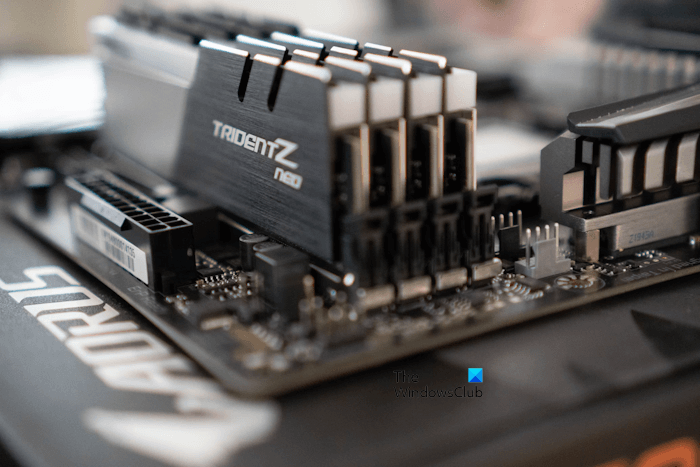
If you have cleaned your system recently, you might have installed the RAM sticks in incorrect slots. Refer to the user manual of your computer motherboard for the RAM installation guide. Alternatively, try installing the RAM stick in all available RAM slots one at a time. If you have more than one RAM stick, you can try different combinations, such as slot 1 and slot 2, slot 1 and slot 3, and so on.
Read: Have to reseat RAM to boot every time
2] Perform a hard reset
If reseating the RAM sticks does not help, there might be a hardware fault with your system. However, before jumping to the conclusion, you can try some more fixes.
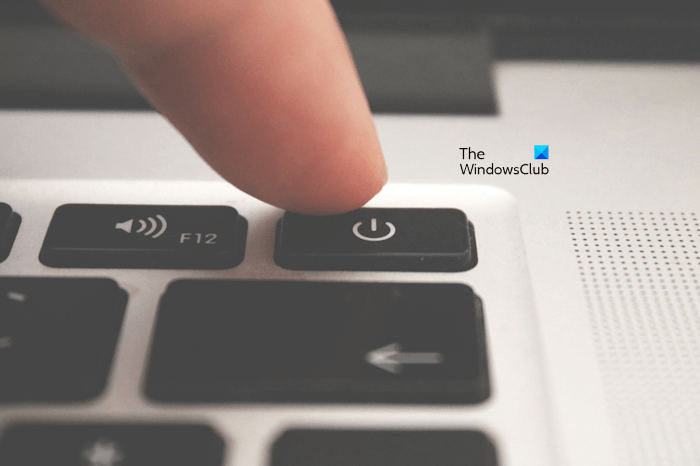
Perform a hard reset by following these instructions:
- Completely turn off your computer.
- Disconnect all peripherals and the power cord. Disconnect the charger (if you have a laptop).
- Press and hold the power button for 30 seconds.
- Turn on your computer.
3] Clear CMOS
The next fix that you can try is clearing the CMOS. Do note that this step will also reset your BIOS to the default. Therefore, note down all your current BIOS settings before proceeding, so you can restore them later.
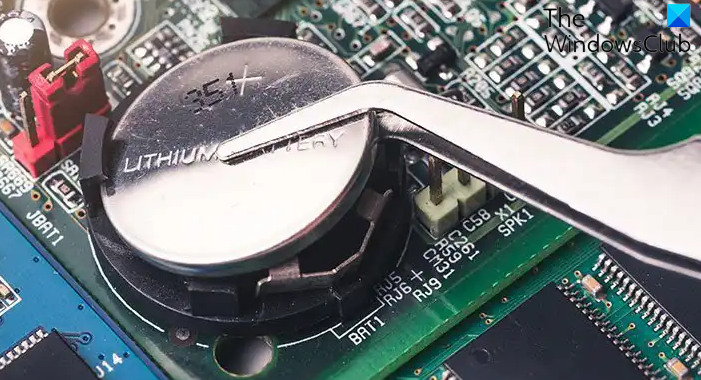
Completely turn off your computer. Open your computer case and locate the coin-shaped battery. Gently pull it out of the socket and wait for a few minutes. Reinstall the battery into the socket with the right polarity.
4] Uninstall and reinstall Dell SupportAssist
The issue might be triggered due to a bug in Dell SupportAssist. If so, uninstalling and reinstalling the application can help. Click Continue on the error screen in BIOS to boot into Windows. Now, download and install Revo Uninstaller. Launch Revo Uninstaller and remove Dell SupportAssist from your system. Revo Uninstaller creates a system restore point before removing the selected application.
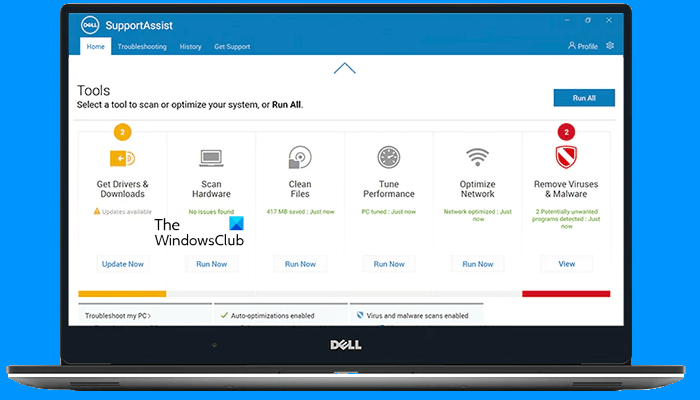
Restart your computer and download the latest version of Dell SupportAssist from the official website. Run the installer file to reinstall the application.
5] Test your RAM
The problem may also be with your RAM. To confirm this, check the status of your RAM in the Task Manager. Open the Task Manager and navigate to the Performance tab. Click Memory and view the memory details. If you see incorrect RAM details in the Task Manager, reseat your RAM. If you have already done that, test your RAM.
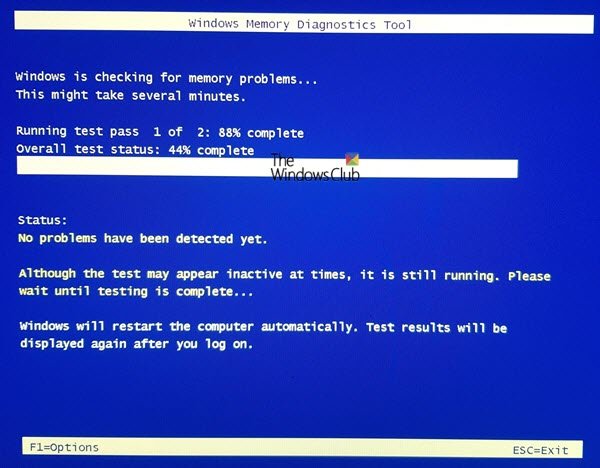
Use the Windows Memory Diagnostic Tool to test your RAM. If the report of the tool indicates issues with your RAM stick(s), it is time to replace your RAM sticks.
6] Hardware fault
Apart from RAM, the problem may be with your RAM slots or motherboard. The easiest way to check this is to install RAM in each available slot. Take your computer to a professional computer repair technician for further assistance.
That’s it. I hope this helps.
Is 70% RAM usage too high?
No, 70% RAM usage is not too high. It is under the safe limits. Using resource-intensive applications results in high RAM, GPU, and CPU usage. Such applications require more RAM to function properly. It is normal if RAM usage spikes to 70% while using a resource-intensive application. However, if the RAM usage remains high even after closing the application or when no application is running, it is a matter of concern.
The amount of system memory has changed, Strike the F1 key to continue
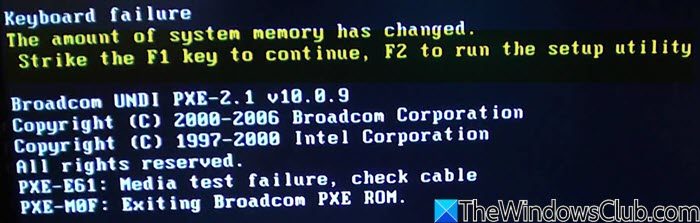
If you see the “The amount of system memory has changed, Strike the F1 key to continue” error, it usually points to a BIOS or RAM-related issue. Take these steps to fix the issue:
- If you upgraded or removed RAM, the BIOS is simply notifying you of the change. Press F1 to continue, then enter the BIOS to confirm the new memory configuration.
- Reseat or Reinstall RAM Modules
- Use built-in tools like Dell SupportAssist or your PC’s diagnostic utility to check for faulty RAM.
- Disable SupportAssist OS Recovery in BIOS (Dell PCs)
- Update BIOS.
How to fix system memory leak?
A memory leak occurs when a program fails to release the memory it has allocated, even after that memory is no longer needed. To fix the memory leak problem, close all running programs and restart File Explorer. If this does not help, restart your computer. You can also run the Windows Memory Diagnostic Tool to check if the problem is with your RAM.
Read next: Dell SupportAssist has detected a failing component.
