
RAM (Random Access Memory) is a crucial hardware component in a computer. It temporarily holds the data processed by the CPU. Hence, it is one of the hardware components responsible for a computer’s performance. Faulty RAM affects a computer’s performance. In this case, the computer shows some signs that you should not ignore. If you notice any of these signs on your system, testing your RAM is one of the preferred ways to confirm the underlying cause. In this article, we will see how to test RAM in Windows 11.
How to test RAM in Windows 11
To test RAM in Windows 11/10, you can use any of the following free tools:
- MemTest
- MemTest64
- MemTest86
- MemTest86+
- Windows Memory Diagnostic
All these tools are explained in detail below.
1] MemTest
MemTest is a very simple tool to test your RAM health. However, it only tests the amount of RAM that is unused. The tool is available in both free and paid plans. When you run the tool, it automatically detects the amount of free RAM available on your system and starts testing it. Since it tests only the amount of free RAM on your system, you do not need to create a bootable USB flash drive to test the RAM.
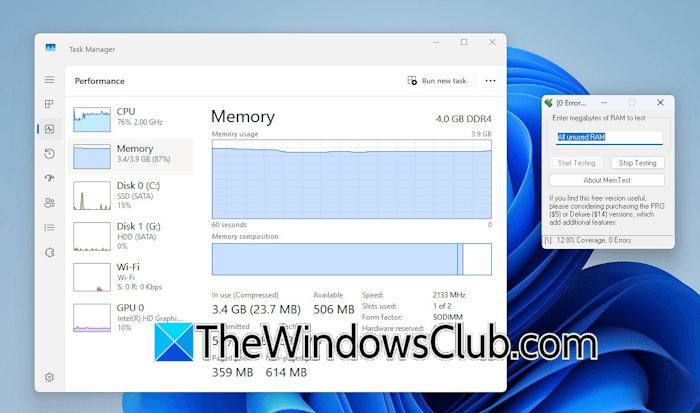
You can download it from its official website, hcidesign.com. You do not need to install it on your system, as it is a portable tool. Extract the ZIP folder and double-click on the. exe file to launch it. Before running this tool, close all other applications running on your system. Let the tool run at least 100% to detect intermittent errors on your RAM. If the tool finds any errors, it will stop automatically and notify you. The longer you run MemTest, the better the test is.
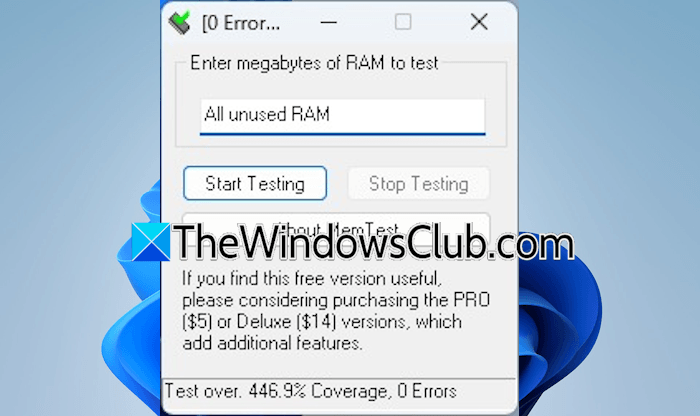
According to the documentation, running memTest for at least 400% will catch all intermittent errors on RAM. But this will take time. Therefore, it is suggested to leave this tool running overnight. The tool stops only if it detects any errors on your RAM. Therefore, you have to stop it manually. When the tool reaches 400% coverage, you can stop it.
Read: How to check RAM speed on Windows 11
2] MemTest64
MemTest64 is another free tool on this list to test RAM in a Windows 11 PC. Like MemTest, it also tests the amount of free RAM available on your system. However, it offers more customizable options. You can download it from the official website, techpowerup.com. It is also a portable tool; hence, you do not need to install it on your system. Just download it and run the executable file. As simple as that!
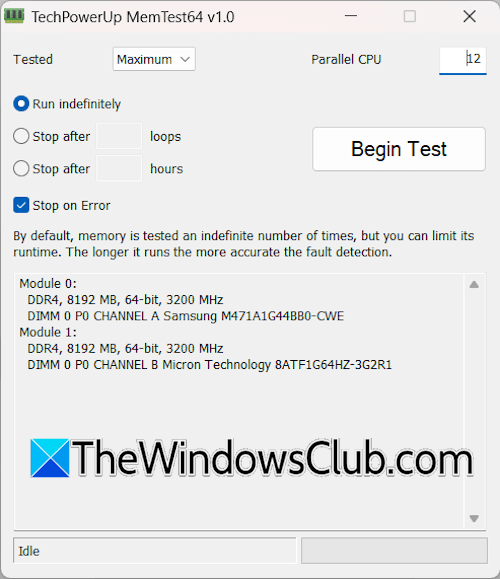
When you launch the software, you will see the interface shown in the above screenshot. By default, Tested mode is set to Maximum. This means the software tests only the available free RAM on your system. You can change the Tested Mode and select a random number from the drop-down based on the amount of RAM you want to test. The Parallel CPU shows the total number of logical processors on your system. You can set this value manually. The greater this value is, the faster the RAM test will be.
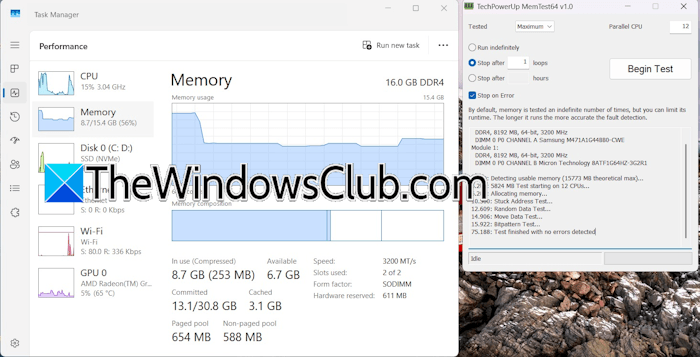
If you want to stop this tool after a specific number of loops or hours, select the appropriate options and set the values accordingly. By default, it runs indefinitely. This means that the tool will continue to run until you stop it manually. If you select the checkbox Stop on Error, it will stop whenever it detects a fault on your RAM, even if the Run indefinitely option is selected. After configuring the tool, click Begin Test.
Read: How to Free up, Reduce or Limit RAM usage in Windows 11
3] MemTest86
MemTest86 is the best tool, and it has been considered a gold standard to test the RAM. It tests the RAM in the boot environment. Hence, you need to create a bootable USB flash drive. First, download the tool from its official website, memtest86.com. The tool will be downloaded as a zip file. Extract the file and open the extracted folder.
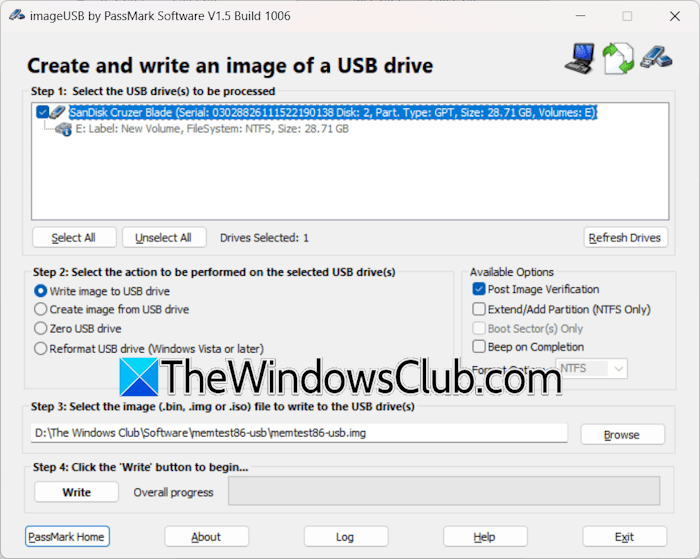
Now, connect the USB flash drive to your computer and then run the .exe file. It will automatically detect the USB flash drive connected to your system. Before you proceed, back up all the data on your USB drive, as it will format it. Select the USB flash drive and leave all the options to their default values. Click Write. Within a few minutes, it will create the bootable USB flash drive for testing the RAM.
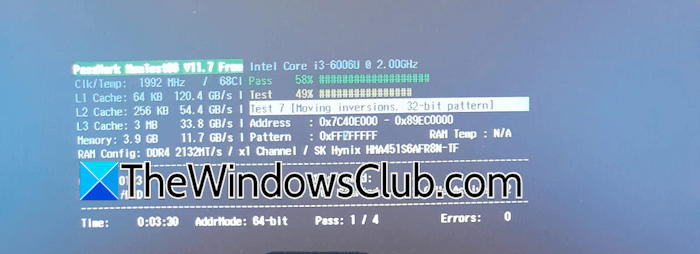
Now, enter your system’s BIOS and select the USB flash drive as a bootable drive. You may need to change the boot order. If you do not know the right BIOS key, refer to the user manual of your motherboard or computer. Save changes and exit BIOS. Your system will boot from the bootable USB flash drive, and you will see the MemTest86 interface. You will see various options to configure the test before starting. If you are not sure about changing these options, you can leave them at their default values and start the test. The test will take time, as it contains 4 passes. You can change this value before starting the test. The speed of the test also depends on the number of cores your CPU has. When the test is completed, it will show you the result as PASS or FAIL. Now, exit MemTest86 and boot into Windows.
4] MemTest86+
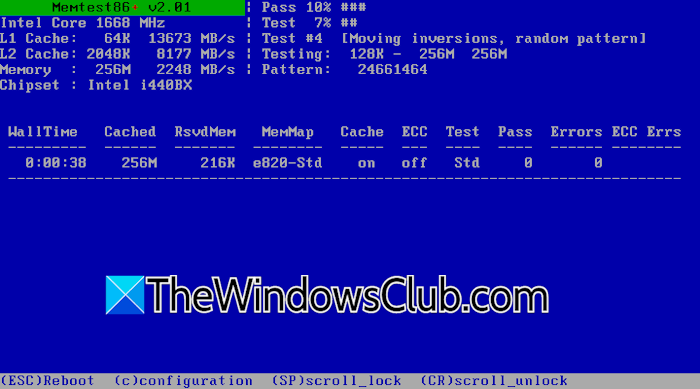
MemTest86+ is another free tool to test your system’s RAM in the boot environment. Like MemTest86m, you need to create a bootable USB flash drive to test your RAM with MemTest86+.
5] Windows Memory Diagnostic
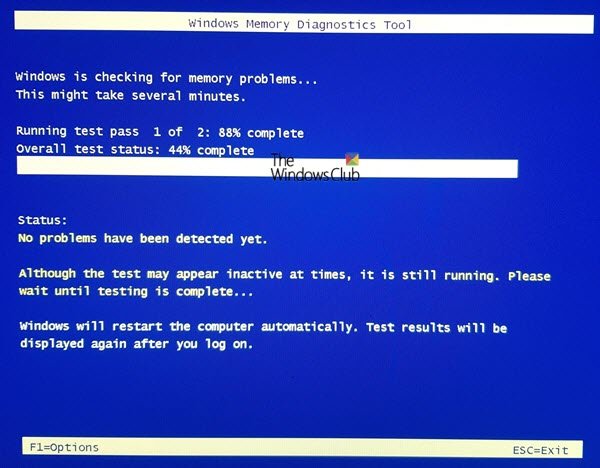
If you do not want to use a third-party tool, you can use Windows built-in tool, Windows Memory Diagnostic. It also runs RAM tests in the boot environment. To launch this tool, click Windows Search and type Windows Memory Diagnostic. Select the matched option in the search results. Now, click Restart now and check for problems (recommended).
I hope this helps.
How to test RAM on an unbootable PC
If your system is not booting into Windows, the issue could be with your RAM. To confirm this, you can run the RAM test using a tool that runs in the boot environment, such as MemTest86. For this, you need to create a bootable USB flash drive on a working computer. Now, connect that USB flash drive to the affected computer and select it in the boot order. Boot from the USB flash drive, and the tool will be launched on restart. Now, test your RAM.
How to test RAM without a PC?
There is a way to test RAM without a PC. For this, you will need RAM testing hardware, which is easily available on online shopping platforms such as Amazon. However, for this, you should know how to use it.
Read next: How to know if you need more RAM on PC.
