
If your RAM is faulty, your system shows some symptoms like frequent BSOD errors or restarts, reduced performance, or boot issues. You can confirm this by running the built-in Windows Memory Diagnostic tool. After the test completes, your system restarts, and you will see the test result in Windows Notification Center. You can also read the test report in the Event Viewer. However, some users complain that the Memory Diagnostic test results are not showing in Event Viewer. This article lists some effective fixes that you can try if you are facing the same problem.
Memory Diagnostic results are not showing in Event Viewer in Windows 11
Use the following suggestions if the Windows Memory Diagnostic results are not showing in Event Viewer:
- Was the test completed successfully?
- Disable BitLocker
- Use the Find feature correctly
- Filter the log correctly
- Search using the Event IDs
- Use the command line to view the test result
- Use a third-party Memory Test tool
All these fixes are explained in detail below.
1] Was the test completed successfully?
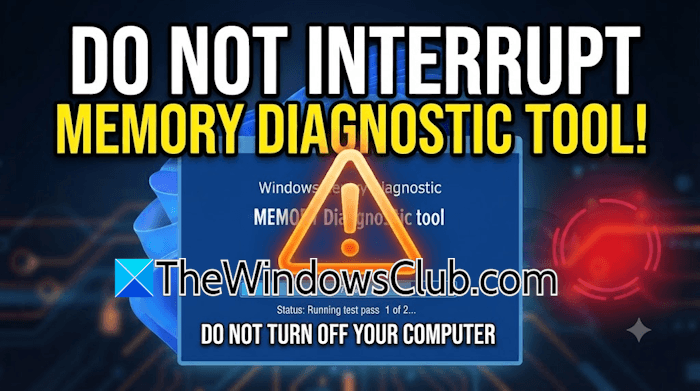
Windows saves the test report only if the test is completed successfully. If you interrupt or cancel the test, your system will boot into Windows without testing your RAM. Hence, the log is not created. Therefore, you must not interrupt the test, no matter how long it takes to complete. You can run the test again and let it be completed successfully this time. When your system reboots automatically after completing the test, you will find the test result in Windows Event Viewer.
2] Disable BitLocker
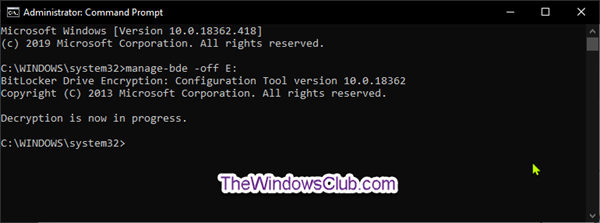
If BitLocker is enabled, you will see the BitLocker screen after the test is completed. This is the default behavior of BitLocker. You have to enter the recovery key to boot into Windows. The BitLocker recovery screen after the RAM test completes may prevent Windows from writing the log in Event Viewer. Disable BitLocker temporarily and run the test again. Now, check if Windows records the test log this time.
3] Use the Find feature correctly
Make sure you use the Find feature correctly. There should not be any typing errors in the text you use to find the memory diagnostic test result. If you use the “memory diagnostic” text to find the test report and it does not bring any results, use the following text:
MemoryDiagnostics-Results
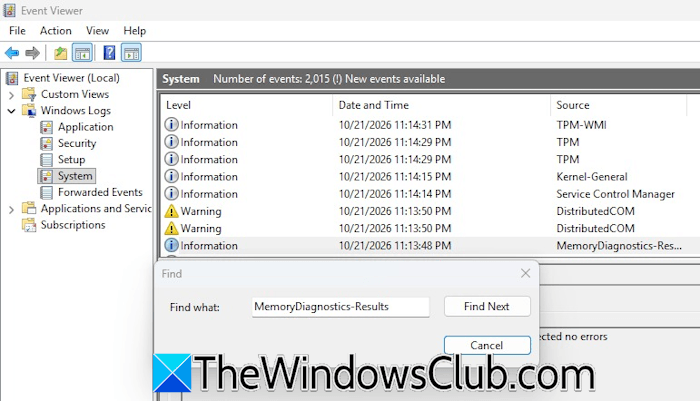
Use the exact phrase as written above; copy it and paste it into the Event Viewer. If the Event Viewer does not show you the required result, check if you are using the Find feature in the right place. The test report is recorded under the Windows Logs > System branch in the Event Viewer.
4] Filter the log correctly
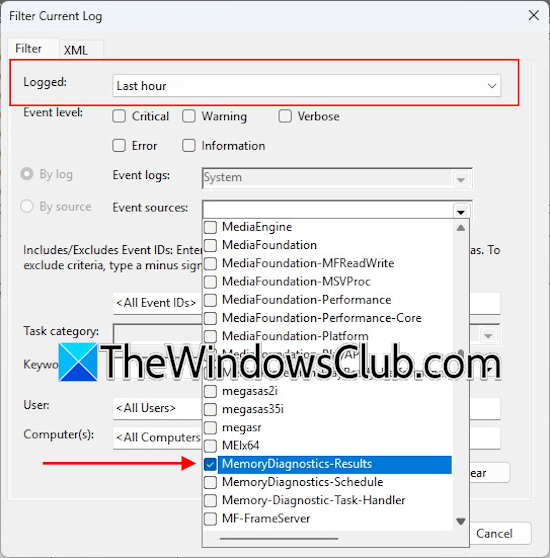
If the Find feature in Event Viewer is not working, you can apply a filter. Under the Windows Logs > System branch in Event Viewer, click Filter Current Log on the right side. Now, click the Event Sources drop-down and select the MemoryDiagnostics-Results checkbox. Based on when you ran the test, you can apply one more filter like Last hour, Last 12 hours, Last 7 days, or a Custom range. This option is available in the Logged drop-down. When you are done, click OK.
If the filter does not bring any results, click Clear filter on the right side and apply the same filter again.
5] Search using the Event IDs
You can also find the test report using the Event ID. Every record created in the Event Viewer has a particular ID. For memory test logs, the following are the four event IDs:
- 1101 and 1201: These event IDs indicate that the test has completed successfully and the tool has not found any issues with the RAM.
- 1102 and 1202: These event IDs indicate that the test has completed successfully and the tool has detected errors or hardware failure with the RAM.
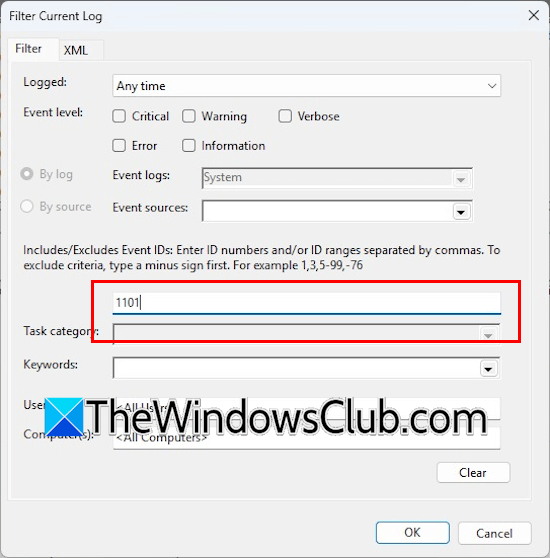
Search using these event IDs. Under the Windows Logs > System branch in Event Viewer, click Filter Current Log. Now, type these four event IDs one by one and click OK. The search result should show the RAM test log this time.
6] Use the command line to view the test result
You can also view the memory test report using the command line utility. Launch Command Prompt as an administrator, copy the command below, paste it into Command Prompt, and press Enter.
wevtutil qe System "/q:*[System[(Provider/@Name='Microsoft-Windows-MemoryDiagnostics-Results')]]" /f:text /c:1 /rd:true
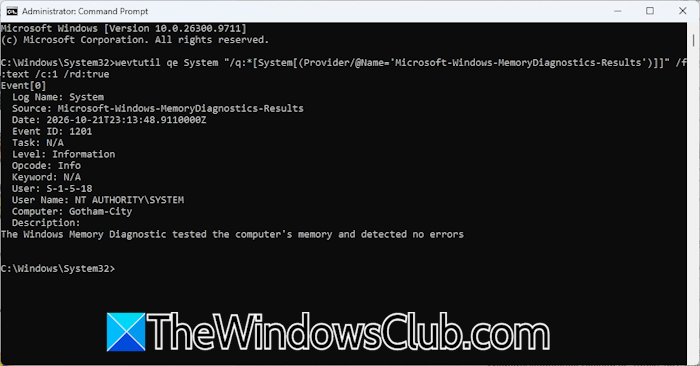
The command prompt window will show you the test report.
7] Use a third-party Memory Test tool
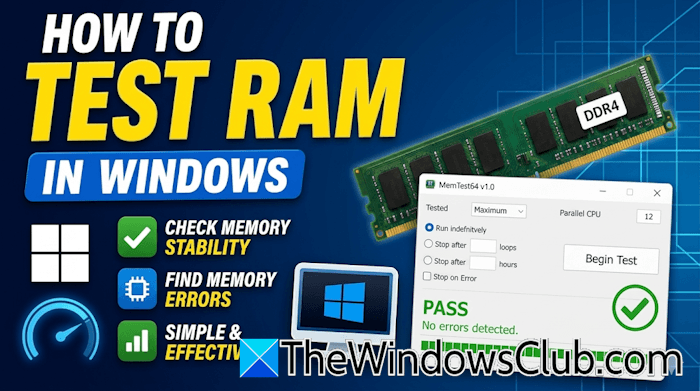
You can also use a third-party RAM test tool to check your RAM health. Like Windows Memory Diagnostic, these tools let you customize the RAM test.
That’s it.
How to run Diagnostics on Memory?
You can use the built-in Windows Memory Diagnostics tool to check your RAM health. The tool tests your RAM in the boot environment and records the results in Windows Event Viewer. You can also use third-party tools, including MemTest64 and MemTest86, to test your computer’s memory.
Read: Windows Memory Diagnostic Tool stuck?
How do I check if my RAM is corrupted?
If your RAM is corrupted, your system may show symptoms such as decreased performance, random restarts, and frequent blue screen errors. However, these symptoms don’t confirm faulty RAM because another hardware issue may be causing them. To confirm whether your RAM is corrupted, use the built-in Windows Memory Diagnostic tool.
Read next: Windows Memory Diagnostic not working; Displaying no results.
