
If your system freezes frequently or you experience performance drops, crashes, frequent BSODs, random reboots, or boot failures, your RAM may be the problem. These are some of the symptoms of faulty RAM or RAM failure. You can test your RAM health using several third-party tools. Windows also has a built-in tool to test your RAM health: Windows Memory Diagnostic. The RAM test results tell you whether your RAM is faulty. If the test shows bad RAM health, consider installing new RAM. This article shows how to check Windows Memory Diagnostic results on Windows 11.
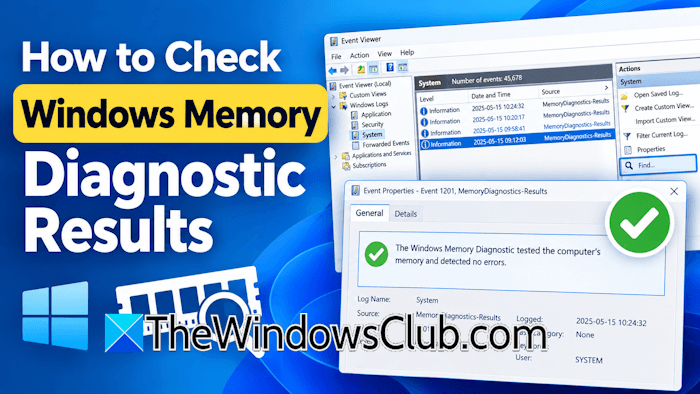
How to check Windows Memory Diagnostic results
The Windows Memory Diagnostic tool helps you test your RAM health to narrow down the cause of the issue, so you can find the exact hardware faults causing your system crashes. When you run the tool, it restarts your system and tests your RAM in the boot environment. After the test completes, your system reboots into Windows and shows a notification in the Windows Notification Center with the test results.
What if Windows doesn’t show the notification, or you clear it by mistake? Is there a way to check RAM test results? Windows OS stores test results, and you can check them anytime. This article shows how to check the results of Windows Memory Diagnostic.
If BitLocker is active on your system and you are going to run a RAM test using the Windows Memory Diagnostic or another third-party tool, it is recommended to back up your BitLocker Recovery keys. This is because when your system reboots into Windows after the RAM test completes, you will see the BitLocker screen, and you can enter Windows only by entering the correct BitLocker recovery key. If you do not have the recovery key, you will be locked out of the computer because bypassing that screen is not possible. If you get stuck at that screen, you have to perform a clean installation of Windows. This action will delete all your data from the hard drive partition on which you install Windows.
To check the Windows Memory Diagnostics results, follow these steps:
- Launch Event Viewer.
- Apply a filter for memory diagnostics results.
- Read the result.
First, launch Event Viewer. When the Event Viewer appears, expand the Windows Logs folder on the left and select System. You will see the Actions list on the right side. Click Find and type the following text. Make sure you type it exactly as shown below; otherwise, the Find feature will not work.
MemoryDiagnostics-Results
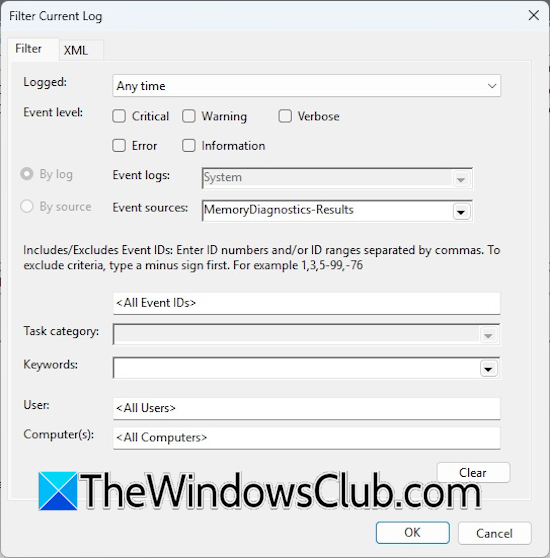
After that, hit Enter or click Find Next. You should see the memory diagnostics results. If this does not work, click Filter Current Log on the right pane. A new window will appear. Now, under the Filter tab, type MemoryDiagnostics-Results in Event Sources. You need to type this in the exact same way. Alternatively, you can select the same by clicking the Event Sources drop-down. Once you are done, click OK.
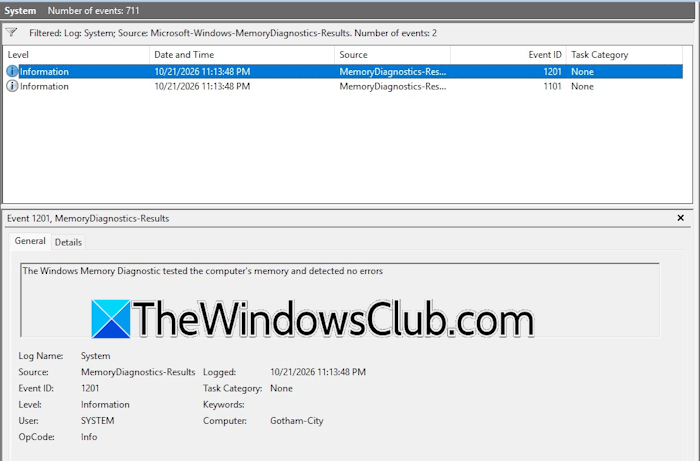
You will see the Memory Diagnostics test results with the date and time they were created. Select the most recent result and read its description available at the bottom. If your RAM is healthy, you will see the following message:
The Windows Memory Diagnostic tested the computer’s memory and detected no errors.
If your RAM is faulty, you will see the respective message in the Event Viewer, such as “Hardware problems were detected.” In such a case, you need to install a new RAM compatible with your system. Do note that if you interrupt or stop the test before it is completed, the results may not be saved in the Event Viewer.
That’s it. I hope this helps.
Read: Windows Memory Diagnostic Tool stuck.
Why isn’t Windows Memory Diagnostics showing results?
The most common cause of this issue is the incomplete test. If you interrupt or cancel the test before it completes, the Event Viewer won’t generate results. Also, make sure you use the correct phrase to find the results. Run the test again and let it be completed this time.
How do I check if my RAM is corrupted?
If your RAM is corrupted, you may experience several symptoms, such as decreased performance, frequent restarts and frequent BSOD errors. To verify whether your RAM is faulty, run the Memory Diagnostic Test using a third-party tool or the built-in Windows tool.
Read next: How to find free Memory Slots in Windows.
