
RAM is a volatile physical storage device that holds data for active applications and operating system processes. This allows the CPU to access data faster, improving the system’s overall performance. Adding more RAM enhances a system’s performance. However, it is not always the RAM, as the system’s performance depends on other hardware too. In this article, we will talk about how to know if you need more RAM on your PC.
How to know if you need more RAM on your PC
The following points will help you know if you need more RAM for your Windows PC:
- RAM usage in the Task Manager
- Program launch time
- Performance of your system while running multiple programs
- Memory error messages
- Bottleneck situation
All these points are explained in detail below.
1] RAM usage in the Task Manager
This is the first step that you should perform. Task Manager shows the real-time data running applications and services. Open the Task Manager and navigate to the Performance tab. You will see the graphical representation of your system’s resource usage, including CPU, RAM, disk activity, network, and GPU usage.
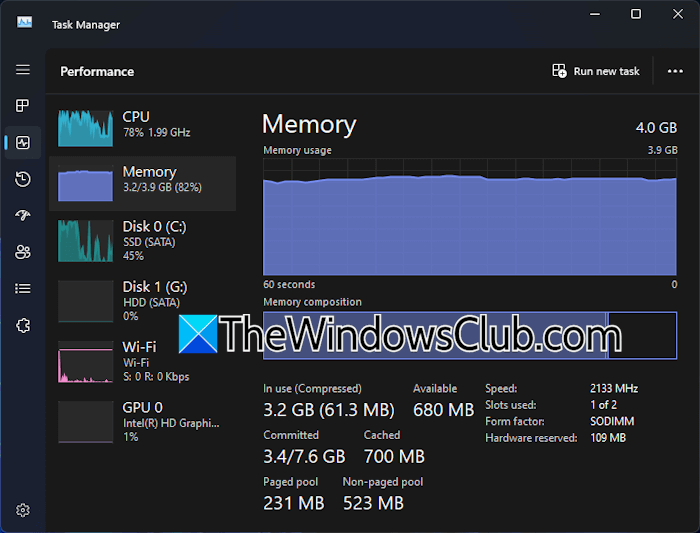
If your system shows high RAM usage when no programs are running, it means most of your RAM is used by Windows processes. In this case, if you launch a program, your system will struggle to run that program smoothly. As a result, you will experience performance issues with your system. In the screenshot above, you can see that RAM usage is nearly full. A RAM upgrade is necessary in this case.
Cached memory is another metric that tells you your system requires more RAM. Windows uses cached memory to store data of recently used programs. This allows the frequently used applications to launch faster when reopened. If the cache memory is low, Windows cannot store data for recently used apps properly, leading to slower launch times when the same application is opened again.
2] Program launch time
Program launch time is the time it takes the Windows operating system to launch a particular application. When you launch a program for the first time, Windows takes time to open it. This is because the operating system must access data on the hard drive. After that, Windows stores its data in the cached memory. Now, if you launch that program again, the launch time is significantly reduced.
Due to insufficient cache memory, Windows must access the required data from the hard disk, resulting in slower performance.
3] Performance of your system while running multiple programs
How your system performs under multitasking also indicates whether you need to install more physical RAM. Launch applications one by one and monitor the RAM consumption. If a sufficient amount of memory is left free after launching multiple applications, purchasing RAM for your system will be a waste of money.
If your job requires working with heavy applications, such as Adobe Photoshop, monitor your system’s performance after launching such applications.
4] Memory error messages
If your system shows memory error messages, like Out of memory or system resources, while launching an application, it means your system does not have enough RAM or system resources to run that application.
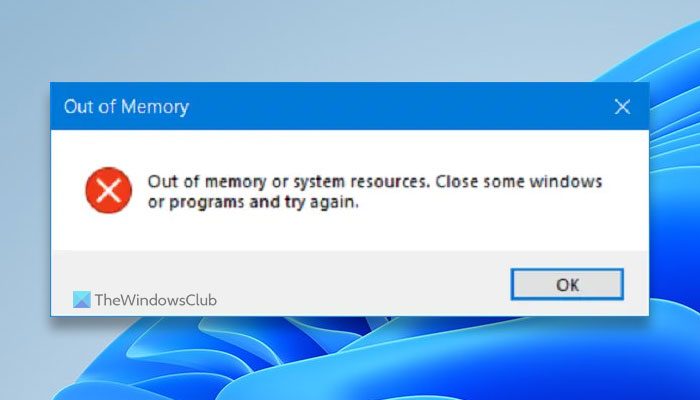
If you encounter a memory error message, open Task Manager and monitor RAM usage. If all memory is occupied, this means your system needs more RAM.
5] Bottleneck situation
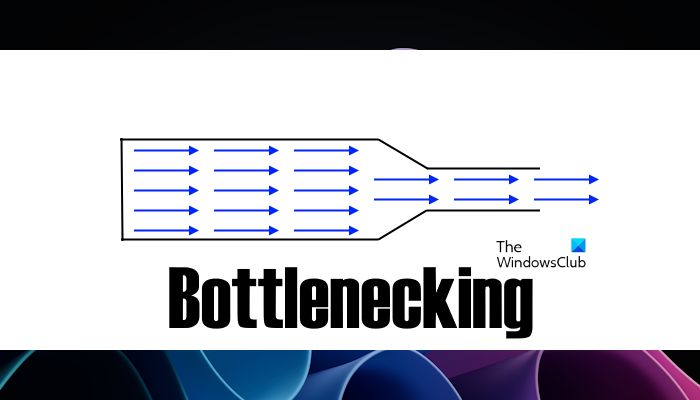
If your system has enough RAM but you still experience performance issues, adding more RAM will not fix the problem. This is a case of a bottleneck. A bottleneck occurs when one hardware component cannot perform at its full potential because another limits the overall system’s performance. In this case, you need to upgrade other hardware. For example, if your system has an HDD, installing an SSD will improve your system’s performance.
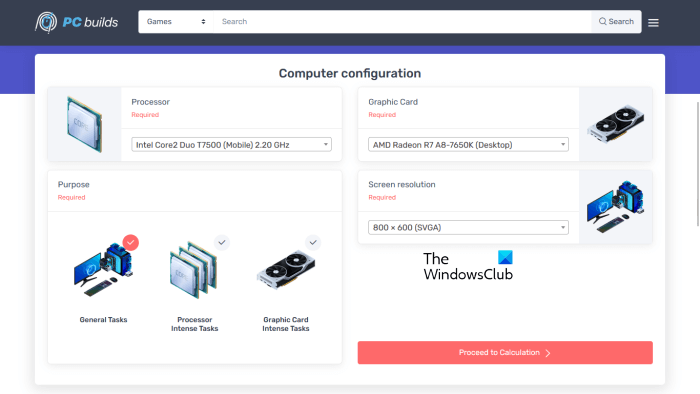
You can use free bottleneck calculators to check which hardware is limiting other hardware from operating at its full potential.
That’s it. I hope this helps.
Will 32 GB RAM be faster than 16 GB?
Adding more RAM to a computer doesn’t always make it faster. Apart from RAM, a computer’s performance depends on other hardware too. If your system has sufficient RAM but Windows is installed on an HDD, it will create a bottleneck, and your system will not deliver optimum performance. To fix this issue, you need to install an SSD.
Is 64 GB of RAM overkill for a laptop?
It depends on how you use your laptop. If you use your laptop for basic tasks, such as browsing the internet and running light applications, 64 GB of RAM is overkill. However, if you use your laptop for gaming, 64 GB of RAM is sufficient.
Read next: You don’t have enough system and video memory to start the game.
