
In this article, I will show you how to increase the System Reserved Partition in Windows 11. System Reserved Partition is a reserved partition in Windows 11 that contains essential boot files required by Windows to start up and operate correctly. This partition is hidden by default and does not have a drive letter.
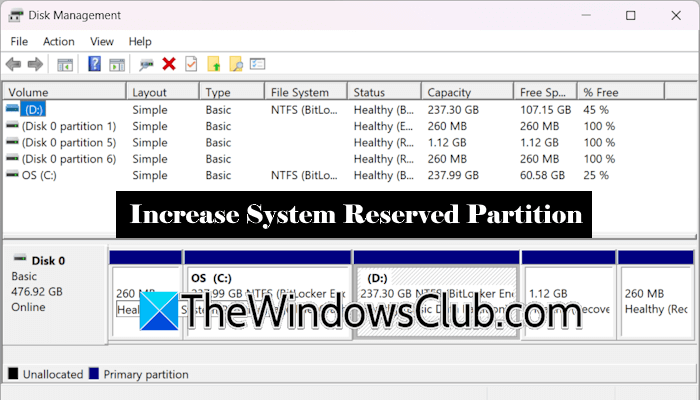
Sometimes, you may need to extend the size of the System Reserved Partition. For example, if you encounter the following error due to less space available on the System Partition while updating or upgrading Windows, you need to extend the System Reserved Partition:
Windows 11 couldn’t be installed
We couldn’t update the system reserved partition.
How to increase the System Reserved Partition in Windows 11
You can increase the System Reserved Partition size in Windows 11 via the following two ways:
- Without using a third-party software
- Using a third-party software
Let’s start. Before proceeding, I recommend you back up your data and create a system restore point.
1] Increase the System Reserved Partition in Windows 11 without third-party software
Increasing the size of the System Reserved Partition without third-party software requires executing the necessary commands in Command Prompt. Therefore, this method is only for advanced users. If you are not familiar with the Command Prompt, you can skip this method.
The System Reserved Partition contains Windows boot files. Therefore, you cannot directly increase its size. You have to create a new Unallocated Space and then mark that partition as an active System Reserved Partition. I will show you how to do that.
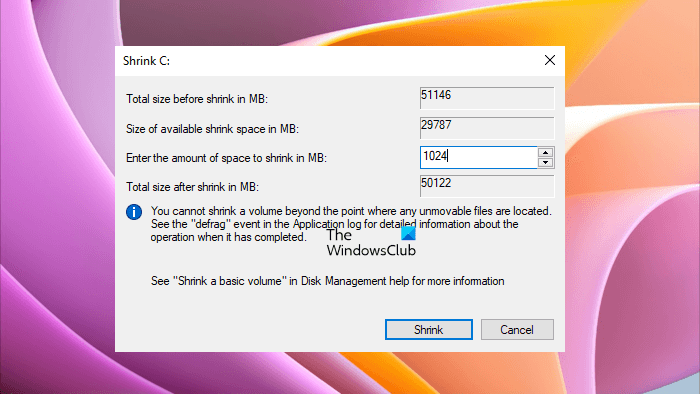
The first step is to create an Unallocated Space on your system. Follow these steps:
- Right-click on Start and select Disk Management.
- Right-click on your C drive and select Shrink Volume.
- Enter 1024 MB, the amount of space to shrink the volume and create an Unallocated Space.
- Click Shrink.
After performing the above steps, an Unallocated Space will be created on your system. Now, open the Command Prompt as an administrator and type the following commands. Press Enter after entering each command.
Diskpart

list disk

select disk #
In the above command, replace # with the correct disk number. Now, type:
create partition efi
Windows will automatically detect the Unallocated Space and mark it as the EFI System Partition. Type the following command and press Enter:
format quick fs=fat32

assign letter=y

exit
The exit command will force Windows to leave Diskpart. After leaving Diskpart, do not close the Command Prompt windows. Execute the following command:
bcdboot c:\windows /s y: /f UEFI
The above command will create the boot files on the new partition.
After executing all the above commands successfully, the boot files will be created on the new partition, and the previous partition will become useless. Now, you can delete the previous partition and merge it with the C drive.
2] Extend the System Reserved Partition using third-party software
This method is straightforward for non-tech users. Many free tools are available to increase the size of the System Reserved Partition. I will show you how to do this using the Minitool Partition Wizard. Download and install the Minitool Partition Wizard. Launch the Minitool Partition Wizard and shrink the C volume to create an Unallocated Space.
Right-click on your C drive and select Move/Resize. Minitool Partition Wizard does not show the Move/Resize option if your C drive is encrypted with BitLocker. In such a case, you must disable the BitLocker drive protection first.
After selecting the Move/Resize option, you will see a new pop-up window showing you the details of the selected partition. You will see the following details:
- Unallocated Space Before: This option creates an Unallocated Space before the selected drive.
- Partition Size: This is the actual partition size of your C drive.
- Unallocated Space After: This creates an Unallocated Space after the selected drive.
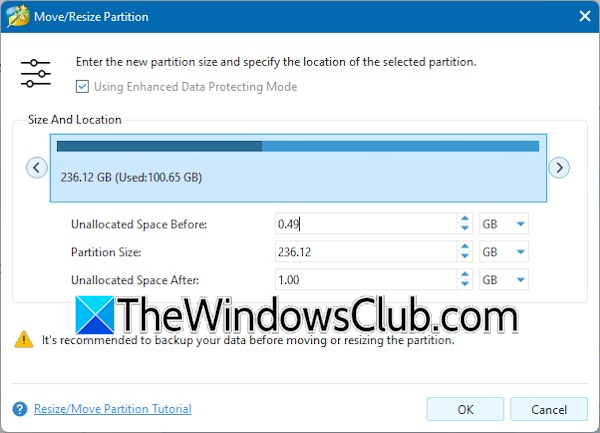
Place your mouse cursor on either side of the hard disk. For example, if you want to create an unallocated space before the C drive, place your mouse cursor on the left. If you want to create an Unallocated Space after the C drive, place your mouse cursor on the right. Now, press and hold the left mouse button and drag it slowly to create an unallocated space. Alternatively, you can also enter the size of the Unallocated Space manually in the required field.
Click OK when you are done. After that, click Apply. The tool will take some time to create an Unallocated Space. You can also use the built-in Disk Management tool to create an Unallocated Space on your C drive. However, it creates the Unallocated Space only after the C drive.
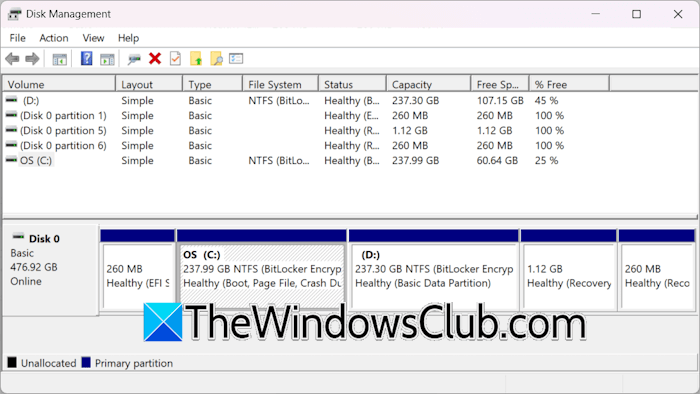
If the Disk Management shows the System Partition before the C drive, it is better to create an Unallocated Space before it. However, creating it after the C drive also works. One thing to note here is that there should be no other partition between the System Partition and the Unallocated Space you created except the Primary Partition (C drive).
If any partition lies between the System Partition and Unallocated Space, you need to fix that first.
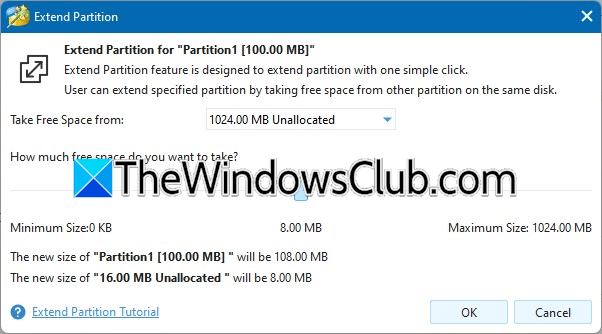
Now, right-click on the System Partition and select Extend. A new pop-up window will appear. Here, you have to select the Unallocated Space in the “Take Free Space from” drop-down. After that, click OK and then click Apply. Minitool Partition Wizard will then merge the System Partition with the Unallocated Space and extend its size. Restart your computer if you are asked to do so.
NIUBI Partition Editor is another free software that you can use to extend your System Reserved Partition.
That’s it. I hope this helps.
How to increase the C partition size in Windows 11?
To increase the C partition size in Windows 11, you have to create an Unallocated Space from another available hard drive partition on the same disk. The Unallocated Space should be created just after the C drive, but Disk Management always creates it after the selected partition. Therefore, you have to use a third-party tool, such as Minitool Partition Wizard.
How do I add space to the system reserved?
To add space to the System Reserved Partition, you can use Disk Management or a third-party tool. If you use Disk Management, you need to execute the required commands in the Diskpart utility. This can be a bit tricky for non-tech users. Therefore, using third-party tools is often simpler.
Is the EFI partition the same as the System Reserved Partition?
No, they’re not the same, though they often get confused because both are small partitions created automatically during Windows installation.
EFI partition stores boot loaders, EFI applications, and drivers for UEFI firmware. Required for UEFI-based systems. System Reserved Partition stores Boot Manager and Boot Configuration Data (BCD) for BIOS/MBR systems. It also reserves space for BitLocker.
On UEFI systems, the EFI partition replaces the System Reserved Partition’s role in the boot process. On legacy BIOS systems, the System Reserved Partition is used instead. In short: EFI partition = UEFI boot files, System Reserved = BIOS boot files. They serve similar roles but in different boot architectures.
Read next: System Reserved Partition missing in Windows.
