
This post will show you how to use Teams Troubleshooters to fix Microsoft Teams problems in Windows 11.
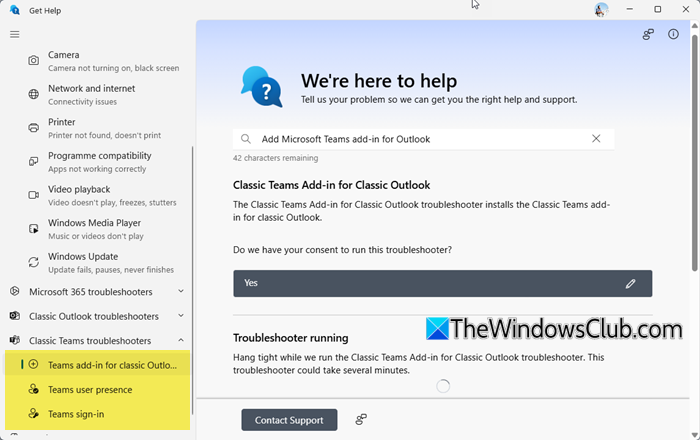
Use Teams Troubleshooters to fix Teams problems in Windows 11
To use the Teams Troubleshooters, update your Get Help app and then launch it.
On the left side, you will see a list of all the Troubleshooters that it offers. Expand Classic Teams Troubleshooters.
These troubleshooters are meant for the classic MS Teams desktop software. Scroll down till you see:
- Teams Add-in for Classic Outlook troubleshooter
- Teams user preference troubleshooter
- Teams sign-in troubleshooter.
For now, only the Teams Add-in for Classic Outlook troubleshooter. The other two open a link in the web browser that appears to be broken.
We will update the post once Microsoft fixes this problem.
Meanwhile, you can take a look at these related posts:
- Microsoft Teams Login issues
- Microsoft Teams not opening or launching
- Microsoft Teams keeps spinning, loading or putting on hold.
Bonus Tips:
- Clearing Teams’ cache resolves many issues. Close Teams, then delete the cache files from
%appdata%\Microsoft\Teams - Repairing or Reseting Teams can fix most issues. Open Windows Settings > Apps > Installed apps, find Microsoft Teams, click Advanced options, then choose Repair or Reset.
Read: How to use the Copilot Troubleshooters to fix Copilot problems in Windows 11.
