
According to some reports, Microsoft Teams keeps spinning or loading when users try to launch it. Some have also reported an issue where Teams put them on Hold as soon as they try to make a call. In this article, we are going to see why one may experience such peculiar issues and how to resolve them.

Why is my Microsoft Teams stuck on loading?
There are many reasons why your Microsoft Teams keeps spinning, loading or putting on hold, and one of them might be an issue with your password. Ensure that the credentials you enter are correct. Other than that, issues such as corrupted cache or corrupted app files can also trigger this issue. A poor Internet connection is one of the reasons that most people don’t discuss, but it can cause Microsoft Teams to get stuck on the loading page.
In this post, we will delve into detail and discuss each cause and its respective solution.
Fix Microsoft Teams keeps spinning, loading or putting on hold
If Microsoft Teams keeps spinning, loading, or putting on hold, then the first thing you should do is check for updates. You need to make sure that your computer is up-to-date as the issue can be because of a bug that the update is entitled to fix. If updating is unsuccessful, you can proceed to the following solutions and attempt to resolve the issue.
- Make sure that your Password is correct
- Remove Microsoft Teams Credentials and Sign In
- Check your Internet Connection
- Clear App Cache
- Reinstall MS Teams
Let’s discuss them in detail.
1] Make sure that your Password is correct
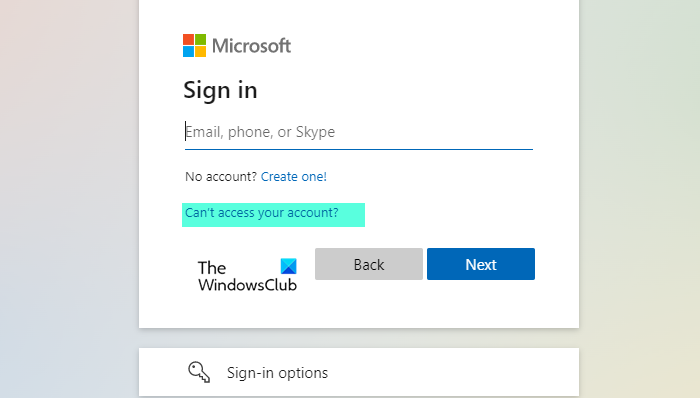
First, you need to verify your credentials; if they are incorrect, you will not be able to resolve the issue and will be stuck on the loading page indefinitely. So, pull out a browser and visit teams.microsoft.com and try to log in there.
If you are able to do that, then your password is correct. But if it’s wrong and you don’t remember your password, click “Can’t access your account?. From there you can reset your password and try logging in again.
2] Remove Microsoft Teams Credentials and Sign in
If your password is correct, then you may want to remove your Microsoft Teams Credentials and Sign In. To do that, follow the given steps.
- Open Windows Credential Manager by searching it out of the Start Menu.
- Look for your Microsoft Team’s account, you may see msteams_adalsso/adal_context.
- Expand it and click on the Remove button to remove your MS Teams credentials.
Finally, restart your computer and hopefully, the issue will be fixed.
3] Check your Internet Connection
A poor Internet connection stops your MS Teams at the loading page, hence, you need to check your Internet connection and see if you are getting low bandwidth. You can use a Internet Speed Checker to do the same, if you conclude that your Internet speed is slow, check if all the devices connected to that network are seeing similar issues. If they are, then you need to contact your ISP. If yours is the only device getting low bandwidth then you should fix the slow Internet issue.
Fix: Microsoft Teams Login issues: We couldn’t sign you in
4] Clear App Cache
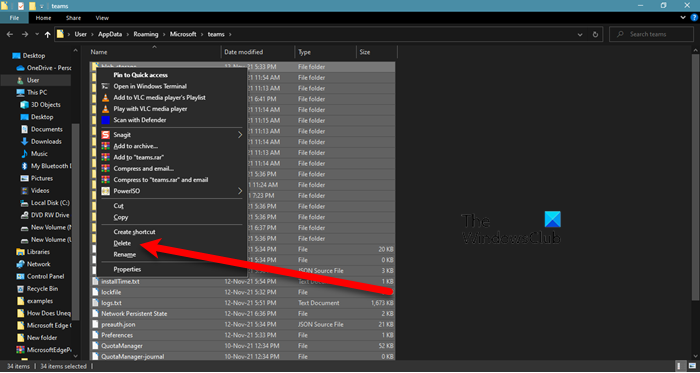
As mentioned earlier, a corrupted app cache can cause this error, so, you need to clear the app cache and retry opening MS Teams.
First, close Microsoft Teams. You may want to check Task Manager (Ctrl + Shift + Esc) to see if Teams is running. If it is, then you should right-click on it and select End Task.
Now, open Run (Win + R) and paste the following text.
%appdata%\Microsoft\teams
From there, you need to delete all the content and resolve the issue.
Fix: Microsoft Teams Error code caa7000a
5] Reinstall MS Teams
If all else fails, then reinstalling the app is your last resort. So, uninstall MS Teams from your computer and then reinstall it. Finally, check if the issue persists.
Hopefully, you will be able to resolve the issue.
Fix: Microsoft Teams can’t load or send images in chat.
How do I fix the Microsoft Teams glitch?
If you are experiencing an issue in MS Teams, restarting the app is often enough to resolve the problem. However, if you consistently experience glitches in Microsoft Teams, you can try the solutions mentioned earlier.
In most cases, clearing the app cache is enough to resolve the issue. So, start from there, then proceed to the first solution. However, if the glitch that you are talking about crashes the application, then try to fix Microsoft Teams crashing or freezing issue.
We have mentioned links to some of the most common issues that Teams users face, so please check them out if you are experiencing any glitches.
