
Microsoft Teams may sometimes encounter issues that prevent users from fully benefiting from the platform. One common issue users face is Microsoft Teams randomly crashing or freezing during meetings or calls. In this guide, we provide you with quick fixes for the same.
Microsoft Teams, a collaborative workspace, is a business communication platform within Microsoft 365. It has recently become an important tool by enabling smooth workplace conversations and remote document sharing.
Microsoft Teams crashing or freezing during Meetings

Here are a few methods to resolve Teams crashes or freezes.:
- Identify Teams service status
- Clear Teams cache
- Clear Windows credentials
- Try accessing Teams from other devices/applications
- Repair, Reset or Reinstall Microsoft Teams
Let us look at each of these methods in more detail.
Microsoft Teams keeps hanging up, crashing or stopping
1] Identify Teams service status
If Microsoft services are down for maintenance, your application may freeze, crash, or refuse to open. In such cases, you may check the service status in the admin panel of your Office 365 account.
- Start Office 365 admin center.
- Check Service Health. You will see the service status and measures that are taken to solve the issue.
- Please note that to check the service status, you will require admin access. In case you do not have access, you will have to contact the admin.
- To be updated with all service status, you can also follow Microsoft Office 365 Status handle on Twitter.
- Service-related issues will be solved automatically in a few hours or a day.
2] Clear Teams cache
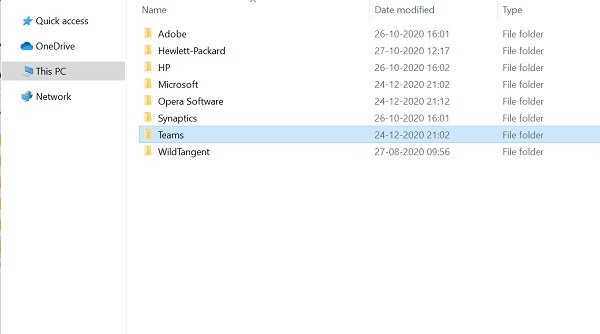
The freeze and crash issues can also be resolved by clearing Microsoft Teams cache.
- Shut Down Microsoft Teams.
- Launch Task Manager and check the Teams related services running in the task manager. End all services and processes.
- Press Windows + R to open the Run window.
- Type %appdata% and press Enter.
- Go to C:\Users\UserName\AppData\Roaming\Microsoft\Teams.
- Delete only the files within the following folders: tmp folder, blob_storage, cache, GPUcache, databases, and local storage.
- In the IndexedDB folder, only delete the .db file.
- Close Microsoft Teams and then restart your computer.
Read: Windows computer crashes when using Teams
3] Clear Windows credentials
Clearing the Teams’ account details from the credential manager may also fix the crash or freeze issue.
- Check that your Microsoft Teams app is closed.
- Press Windows + R to open the Run window.
- Type Control and click on Ok.
- Go to User Accounts in the Control Panel.
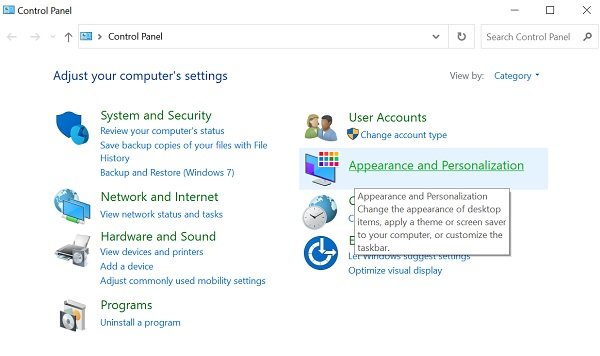
- Go to Credential Manager.
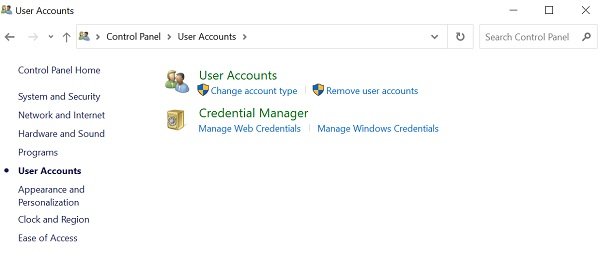
- Select the Windows Credentials
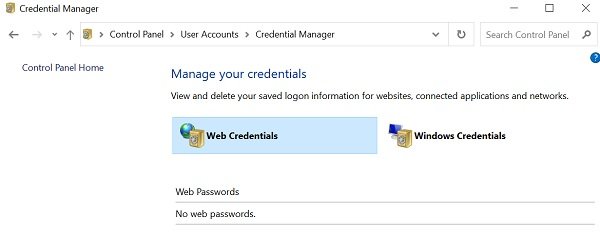
- Expand the Microsoft Office Teams section and select Remove.
- Click Yes to confirm.
- Close the Control Panel and restart Microsoft Teams.
- Check if the crash issue is resolved.
Read: Microsoft Teams not opening or launching on PC
4] Try accessing Teams from other devices/applications
If the Teams desktop application is not working, then try accessing it from other devices.
Web app
- Go to Microsoft Teams web app.
- Login with your account credentials.
- Please note that the web app is similar to the desktop app, and you will receive almost the same functionality.
Mobile app
- You can also install the Teams app from the App Store for iOS and the PlayStore for Android.
- If your work does not depend on the desktop app, use the mobile app until the issue is resolved.
Fix: Outlook connectivity issues on Windows 11
5] Repair, Reset or Reinstall Microsoft Teams
Windows 11: Open Settings > Apps > Apps and features and locate Microsoft Teams in the Apps list.
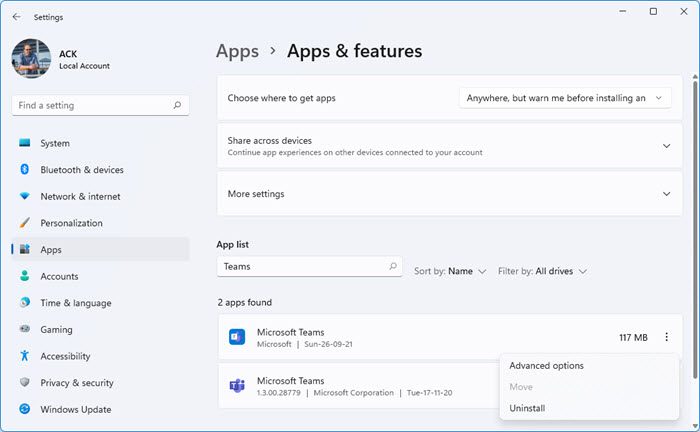
Click on 3-dots > Advanced options. There you will see the buttons to Repair or Reset the app.
If that does not help, you may Uninstall it and then reinstall Microsoft Teams.
Windows 10: A similar process has to be followed.
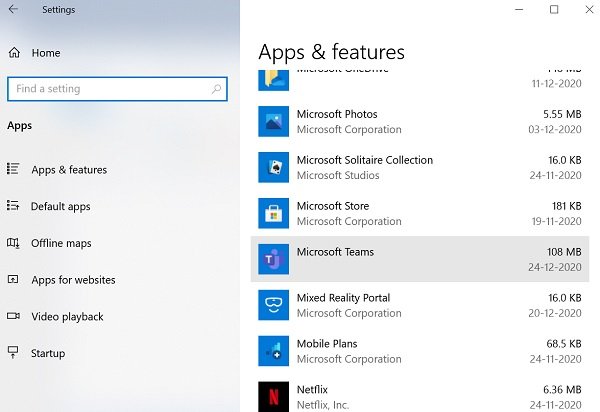
To fresh install the Teams application to resolve the issue.
- Go to the Settings app and check Apps.
- Check the Apps and features tab.
- Select Microsoft Teams Click on the Uninstall button and follow the subsequent instructions.
- Restart the PC once the uninstallation is complete.
- Download and install the latest version of Microsoft Teams from the official site.
- After installation, login into your account with your credentials.
We hope the methods above will help you resolve the Teams crash and freeze issue. Sometimes, the problem may not be with Microsoft Teams but with the OS. There may be issues with system resources, or the OS may be unstable, requiring you to troubleshoot.
As a productivity application, Teams needs to be running for users at all times. Let us know your feedback.
Read: Teams crashes or freezes when turning on camera
Teams crashing when making or picking a call
If Microsoft Teams keeps crashing when you make or pick a call, start by updating Teams to the latest version and ensuring Windows updates are installed. Clear the Teams cache (by deleting the contents of %appdata%\Microsoft\Teams) and then restart the app. Disable GPU hardware acceleration in Teams settings, as this often resolves call-related crashes. If the issue persists, reinstall Teams completely to refresh corrupted files. Finally, check and update audio/video drivers, as outdated drivers can cause call instability.
Microsoft Teams freezes when unmuting or muting the Mic
If Microsoft Teams freezes when unmuting or muting the Mic, clear the Teams cache and update your Audio, Sound and Microphone drivers. If this does not help,reset or reinstall Teams.
Teams crashes or freezes when sharing screen
When Teams crashes or freezes during screen sharing, update Teams, clear the Teams cache by deleting files in %appdata%\Microsoft\Teams, disable hardware acceleration in Teams settings, and update the Display drivers.
Teams crashes or freezes when joining meeting
If Teams crashes or freezes when joining a meeting, first update Teams and Windows to the latest versions. Clear the Teams cache by deleting files in %appdata%\Microsoft\Teams and restarting the app. You could also disable GPU hardware acceleration in Teams settings and see if it works. If problems persist, reinstall Teams to refresh corrupted components.
Related post: Fix Microsoft Teams high memory and CPU usage issue.
