
Are you unable to open or launch the Microsoft Teams app on your Windows PC? Microsoft Teams is a business communication platform for real-time collaboration, video meetings, messaging, file sharing, and more within organizations. However, some MS Teams users have reported experiencing issues while launching the app. The app just won’t open on their computer.
Now, this issue might occur if the Teams services are currently down. It might also be caused by a corrupted Teams cache that prevents it from launching. Other than that, system corruption or an incorrect or corrupted app installation might cause this problem. In any case, if you are experiencing this problem, this post will interest you. Here, we list all the working fixes you can use to resolve the problem.
Microsoft Teams not opening or launching on PC
We suggest rebooting your computer, then try opening the Microsoft Teams app. It is an easy, quick fix that works in many cases. However, if it doesn’t help, here are the solutions you can use to resolve this issue:
- Check the current status of Teams services.
- Run the Windows Store Apps troubleshooter.
- Close all Microsoft Teams tasks.
- Clear the Microsoft Teams cache.
- Repair or Reset Microsoft Teams.
- Use System Restore.
- Try the Teams web app.
- Reinstall Microsoft Teams.
1] Check the current status of Teams services
The Microsoft Teams app might not be opening or working due to an ongoing server issue. There might be a server outage or services might be put on hold due to maintenance work. So, before proceeding to other fixes, check the current status of Microsoft Teams services and ensure that its servers are not down. If there are no issues on the server side, proceed with the next fix.
2] Run the Windows Store Apps troubleshooter
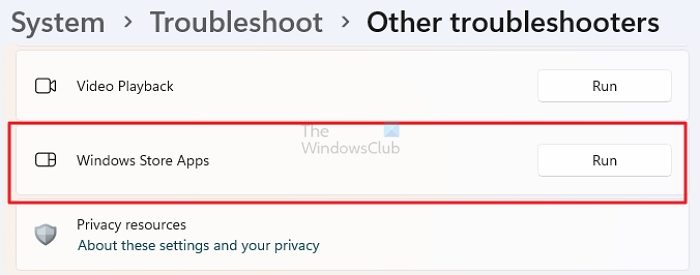
If you are using the Teams Microsoft Store app, then you can try running its Windows Store Apps troubleshooter and see if can detect and fix the problem with the app. Here are the steps to do that:
- First, open the Settings app by pressing the Windows+I shortcut key.
- Now, go to the System > Troubleshoot option and click the Other troubleshooters option.
- Next, scroll down to the Windows Store Apps troubleshooter and press the Run button present next to it.
- Windows will now start detecting issues with your apps including Microsoft Teams. Once done, it will ask you to apply a recommended fix, so follow the instructions.
- Finally, launch the Teams app and see if it opens correctly.
See: Microsoft Teams chat messages not showing up.
3] Close all Microsoft Teams tasks
It might be the case that the Teams app is not closed completely previously, which is why it is not opening. Hence, ensure no Teams task is running in the background and then check if the problem is resolved. To do that, here are the steps to follow:
- First, press Ctrl+Shift+Esc to open Task Manager quickly.
- Now, in the Processes tab, check whether any task related to Teams is running in the background. If so, right-click the Teams task and select End task.
- When you end all Microsoft Teams tasks, try opening the app and check if the problem is resolved.
4] Clear the Microsoft Teams cache
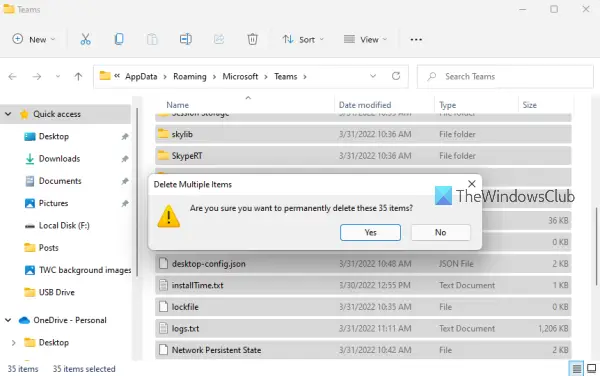
Like any other app, Microsoft Teams also stores a cache for temporary data and other items. It helps the app fetch data more efficiently. Now, the Teams app might not launch or open on your PC if this cache is corrupted. If that is the case, you can fix the problem by removing the corrupted Teams cache from your computer.
Here are the steps to delete Microsoft Teams’ cache on Windows:
- First, press the Win+E hotkey to open File Explorer.
- Now, move to the following location in the address bar: C:\Users\<YourUserName>\AppData\Roaming\Microsoft\Teams
- After that, in the opened location, delete all files in tmp folder, blob_storage, cache, GPUcache, databases, and local storage folders.
- Next, open the IndexedDB folder and delete the .db file.
- Finally, restart your PC and check if you can open Microsoft Teams.
See: Fix Microsoft Teams high Memory and CPU usage issue.
5] Repair or Reset Microsoft Teams
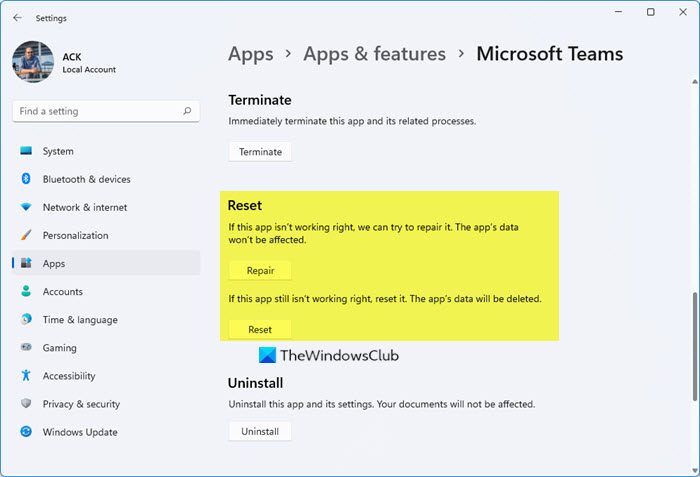
You can also try repairing or resetting the Microsoft Teams app and see if the problem is fixed. If your app is corrupted, it might not even open. If the scenario applies, use your Settings app to fix the corrupted Teams app and resolve the issue. If the issue persists even after resetting the app, follow the next solution.
Read: Webcam flickering in Teams during video calls.
6] Use System Restore
The issue might have occurred after modifying the computer. If you just recently started experiencing the “Microsoft Teams not opening” issue, you can try rolling your computer back to a state when you were not experiencing it. To do that, you can use a System Restore point on a Windows PC. Here’s how to do that:
- First, open the Run command box using Win+R and then type & enter “Rstrui.exe” in the Open field to launch the System Restore window.
- Now, press the Next button and choose the System Restore point you want to restore your PC to.
- After that, simply follow the onscreen instructions and see if the problem is resolved.
7] Try the Teams web app
If the problem persists, you can use the web app version of Microsoft Teams. MS Teams is available on several platforms, including the web. You can open Teams in any modern web browser on your PC, such as Microsoft Edge, Google Chrome, or Mozilla Firefox. Just open your web browser, enter the URL address of the Teams web app, sign into your account, and then start using Teams in the browser.
Read: Fix Microsoft Teams Join button is missing or not working.
8] Reinstall Microsoft Teams
The last resort to fix the problem is reinstalling the Microsoft Teams app on your computer. The app’s installation might be corrupted, which is why you are unable to launch it. Hence, if the scenario applies, you can completely uninstall the corrupted Teams copy from your computer and then reinstall it.
To remove Microsoft Teams from your PC, open Settings (Win+I), then go to Apps > Installed apps. Now, select the three-dot menu next to Microsoft Teams, then choose Uninstall. Follow the instructions and remove the app.
Now, open the Run dialog using Win+R and enter %appdata% in it. In the opened location, locate the Teams folder, then delete it to completely remove the app from your PC. Next, enter %Programdata% in Run and then delete the Teams folder in the appeared location.
After that, reboot your computer and install the Microsoft Teams app from the Microsoft Store. Once the app is installed, try opening it, and it should work fine now.
Read: Windows computer crashes when using Teams.
Why can’t I access my Microsoft Teams?
If you are unable to access your Microsoft Teams account or can’t sign into Teams, you might have entered the wrong credentials. Hence, ensure that you have entered the correct username and password. If the issue persists even after entering the correct credentials, contact your IT administrator to report the issue. They will help you fix the problem.
How do I fix Microsoft Teams stuck on Loading screen?
If your Microsoft Teams app is stuck on the loading screen, you can clear the corrupted cache. Additionally, make sure no Teams processes are running in the background. You can also try running the app in compatibility mode or removing the MS Teams Credentials files to fix the problem. If the problem persists, you can perform a clean install of the Microsoft Teams app and check if the issue is resolved.
Now read: Microsoft Teams crashing or freezing during meetings.
