
While using Microsoft Teams, Zoom OBS, etc, some users have experienced an issue with their webcams. Their webcam keeps flickering in Windows 11 when they turn it on during a call. If such a thing happens to you, the solutions provided in this article may help you fix it.
Webcam flickering in Windows 11 during video calls
If the webcam keeps flickering during video calls in Windows 11 while using Teams, Zoom, OBS, etc. follow these solutions to fix the problem.
Before you proceed, we advise you to test your webcam in Windows to check if it is working properly or not. If you have another computer, connect your webcam to it and check whether it is working properly.
If there are no issues with your webcam, proceed with the solutions below to fix the problem.
- Check for Windows Update
- Connect your webcam to another USB port
- Adjust Camera Flicker Reduction
- Disable Low Light Compensation of your webcam
- Application-wise suggestion
- Uninstall and reinstall Teams, Zoom or the problematic application.
Let’s see all these solutions in detail.
1] Check for Windows Update
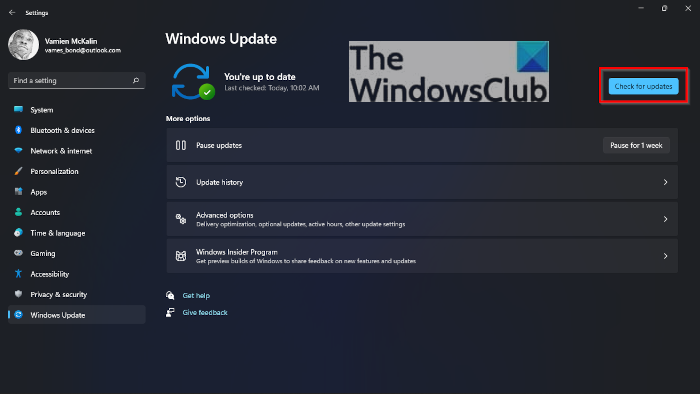
The first thing you should do when you experience this issue is open the Windows Update page in Windows 11/10 Settings and check for any available updates, especially webcam drivers. If an update is available, download and install it. After updating your system, open Microsoft Teams and check if the issue persists.
2] Connect your webcam to another USB port
In some cases, you may experience working issues with the USB devices connected to your computer via a USB hub. If you have connected your webcam to your computer via a USB hub, unplug it and connect it directly to your computer’s USB port. This solution has helped many users fix the problem.
If your device has a USB 3.0 port and you have connected your webcam to a USB 2.0 port, disconnect it from the USB 2.0 port and connect it to the USB 3.0 port. USB 3.0 ports offer faster data transfer rates than USB 2.0 ports.
3] Adjust Camera Flicker Reduction
Press Win + I to open Windows Settings and go to Bluetooth & devices.
Open Cameras and select your webcam.
Here, look for Flicker reduction (or Anti‑flicker) and change it to 50Hz or 60Hz, depending on your region, as follows:
- India/Europe: 50Hz
- US/Canada: 60Hz
4] Disable Low Light Compensation of your webcam
The Low Light Compensation feature of a webcam brightens your shot automatically if you are recording in a dark room. If your webcam supports this feature, you can turn it off in the Camera Control options in your webcam Properties. After disabling the Low Light Compensation feature on your webcam, check whether it flickers during a call.
You can also turn off Content Adaptive Brightness Control (CABC) and see if it helps.
5] Application-wise suggestion
If you face this issue on Microsoft Teams, clear the Teams cache and see if it helps.
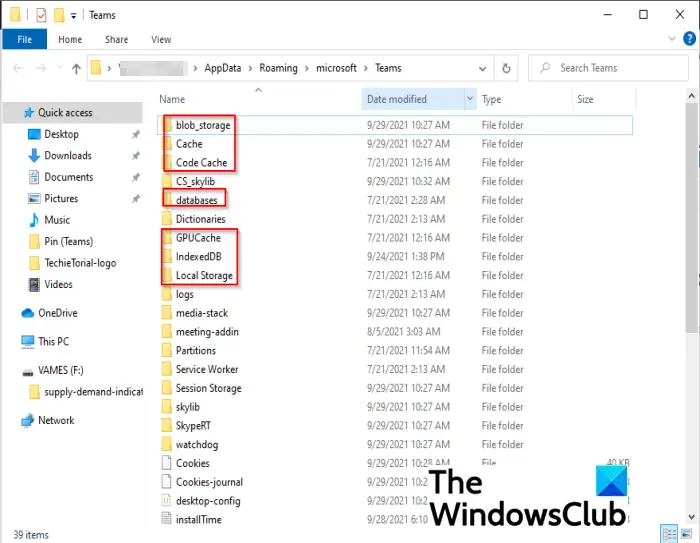
- First, close Teams.
- Now, right-click on the Teams icon in your System Tray and select Exit.
- Open the Task Manager and check for any instances of Teams running in the background. If yes, right-click on it and select End Task.
If you face this issue on Zoom adjust its Video Settings.
Open Zoom > Settings > Video, then disable Adjust for low light.
You could also enable HD video and see if that helps.
If you face this issue in OBS, configure its Webcam Settings as follows:
Open OBS > Sources, right‑click your webcam and select Properties.
Click Configure Video, and now in the webcam driver window, make these changes:
- Disable Low Light Compensation.
- Set Exposure manually (instead of auto).
- Adjust Gain to reduce flicker.
Save and exit.
6] Uninstall and reinstall Teams, Zoom or the problematic application
If you have tried all the above solutions but the issue still persists, installing and reinstalling the problematic software may help. After uninstalling it, download the latest version of the software from the official website and install it on your system.
We hope the solutions explained in this article helped you fix the problem.
How do I stop my camera from flickering?
If your camera turns on and off automatically or keeps flickering, your drivers might be corrupted. To fix this problem, you should update your camera drivers and check for Windows updates. If this does not fix your problem, resetting the camera can help.
How do I fix my webcam on MS Teams?
If your Teams camera is greyed out or not working, first check if you have allowed Teams to access your camera. If you have blocked Teams from accessing your camera in WIndows Settings, you will not be able to use your camera in Teams. Apart from this, you should also check if your camera is faulty.
Read next: Fix Audio cuts off automatically during a call in Teams.
