
If Hyperlinks are not working in Microsoft Teams, these solutions will troubleshoot your problem on the Teams desktop app. If you haven’t cleared the Teams app cache in a long time, you may run into this issue.
Hyperlinks not working in Microsoft Teams
If hyperlinks are not working in Microsoft Teams, follow these steps:
- Restart Teams
- Clear cache and cookies of the default browser
- Re-sign in to Teams
- Clear Cache of Teams
For more details on these steps, continue reading.
1] Restart Teams
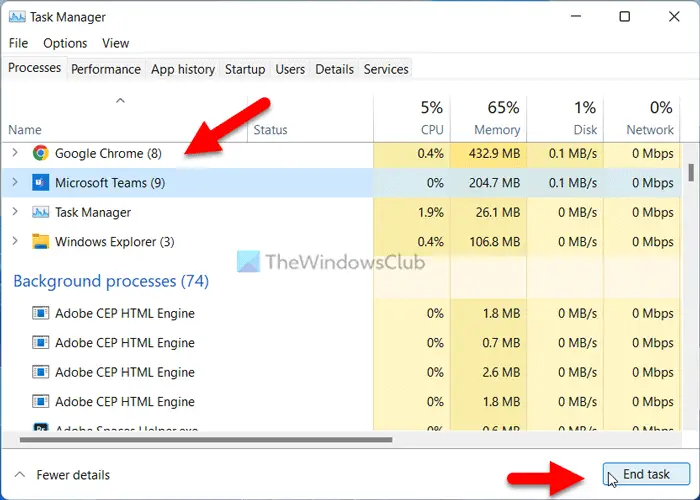
If the hyperlinks aren’t working in the Microsoft Teams app, start by restarting the app. It is probably the easiest thing you can do on your PC. However, you can close the Teams app in two ways on your Windows 11/10 PC.
First, you can take the help of the Task Manager. For that, you can press Ctrl+Shift+Esc buttons together to open the Task Manager. Then, find the Teams app or process, select it, and click on the End task button.
Second, you can expand the system tray, right-click on the Teams icon, and select the Quit option.
Either way, you’ll need to reopen the Microsoft Teams app. Sometimes, internal processing can cause this issue. If so, you can fix it with this trick.
2] Clear cache and cookies of the default browser
Microsoft Teams uses the default browser to show the preview and open links. No matter which links you have got, it requires you to have a browser in order to access it. However, if the default browser has some issues, you might not be able to get the links in the Teams app.
That is why we recommend clearing the cache and cookies in your default browser. There are two ways to delete them. First, you can press Win+R to open the Command Prompt and type this:
For Google Chrome:
%LocalAppData%\Google\Chrome\User Data\Default\
For Microsoft Edge:
%LocalAppData%\ Microsoft\Edge\User Data\Default\
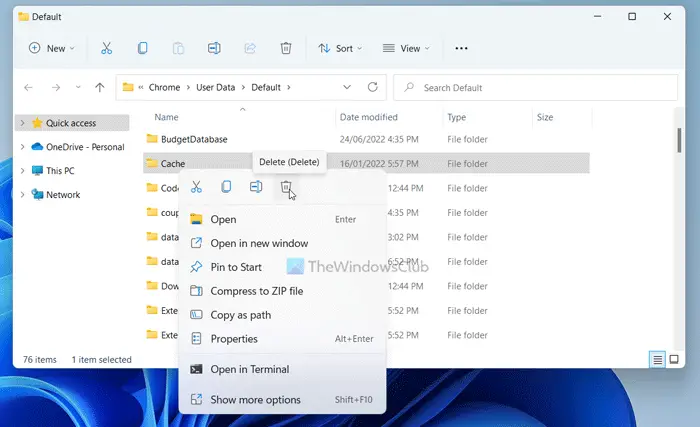
Here you can find a folder called Cache. You need to delete this folder.
Alternatively, if you use another browser, such as Firefox, go to a similar path and delete the same folder.
You can also follow this guide to delete the cache and cookies of Google Chrome and Microsoft Edge browser.
3] Re-sign in to Teams
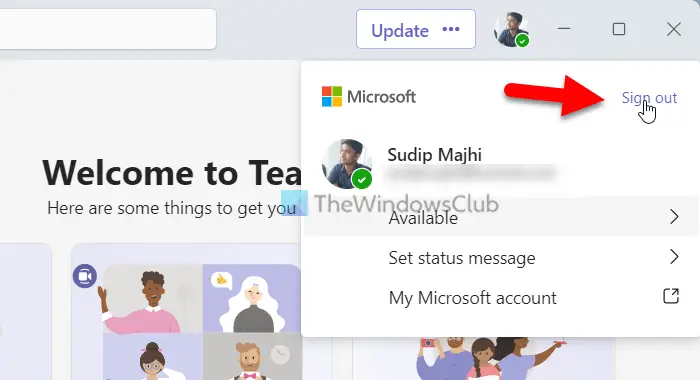
Sometimes, signing out and signing back into your Microsoft Teams account can resolve the issue. That is why you can try this solution and see whether it works for you.
4] Clear Cache of Teams
It is the last thing you can try when hyperlinks are not working in Teams. If there are issues with Microsoft Teams system files, you may get this problem when using the app on your computer. Therefore, to clear Microsoft Teams Cache, navigate to the following path in the Run prompt:
%AppData%\Microsoft\teams
Then, delete the Cache and GPUCache folders one after another.
That’s all! Hope these solutions worked for you.
How do you hyperlink in Microsoft teams?
You can directly share a link to any webpage like any other normal text message. However, Teams always displays a preview of the webpage while sharing the link. If hyperlinks aren’t working, follow this guide to fix it.
Read: Fix Microsoft Teams crashes or freezes during meetings
Why is my Teams meeting not showing a link?
If the Teams meeting isn’t showing the link, try the Web version. However, if the web version is showing issues, you can try the Desktop app of Teams. Sometimes, the desktop app fails to show the link preview and prevents you from opening it. If so, you can resolve the issue by following the aforementioned solutions.
