
This article shows how to fix blurry or pixelated video in Microsoft Teams during calls. This issue can happen for several reasons, such as incorrect or misconfigured Microsoft Teams settings, a corrupt camera driver, or an unstable internet connection. The troubleshooting methods below will help improve video quality during Microsoft Teams calls.
Blurry or pixelated video in Microsoft Teams
Use the following fixes to resolve the blurry or pixelated video in Microsoft Teams during a call:
- Check your internet connection
- Disable VPN (if applicable)
- Clear Teams cache
- Reinstall the webcam driver
- Configure your camera settings in Teams
- Check the issue in the web app
- Enable Super Resolution (if applicable)
- Update or reinstall the graphics card driver
- Reset or reinstall Teams
All these fixes are explained in detail below. Before trying these fixes, create a System Restore Point. This will help you restore your system to the previous working state if any problem occurs.
1] Check your internet connection
A weak or unstable internet connection is the major cause of this problem. First, check whether your network is working properly. Switch to another available network and see if the issue persists. You can try connecting your system to the internet via your mobile hotspot. If that works, power-cycling your network may resolve the issue.
- Turn off your WiFi router and unplug its power adapter from the wall socket.
- Wait for a few minutes.
- Reconnect the power adapter and turn on your WiFi router.
- Wait till the router initializes and connects to the internet.
If the issue reappears, contact your internet service provider for further assistance.
2] Disable VPN (if applicable)
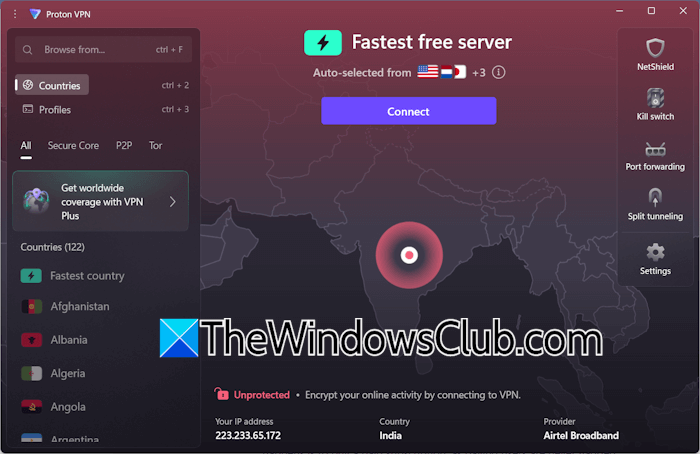
A VPN makes a network secure but can also affect performance by reducing internet speed. If you use a VPN, it may degrade video quality during a Teams call. To check this, disconnect from the VPN and see whether video quality improves. If that works, keep your VPN disabled during a Teams call.
3] Clear Teams cache
A possible cause is a corrupt Teams cache. In such a case, clearing the Teams cache can help. Click on your system tray. You will see the Microsoft Teams icon there. Right-click on it and select Quit Teams. This will completely close Teams.
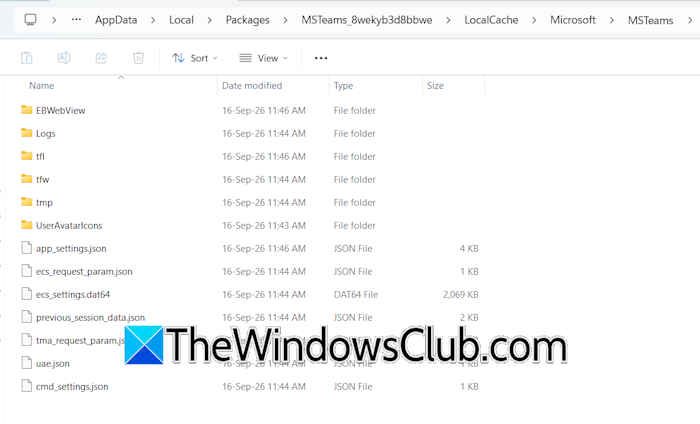
Now, open File Explorer and navigate to the following path:
%userprofile%\appdata\local\Packages\MSTeams_8wekyb3d8bbwe\LocalCache\Microsoft\MSTeams
Delete all the files there. Now, launch Microsoft Teams. Teams will recreate all the deleted cache files. Check if the issue persists.
4] Reinstall the webcam driver
The issue may be with your webcam driver. To verify this, reinstall the webcam driver. Follow these steps:
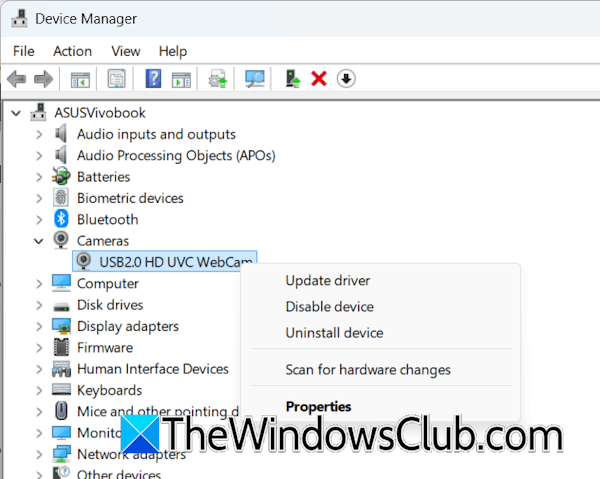
- Open the Device Manager.
- Expand the Cameras branch.
- Right-click on your webcam driver and select Uninstall device.
- Now, scan for hardware changes or restart your system. Windows will automatically install the missing driver.
If that does not work, download the latest webcam driver from your computer manufacturer’s official website and install it. This will update the driver to the latest version.
5] Configure your camera settings in Teams
You might have misconfigured the camera settings in Teams. Follow these steps to configure them correctly:
- In Microsoft Teams, click the three dots on the top right side, and select Settings.
- Select the Devices category.
- Scroll down to the Camera section and select your webcam in the drop-down.
- Now, turn on the Automatically adjust camera controls option.
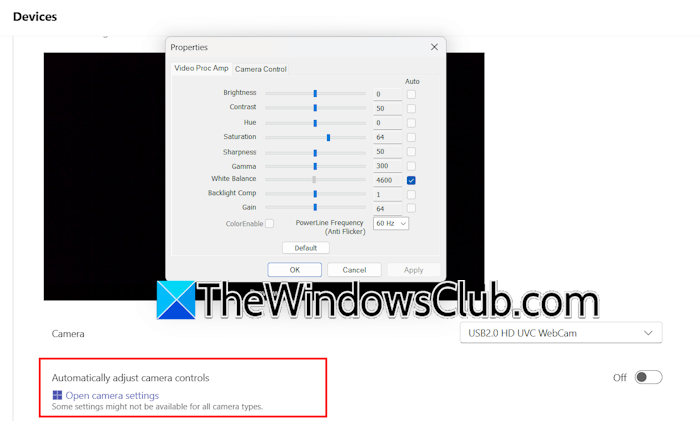
If the above steps do not work, turn off the Automatically adjust camera controls option and click the Open camera settings link. A pop-up window will appear where you can adjust your camera settings to change the video quality.
6] Check the issue in the web app

Open your web browser and go to the Teams login page. Enter your Microsoft account credentials and log in to Microsoft Teams in your browser. If the issue does not appear there, the problem is only with the Microsoft Teams desktop app.
7] Enable Super Resolution (if applicable)
Microsoft Teams has a feature called Super Resolution that automatically fixes blurry and pixelated video calls caused by a poor or unstable internet connection. This feature is powered by AI. Therefore, it is available only on Copilot+ PCs. If you have a Copilot+ PC, you can enable this feature.
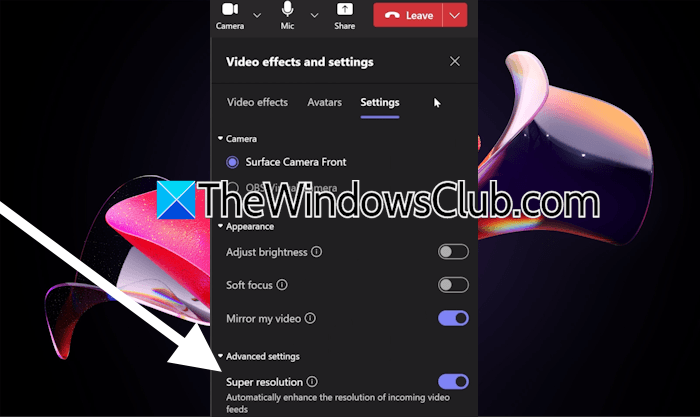
Go through the following instructions:
- During a video call in Teams, click More.
- Select Video effects and settings.
- Navigate to the Settings tab.
- Turn ON Super Resolution.
8] Update or reinstall the graphics card driver
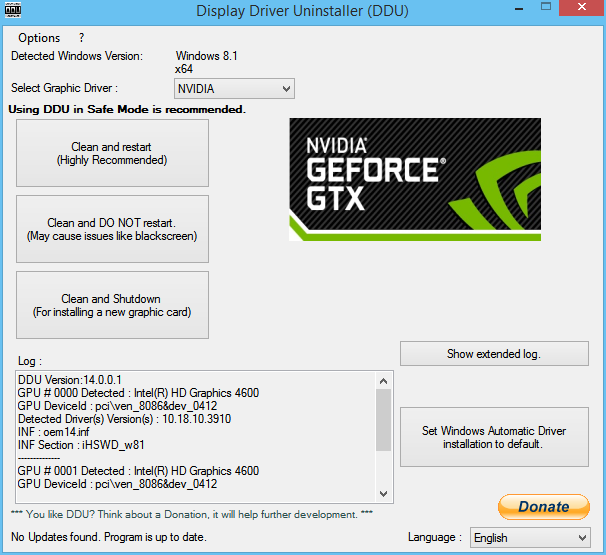
If the issue persists, update or reinstall your graphics card driver. Visit your computer manufacturer’s official website and download the latest GPU driver. Run the installer file to install the driver. Alternatively, you can also perform a clean installation of the GPU driver using Display Driver Uninstaller. Users with an NVIDIA GPU can use the NVIDIA installer to perform a clean installation of the GPU driver instead of installing DDU.
9] Reset or reinstall Teams
If the issue persists, reset or reinstall Teams. Follow these steps:
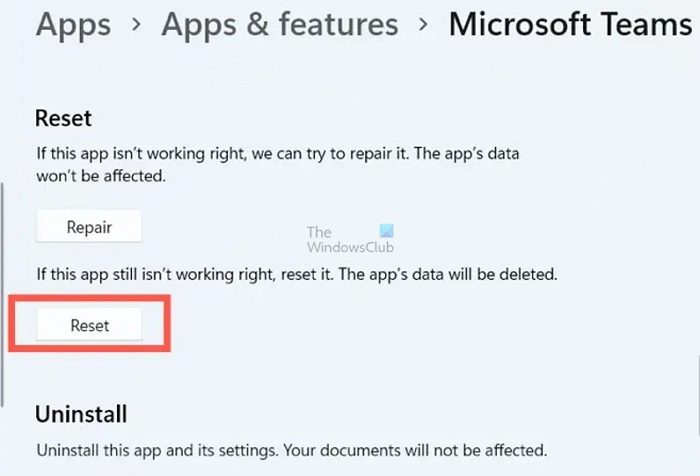
- Open Windows 11 Settings.
- Navigate to Apps > Installed Apps.
- Look for Microsoft Teams in the list of installed apps.
- Click the three dots and select Advanced Options.
- Scroll down and click Reset.
If that doesn’t help, uninstall and reinstall Teams.
Why is my video blurry in Teams?
If your internet connection is unstable or slow, your video during a Teams call becomes blurry. To fix this, switch to a faster network. If you use a VPN, disconnect from it. Additionally, misconfigured Teams settings also cause this issue. In some cases, a corrupt Teams cache, a corrupt webcam, or a graphics card driver causes this problem.
How to adjust video quality in Teams?
Microsoft Teams automatically adjusts the video quality based on available bandwidth and network conditions. However, if you have a Copilot+ PC, you can turn on the Super Resolution option in Teams, and the AI will automatically enhance video quality. Other users can enable the Automatically adjust camera controls setting in Teams during a video call.
Read next: Audio is not working in Microsoft Teams.
