
This article lists some working fixes to help you if your Windows computer crashes when using Microsoft Teams. This problem can occur for several reasons, such as a corrupt Teams cache, a conflicting third-party application or service, or faulty RAM.

Computer crashes when using Teams
Use these fixes if your Windows computer crashes when using Microsoft Teams:
- Clear Teams cache
- Troubleshoot in a Clean Boot state
- Monitor your RAM
- Change your graphics card settings
- Update or reinstall the graphics card driver
- Repair, reset, or reinstall Teams
All these fixes are explained below in detail.
Teams calls crashing Windows PC
1] Clear Teams cache and cookies
The first step is to clear Microsoft Teams cache and cookies. To do this, first, close Teams. Now, click the System Tray, and you will see the Teams icon there. Right-click on it and select Quit.
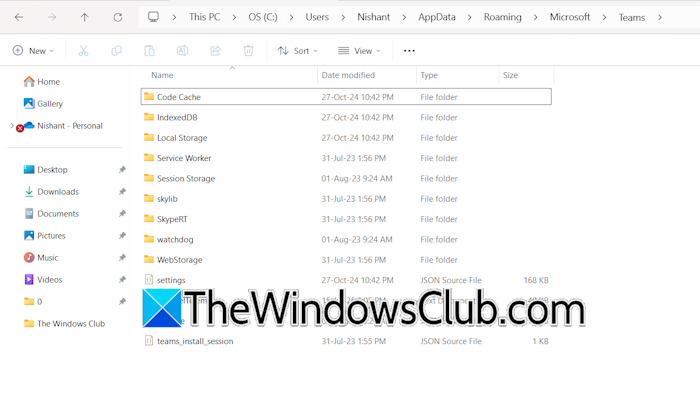
Now, open the Run command box, type the following command, and click OK.
%appdata%\Microsoft\Teams
The above command will open the Teams folder. Delete all the files inside that folder. Launch Teams and see if the issue persists.
Read: Microsoft Teams Screen Sharing not working
2] Troubleshoot in a Clean Boot state
A third-party background application or service might be interfering with Teams and causing your system to crash every time you launch Teams. To check this, open the Task Manager and go to the Startup apps tab. Disable all the startup apps. After doing this, restart your computer.
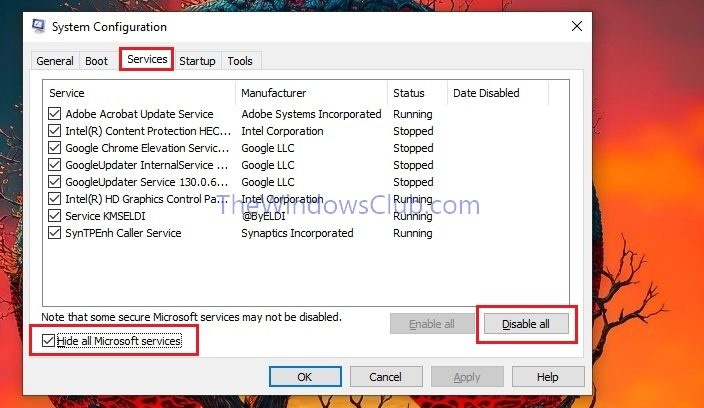
Launch Teams and see if your computer crashes this time. If the issue persists, start your computer in the Clean Boot state and see if the problem occurs there. Use MSConfig to boot into Clean Boot state. Be careful while disabling the third-party services, as if you disable all the services, you will lose access to your computer, and you will have to reinstall Windows.
Once you are in the Clean Boot state, launch Teams and see if your computer crashes. If the issue disappears in the Clean Boot state, you need to find the problematic third-party service. For this, enable some of the disabled third-party services and restart your computer. Launch Teams and see if your computer crashes. If yes, one of the services you just enabled is the culprit.
Read: Microsoft Teams crashes or freezes during meetings
3] Monitor your RAM
Ensure that your system is compatible with Microsoft Teams. Teams requires at least 4 GB of RAM to work flawlessly. If, despite having the supported hardware, your system crashes, we recommend monitoring your system’s RAM while launching Teams. If it goes high, you might need to run the Windows Memory Diagnostic Tool to test your RAM.
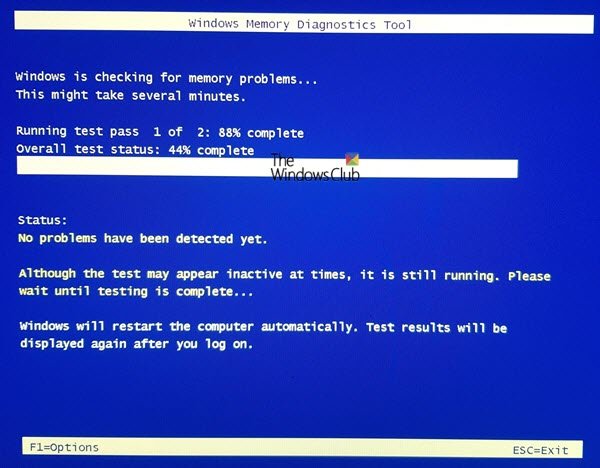
A faulty RAM also shows some symptoms. If you notice these signs on your computer system, the issue may be with your RAM.
Read: Teams crashes when sharing screen in Windows 11
4] Change your graphics card settings
You can force Teams to use your graphics card. Follow these steps:
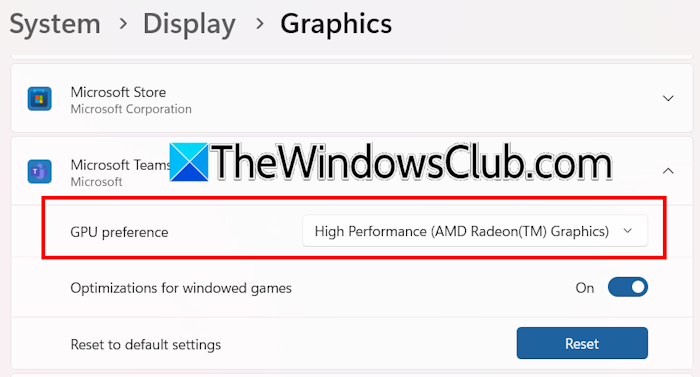
- Open Windows 11 Settings.
- Go to System > Display > Graphics.
- Click Add Microsoft Store app and select Microsoft Teams. This will add Teams to the list of apps that can use your graphics card.
- Now, select Teams and then select High Performance in the drop-down.
Read: Microsoft Teams not opening or launching on PC
5] Update or reinstall the graphics card driver
The problem may also be associated with your graphics card driver. Update it to the latest version and see if it helps. Visit the official website of your computer manufacturer and download its latest version. Now, run the installer file to install the GPU driver.
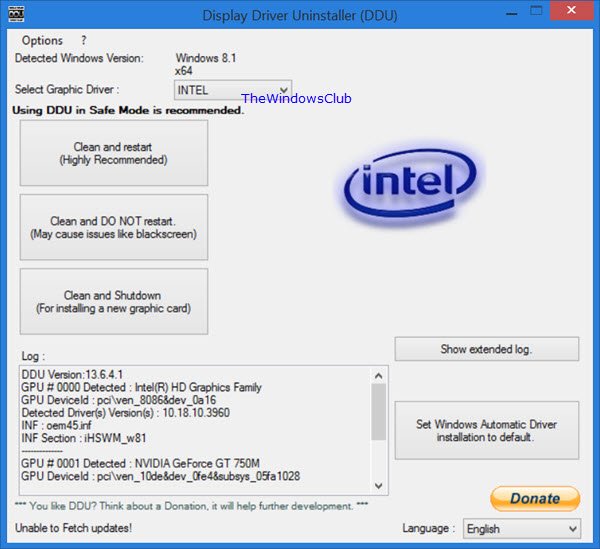
If the issue persists, you have to perform a clean installation of the graphics card driver. For this, download and install the DDU (Display Driver Utility). Run it to completely uninstall the GPU driver from your system. After removing the GPU driver, run the installer file to reinstall the driver.
6] Repair, reset, or reinstall Teams
If the issue persists, you can repair or reset Microsoft Teams. Follow these steps:
- Open Windows 11 Settings.
- Go to Apps > Installed apps.
- Search for Microsoft Teams. Click on the three dots next to the Teams app and select Advanced options.
- Scroll down and click Repair.
Launch teams and see if the issue persists. If repairing the Teams does not work, reset it.

You can also reinstall Teams. First, uninstall it through Windows 11 Settings. Then, open the Microsoft Store and install it from there. Or, you can download its latest version from the official Microsoft website.
Microsoft Teams Video call causing GPU crash
If Microsoft Teams Video call causing a GPU crash in Windows 11, try these suggestions:
- Update or reinstall your NVIDIA/AMD/Intel graphics drivers to the latest stable version.
- Change Display setting in Windows Settings to High Performance
- Disable hardware acceleration in Teams settings to reduce GPU load.
- Test in Clean Boot mode to rule out conflicts with other apps or services.
- Repair or reinstall Teams if issues persist.
- Consider upgrading your Graphics Card.
How do I stop Microsoft Teams from crashing?
If Microsoft Teams keeps crashing on your system during meetings, it might be due to a corrupt Teams cache. Clearing the Teams cache can help. You can also check the Teams Service status. If Microsoft services are down for maintenance, you may encounter issues with Microsoft Teams. If nothing works, try resetting or reinstalling Teams.
Why does Teams make my computer crash?
There can be multiple reasons why Teams causes your computer to crash. If your system does not have enough RAM required by Teams to operate properly, you may encounter crashing or freezing issues. Additionally, third-party background services may be causing this problem. Check this in the Clean Boot state.
Read next: How to reduce Background Noise in Teams.
