
Some users reported that they could not share their computer’s screen during a meeting on Teams. According to them, Microsoft Teams crashes when sharing the screen. This issue can have multiple causes, such as a corrupt display driver or a corrupt Teams cache. This article will help you fix this issue.

Teams crashes when sharing the screen in Windows 11/10
Use the following fixes if Microsoft Teams crashes when sharing the screen on your Windows 11/10 computer:
- Clear Teams cache
- Roll back or reinstall the graphics card driver
- Create a new user profile
- Disable HDR
- Repair, reset, or reinstall Teams
All these fixes are explained below in detail.
1] Clear Teams cache

The corrupt Teams cache can cause such a problem. You can clear the Teams cache and see if it helps. To clear the Teams cache, open the Run command box, type the following command, and click OK.
%appdata%\Microsoft\Teams
Delete all files and folders. Restart Teams.
2] Roll back or reinstall the graphics card driver
A corrupt graphics card driver may be responsible for this issue. You can roll back your graphics card driver to the previous version and see if it helps. Follow these steps:

- Open the Device Manager.
- Expand the Display adapters branch.
- Right-click on your graphics card driver and select Properties.
- Go to the Driver tab and click on the Roll Back Driver button (if it is clickable).
- Follow the on-screen instructions to install the previous version of your GPU driver.
If the Roll Back Driver option is grayed out, you can try reinstalling the GPU driver. Visit the official website of your computer manufacturer and download the latest available version of your GPU driver.
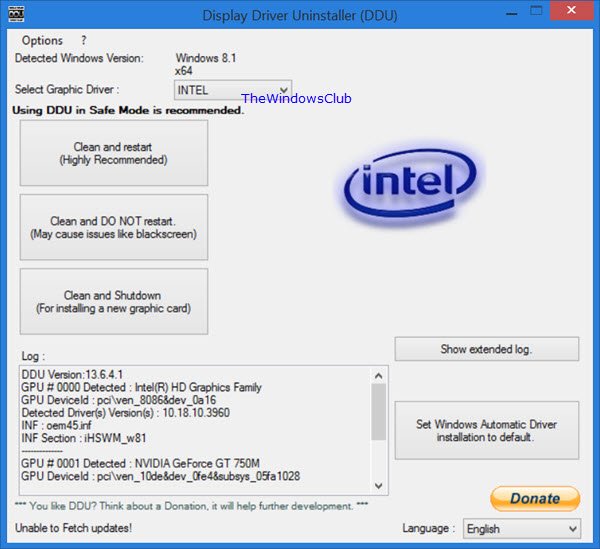
Now, download and install the DDU (Display Driver Uninstaller) utility. Now, use the DDU utility to completely remove the graphics card driver from your system. Run the installer file you downloaded earlier to perform the fresh installation of your GPU driver.
Read: Windows computer crashes when using Teams
3] Create a new user profile
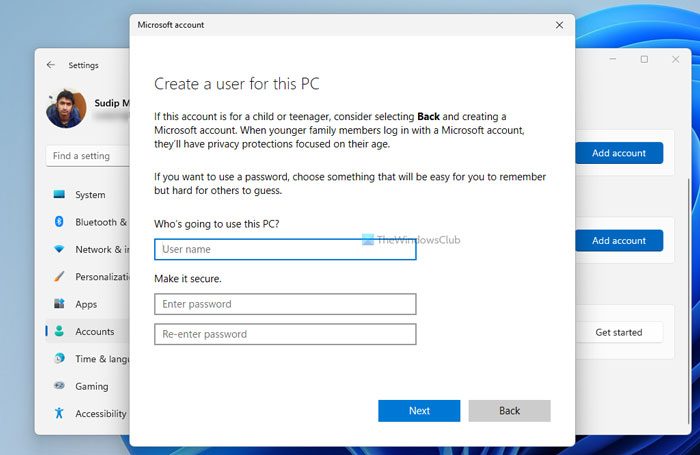
The problem may be related to your user profile on Windows 11. To check this, create a new user profile, log in to that account, and see if the issue persists. If the issue disappears, your previous user profile might have been corrupted. In such a case, you can move all your user data from the previous profile to the newly created user profile. After doing that, you can delete the previous profile.
4] Disable HDR
If your computer supports HDR and it is enabled, it may cause Teams to crash when sharing your screen. Disable HDR by following these steps:

- Open Windows 11 Settings.
- Go to System > Display > HDR.
- You will find a button to enable and disable the HDR. If it is enabled, toggle the switch to turn it off.
Related: Microsoft Teams Screen Sharing not working
5] Repair, reset, or reinstall Teams
If the issue persists, try repairing or resetting Microsoft Teams. Follow these steps:
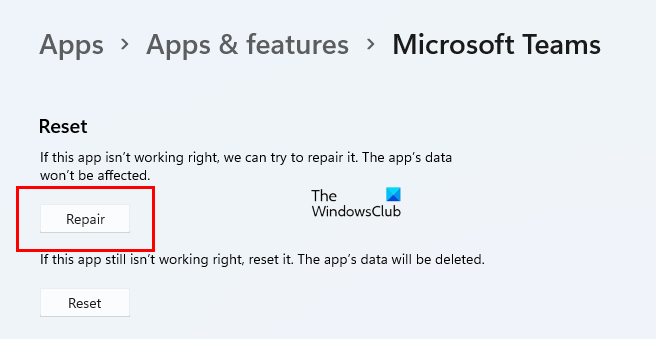
- Open Windows 11 Settings.
- Go to Apps > Installed Apps.
- Search for Microsoft Teams. Click on the three dots next to it and select Advanced options.
- Scroll down and click Repair. If the issue still persists, reset Teams.
You can also try uninstalling and reinstalling Teams.
That’s it. I hope this helps.
Is Microsoft Teams compatible with Windows 11?
Yes, Microsoft Teams is compatible with Windows 11. It comes pre-installed on Windows 11. However, if you cannot find it on your system, you can install it from the Microsoft Store or the official Microsoft website.
Why is my PC crashing randomly in Windows 11?
There can be multiple reasons why your PC keeps crashing. You can try some general fixes, such as repairing your system image files, updating drivers, and changing your power plan. Hardware issues, such as overheating, faulty RAM, and faulty hard drives, are also responsible for this issue.
Read next: How to reduce Background Noise in Teams.
