
When Microsoft Teams crashes or freezes upon turning on your camera, it disrupts meetings and workflow, often accompanied by a non-responsive window or an error message as We ran into a problem… Please try again. This occurs due to a conflict that prevents Teams from properly accessing or processing your webcam’s video feed. In this post, we will discuss what you can do if Teams crashes or freezes when you turn on the camera.
Teams crashes or freezes when turning on Camera
This issue is primarily caused by a software conflict rather than faulty hardware. The main reasons include an outdated or corrupt camera driver that fails to communicate, another application exclusively locking the camera, or a specific incompatibility with how Teams uses your computer’s graphics processor (GPU hardware acceleration) to handle the video stream. Problems often arise after updates to Windows, Teams, or drivers.
If Teams crashes or freezes when you turn on the camera, follow the solutions below.
- Disable GPU Hardware Acceleration in Teams
- Clear the Microsoft Teams Application Cache
- Close conflicting applications and verify permissions
- Update or Reinstall your Camera Driver
- Run Teams in Compatibility Mode
Let us talk about them in detail.
1] Disable GPU Hardware Acceleration in Teams
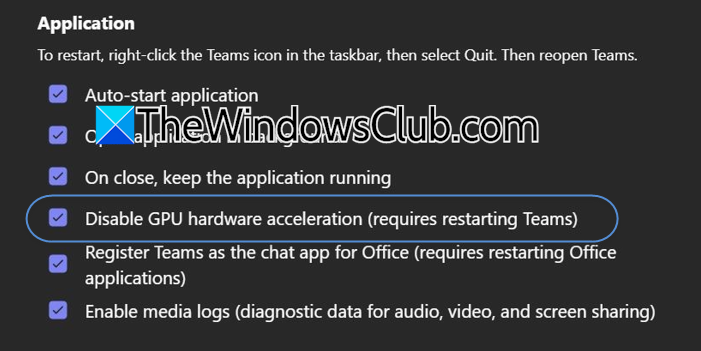
Disabling GPU Hardware Acceleration prevents a common software conflict in which Teams’ use of your graphics card to process video clashes with the camera driver or other system processes, causing a freeze. To do so, follow the steps mentioned below.
- In the Teams app, click on the three dots and select Settings.
- Go to the General tab.
- Scroll down to applications and check Disable GPU hardware acceleration.
- Completely restart Microsoft Teams,
Now, try using the camera and see if that helps.
Related: Microsoft Teams crashes or freezes during meetings
2] Clear the Microsoft Teams Application Cache
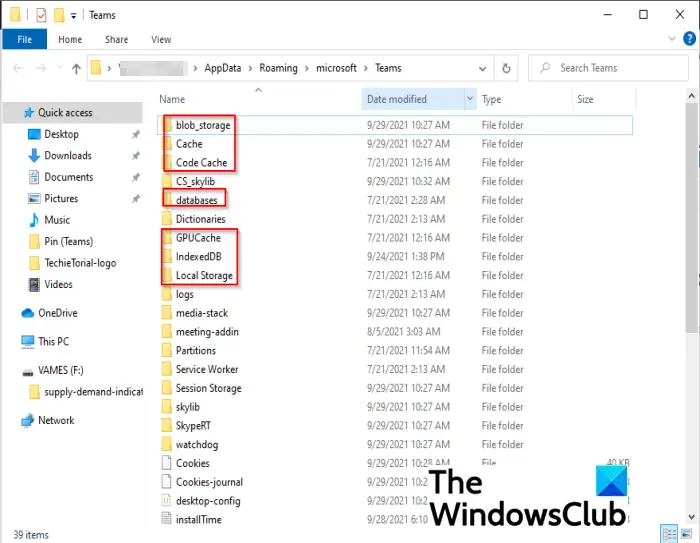
Corrupted temporary data (cache) in Teams’ local storage can cause it to malfunction when accessing hardware. However, clearing it forces Teams to create fresh, clean files. Since the issue may be due to a corrupted Teams cache, follow the steps below to clear it.
- First, terminate Teams from the Task Manager.
- Press Windows Key + R, type %appdata%\Microsoft\Teams, and press Enter.
- Now, you need to delete all the content of the following folders.
- cache
- blob_storage
- Cache
- databases
- GPUcache
- IndexedDB
- Local Storage
- tmp
- Restart your computer and then launch Teams again.
Finally, check if your issue is resolved.
3] Close conflicting applications and verify permissions
Other software (e.g., Zoom, Skype, game recorders) can lock the camera, preventing Teams from accessing it. Open Task Manager, and if you see such an application running in the background, terminate it.
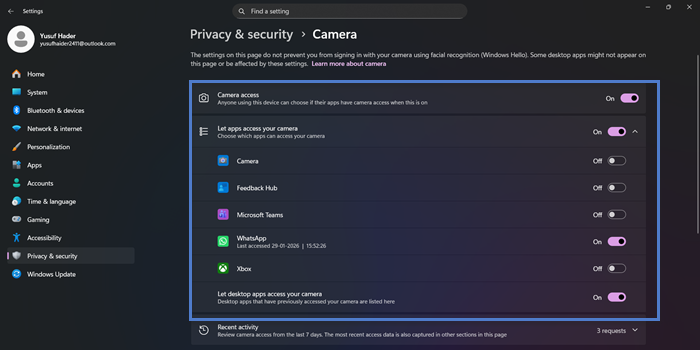
Also, your current system privacy settings may deny Teams permission entirely. Ensure all other apps that use the camera are fully closed, including those from the system tray. Go to Windows Settings > Privacy & security > Camera. Verify that Camera access and Let desktop apps access your camera are both turned on.
4] Update or Reinstall your Camera Driver
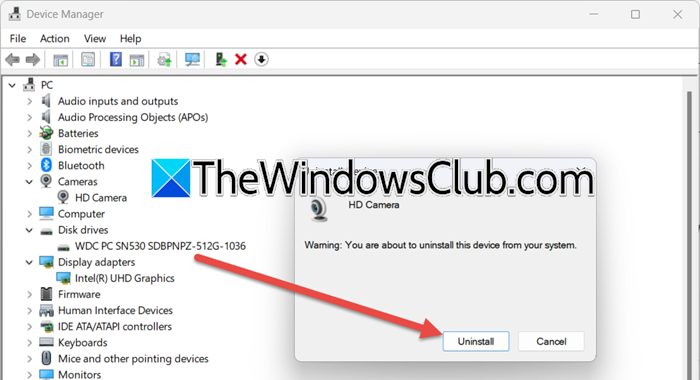
An outdated, corrupted, or conflicting driver can cause a communication breakdown when the video feed is activated, resulting in a freeze or crash. A clean reinstall removes the faulty component and establishes a fresh, stable connection for Teams.
Please follow the steps below.
- Press Windows Key + X and select Device Manager.
- Expand the Cameras section, right-click your webcam, and select Uninstall device.
- Check the box for Attempt to remove the driver for this device (if available) and click Uninstall.
- Restart your PC.
- Windows will automatically install a fresh default driver upon startup.
Then, check for driver updates as well. Try going to the manufacturer’s website or downloading a free driver update tool to update your driver.
You need to follow the steps mentioned below to do the same.
5] Run Teams in Compatibility Mode
Running Teams on specific Windows versions or system configurations can resolve conflicts by running the application with modified settings, thereby bypassing the trigger for the freeze. To run Teams in compatibility mode, follow the steps mentioned below.
Locate the Teams shortcut (on your desktop or Start Menu).
Right-click it and select Properties, then navigate to the Compatibility tab.
Check Run this program in compatibility mode for: and select Windows 8 from the dropdown menu.
Click Apply and then OK.
Launch Teams using this shortcut.
Hopefully, these solutions will resolve your issue.
Read: Teams screen turns blue or gray while accessing files
Teams camera freezes when sharing screen
If your Teams camera freezes when you start sharing your screen, close Background Apps, update Teams and Windows, update your Camera and Graphics drivers, disable Hardware Acceleration in Teams settings, open Teams Settings > Devices > Camera, switch to a lower resolution if available, and see if it helps.
Why is Teams not letting me turn on the camera?
This is typically due to system privacy settings blocking access or another app exclusively using the camera. Check that Teams has permission in Windows Settings > Privacy > Camera, and ensure all other camera-using applications (like Zoom) are fully closed. An outdated or corrupt camera driver can also cause this block.
Read: Fix Webcam Black Screen on Windows 11
Why does my webcam randomly freeze?
Random freezes are often caused by a software conflict with your graphics hardware or insufficient system resources. Disabling GPU hardware acceleration in Teams settings usually resolves this by preventing video-processing conflicts. Additionally, background apps competing for the camera or outdated drivers can interrupt the feed, causing intermittent freezing.
Also Read: Teams Error caa20001, There’s a more permanent way to sign in.
