
Rather than downloading third-party tools to diagnose and fix your Windows 11/10 PC problems, it’s best to use built-in programs when available. Windows Reliability Monitor in Windows 11/10 is a built-in tool that can be used to check system errors, warnings, informational events, and other critical events, helping you fix problems in Windows.
How to use Reliability Monitor in Windows 11
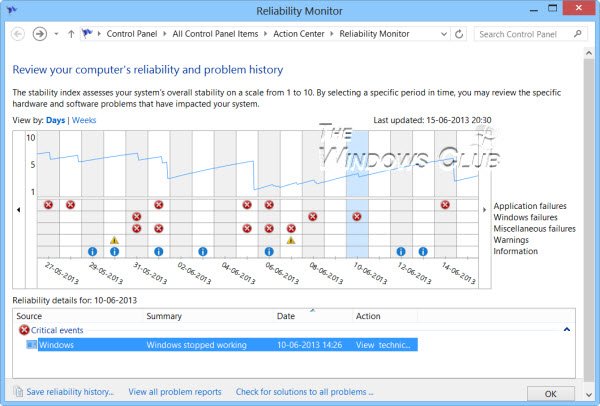
The tool is special in that events normally noticeable to users can be picked up by the program and presented as a graphical layout, pinpointing when an issue occurred and how long it has been occurring. The graph drops whenever the computer encounters a problem, such as software not working or a driver crashing unexpectedly.
Reliability Monitor presents the data as a line chart, providing a system stability overview and detailed information about individual events that may affect the system’s overall stability. By combining Reliability Monitor logs with Event Logs and problem reports, you are further along in determining what is causing Windows problems.
Reliability Monitor provides a system stability overview and trend analysis, along with detailed information on individual events that may affect overall stability, such as software installations, operating system updates, and hardware failures. It begins collecting data at the time of system installation.
Under ‘Settings’ search option type reliability to open the Reliability Monitor. Alternatively, you may open the Run box, type the following and hit Enter:
perfmon /rel
Click any event on the graph to view its details. The stability index assesses a system’s stability on a scale from 1 to 10. By selecting a specific period, you can review the hardware and software problems affecting your system.
Via the Control Panel, click Performance Information and Tools, then click Advanced Tools in the left-hand green pane to open the Reliability Monitor. This new feature gives your computer a reliability score out of 10. This figure decreases whenever your computer encounters a problem, such as a piece of software not working or a driver crash. This helps you identify what causes your computer problems for any particular event. Do also note the System Stability Index that it computes for your machine, in the top RHS corner. It takes into account Software UnInstall Issues, Application Failures, Hardware Failures, Windows Failures & Miscellaneous Failures.
By default, the program displays the days of the current month and issues show up each day. Issues displayed by Reliability Monitor are classified or categorized into the following categories:
- Application failures
- Windows failures
- Miscellaneous failures
- Warnings
- Information
If you want, you can easily switch views from ‘Days’ to ‘Weeks’ by clicking on the link highlighted in Blue. If not, choose the desired day on your Reliability Monitor. This action will provide details on that day’s issue. You can easily find the underlying cause and correct the problem then. To check the technical details of the problem, click ‘View technical details’ link under the ‘Actions’ column of the corresponding problem.
On clicking the link, a ‘Problem Details’ window pops up on your computer screen, displaying the date and time of the related problem along with a technical description of it. This information may reveal the error code, which might come in handy when looking for the software or app in question. You can then search this site or the Internet for a potential solution.
Generate Reliability Monitor System Health Reports
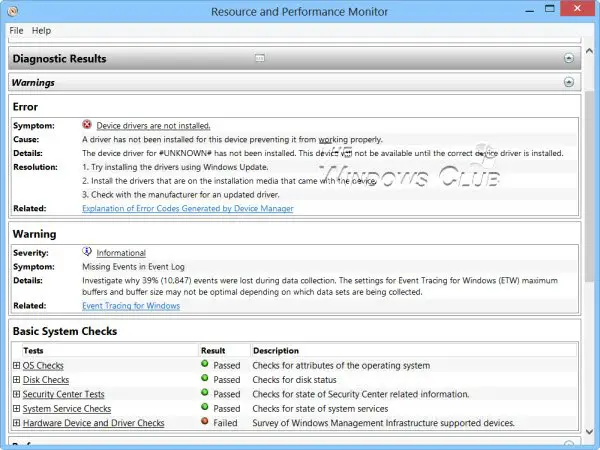
To generate Reliability Monitor System Health Reports, open Run, type perfmon /report and hit Enter. In a minute or so, a PC health report will be generated which will give you a lot of information. You can read more details here. In case you do not see any reports, make sure that you have enabled Data Collection for Reliability Monitor
Here are shortcuts you can use via Run:
- perfmon /rel : Runs Reliability Monitor
- perfmon /report : Generates System Health Report
- permon /sys : Runs a Standalone Performance Monitor
Read: Enable, Disable Data Collection for Reliability Monitor.
If for some reason you find that your Windows Reliability Monitor is not working, you may try to reset it and see if it helps.
PS: How to use the Performance Monitor and the Resource Monitor may also interest you.
