
The Windows Reliability Monitor lets you view the computer’s reliability and problem history. If your Reliability Monitor shows no data, it may be possible that the Data collection feature has been disabled. In that case, you can follow this tutorial to enable data collection in Reliability Monitor in Windows 11/10.
Enable Data Collection for Reliability Monitor in Windows 11
Reliability Monitor in Windows uses data provided by the RACAgent scheduled task. The Reliability Analysis Component collects and analyzes problems. The Reliability Monitor starts displaying a Stability Index rating, a characteristic feature of it, and specific event information 24 hours after system installation.
The Reliability Analysis Component (RAC) supplies data about software installations and upgrades, application and operating system errors, and hardware issues to Reliability Monitor. This data is used to calculate Reliability Monitor’s System Stability Index. The data that is displayed in Control Panel is collected by the RacTask scheduled task.
If you find the RACAgent scheduled task is disabled, you need to manually enable it from the Task Scheduler snap-in for Microsoft Management Console (MMC). To enable the RACAgent scheduled task, first type Scheduled Tasks in the settings search bar and click on ‘Scheduled Tasks’.
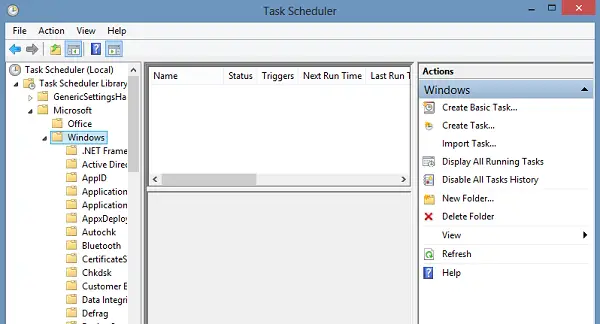
This will open the Task Scheduler. Then, in the navigation pane, expand Task Scheduler Library, Microsoft, and Windows. Scroll down to RAC, then select it.
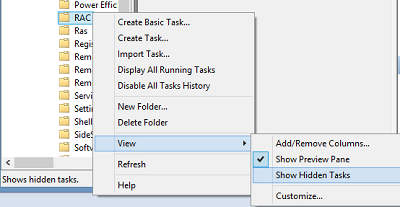
Next, right-click RAC, click View, and click Show Hidden Tasks.
Click RACAgent in the results pane. You may find that the RACAgent task name may not appear in the results pane. If you cannot find it, expand the ‘Name’ column in the results pane. Next click on the ‘Action’ menu and select the ‘Enable‘ option. To disable it, right-click RacTask, and then select Disable.
Read: How to clear Problem Reports in Windows
Turn On or Off Data Collection for Reliability Monitor using the Command Prompt
To do so, run CMD as administrator. Type the following and hit Enter:
schtasks.exe /change /enable /tn \Microsoft\Windows\RAC\RacTask
If a SUCCESS message is returned, you will have enabled Data Collection for Reliability Monitor.
To disable it use:
schtasks.exe /change /disable /tn \Microsoft\Windows\RAC\RacTask
TIP: How to Reset Reliability Monitor in Windows may also interest you.
