
If Task Manager freezes or crashes and closes immediately on Windows 11/10, then one of these suggestions is sure to help you. The Windows Task Manager is an advanced program or tool that lets you monitor applications, processes, and services running on your PC. You can find out how your system’s resources are used and end programs/processes that are troubling you. Windows 11/10 without a Task Manager is unimaginable.
Some users report that their computer’s Task Manager crashes when they try to use it. This might put a lot of stress on system resources if any program is using a significant amount of memory.
Task Manager crashes on Windows 11
You can fix Task Manager crashing on Windows 11/10 using the following methods.
- Scan for any Virus and Malware
- Run SFC and DISM Scan
- Troubleshoot in Clean Boot State
- Use the Reset this PC option.
Let’s see each method in detail and fix the issue.
1] Scan for any Virus and Malware
Sometimes, viruses or malware can degrade program performance on computers. We have to ensure we install trusted software, download trusted files, and use secure USBs. Most of the time, the antivirus or anti-malware programs we use on our computers detect and delete them. There are situations where we disable antivirus or anti-malware to run something. Those situations may cost us. Try running the antivirus or anti-malware to fully scan your computer. If there is any file or program causing the Task Manager crash, they will take care of it and resolve the issue.
Read: Why does CPU usage spike to 100% when launching Task Manager?
2] Run SFC and DISM Scans
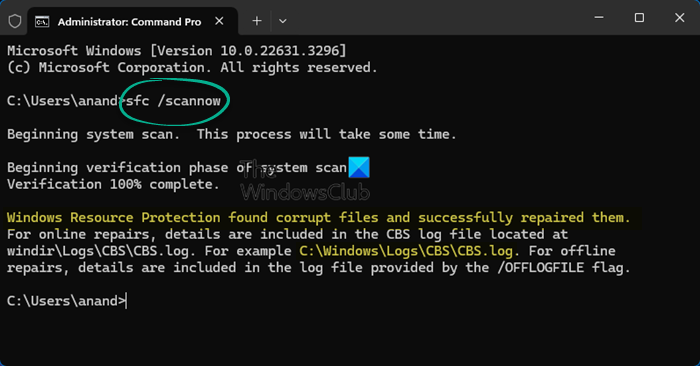
SFC (System File Checker) and DISM (Deployment Image Servicing and Management) are the most valuable tools that are available on Windows 11/10. These tools run through commands, and most users don’t know about them.
To run SFC Scan, click on the Start menu and type CMD. Right-click on the Command Prompt from the search results and select Run as administrator. It will open Command Prompt window with administrator privileges. Type the following command and press Enter.
sfc /scannow
It will run the scan and automatically fix issues with system files.
To run DISM Scan, press Win+X on your keyboard and select Windows PowerShell (Admin). In the PowerShell application window, enter the following command and press Enter.
Dism /Online /Cleanup-Image /RestoreHealth
It will take care of the corrupted files and repair them by replacing them with new files.
Read: Task Manager is not responding, opening, or disabled by the administrator.
3] Troubleshoot in Clean Boot State
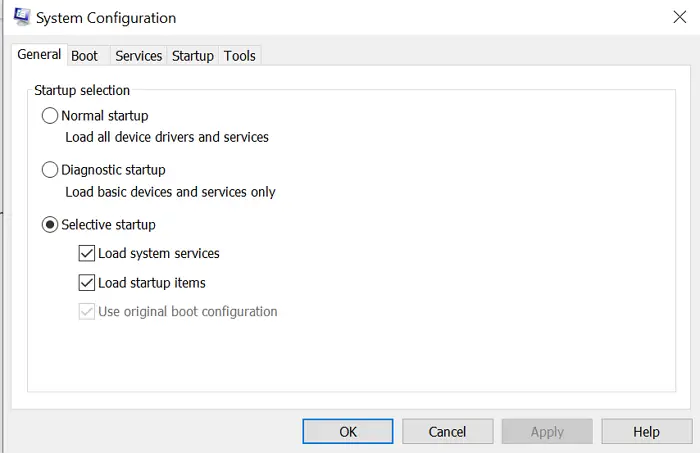
Performing Clean Boot is one of the most effective methods in troubleshooting the issues on Windows. Clean Booting means starting a computer with only essential programs like drivers and Microsoft programs. No third-party application will run while on Clean boot. With a Clean boot, you can identify which program or service is causing the Task Manager crash and resolve it easily.
To perform Clean Boot, press Win+R on your keyboard to open the Run box. Then, type msconfig in the box and press Enter. It will open the System Configuration window. In the General tab, uncheck the button beside Load startup items.
Now, click on the Services tab. In the Services tab, check the button beside Hide all Microsoft services and then click on Disable all.
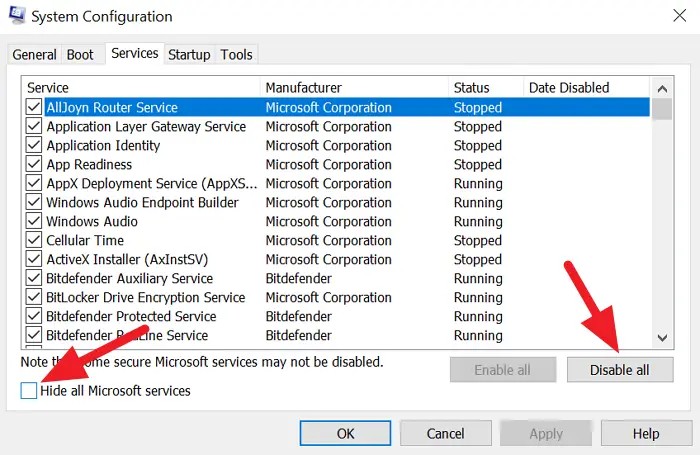
Then, click on the Startup tab and try to Open Task Manager and disable all the programs on startup. If it doesn’t run, click on OK and restart your computer.
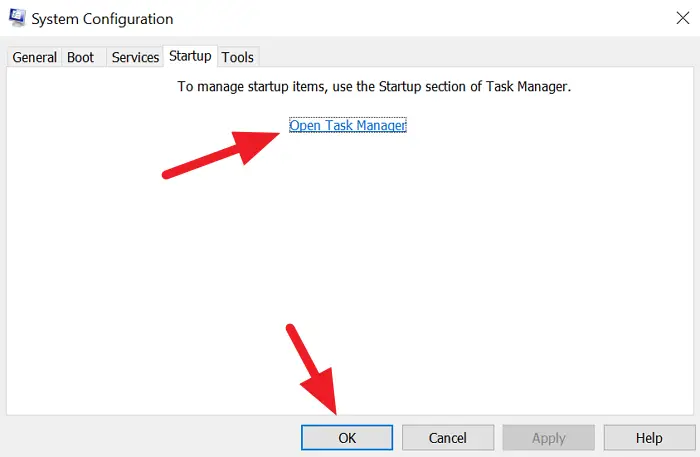
Your computer will now run in Clean Boot mode. Only essential Microsoft programs run. Try opening the Task Manager. If it runs perfectly fine, then the issue is caused by some third-party application, which you have to manually find by enabling and disabling each application, and restarting your PC.
Read:
4] Use the Reset this PC option
If the Task Manager still does not run, try resetting your PC.
To do so, open Settings and click on Updates & Security. Then, select Recovery from the left sidebar and click on Get started under Reset this PC.
Follow the on-screen instructions to reset your PC. It will fix the issue you are having with the Task Manager.
These are possible fixes to help resolve the Task Manager crash. If you have doubts or suggestions, do comment below.
Related: Task Manager crashes when opening Performance tab
Why does my Task Manager crash when I open Windows 11?
Task Manager crashes in Windows 11 often occur due to corrupted system files, misconfigured settings, or software conflicts following updates. These issues can affect users across the spectrum, from everyday PC users to gamers and IT professionals, who depend on Task Manager for system diagnostics and troubleshooting.
How to fix Task Manager not working in Windows 11?
If Task Manager is not working in Windows 11, restart Windows Explorer using CMD, reset the Task Manager, run system repair commands like SFC and DISM, create a new user profile, and use Safe Mode to troubleshoot. These methods can help resolve the issue, ensuring Task Manager functions properly on your system.
Read Pin Task Manager to Taskbar or Start Menu; Minimize Taskbar to System Tray.
