
This post will show you how to stop Apps from running in the background in Windows 11/10.
UWP (Universal Windows Platform) apps are available in the Microsoft Store and, in many ways, operate differently from traditional Win32 apps, yet they are fundamentally the same. Like regular Win32 apps, these apps can drain your battery if left running in the background. The thing is, many of these apps need to run in the background in order for the user to take advantage of the full feature set. You see, for such things as live tiles and notifications to work, UWP apps must run in the background at all times.
Turn off or Disable Background Apps in Windows 11/10
Seeing as the information for live tiles and notifications are usually delivered from the cloud, UWP apps should drain less power from your battery when compared to Win32 apps, but this has yet to be tested by us, so it is still up in the air.
Stop Windows apps from running in the background
There are four ways to do this, but first, we are going to look at how to stop specific apps from running – you know, the ones that are not overly important.
1] Via Windows Settings Background Apps Permissions
Windows 11
In Windows 11, there is no global setting to disable all background apps. You have to do it for every app individually.
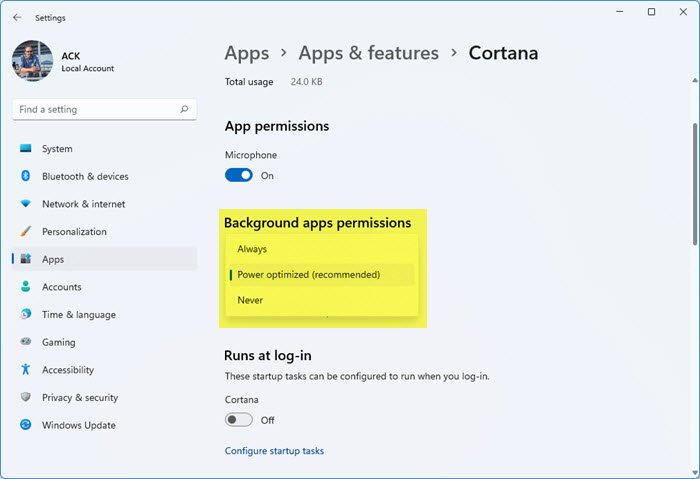
To prevent or Windows 11 apps from running in the background:
- Open Windows 11 Settings
- Go to Apps > Apps & features
- Locate the app you want to prevent from running in the background
- Click on Advanced options
- Open the Background apps permission drop-down menu
- Here you can select Always, Recommended, or Never.
Keep in mind that apps may need to run in the background if used regularly. Turning them off means you won’t get awakened by the Alarm bell, and you won’t get notifications or live updates when a new email has arrived.
Windows 10
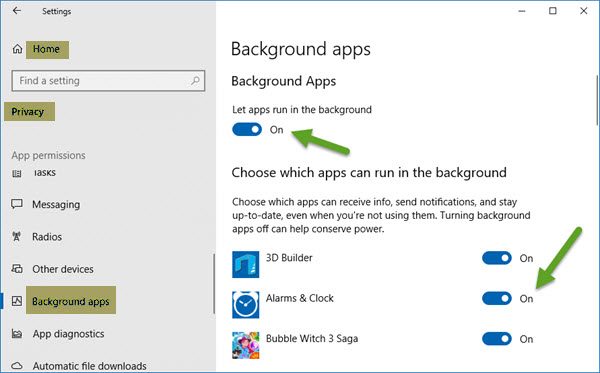
To accomplish this, click on the Start Menu then open the Settings apps. Click on Privacy, then scroll down to the option that says, Background Apps.
From here, you should see a list of apps that have permission to run in the background. Under Let apps run in the background section, simply use the toggle off/on switches to perform the relevant task.
When you reduce the apps that can run in the background, you will definitely conserve power as well as make your PC run better.
2] Via Battery Saver mode
Another way of stopping UWP apps from running in the background, is simply, turning On the Battery Saver mode. Do this, and all apps will cease from running in the background right away. This is great for when you’re away from a power supply and want to get the most out of your battery’s energy.
In Windows 11, you have to configure the Battery saver settings.
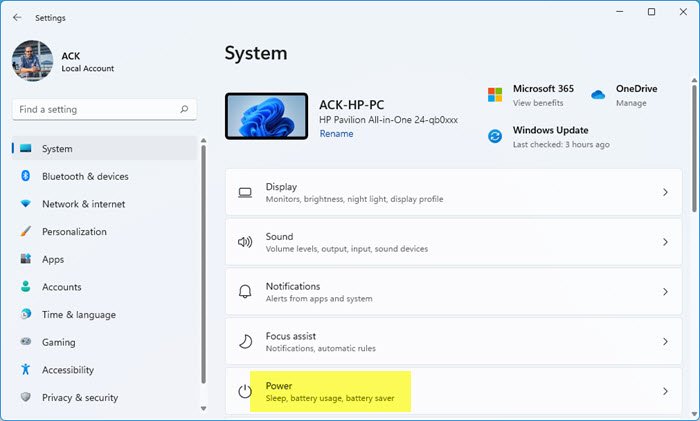
You can find them in Settings > System > Power.
To do this in Windows 10, click the battery icon in the notification area, then select Battery Saver to complete the task.
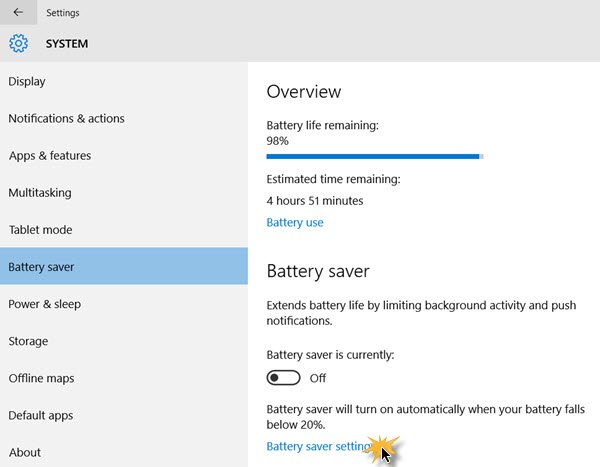
The whole process is as easy as reciting your ABCs, so there should be no more complaints about battery issues going forward.
3] Using Registry Editor
Open Registry Editor and navigate to the following key;
HKEY_CURRENT_USER\Software\Microsoft\Windows\CurrentVersion\BackgroundAccessApplication
Here:
- Create a new DWORD (32-bit) value with the name Default and set its value to 1
- Also, create another DWORD (32-bit) value with the name Migrated and set its value to 4
Restart your computer.
This will prevent all your Windows apps from running in the background.
4] Using Group Policy Editor
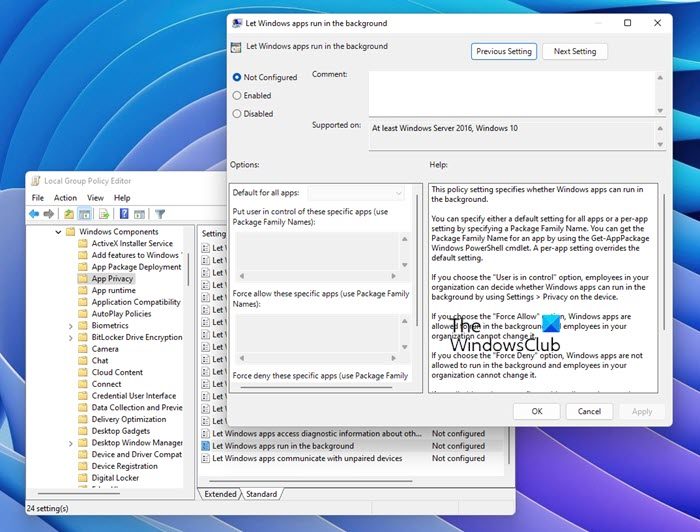
Open Group Policy Editor and navigate to the following setting:
Computer Configuration > Administrative Templates > Windows Components > App Privacy.
Locate the Let Windows apps run in the background setting and set it to Enabled.
From the drop-down menu for Default for all apps, select Force Deny.
Click Apply and exit.
This will prevent all your Windows apps from running in the background. In this way, you can also restore a Missing Background Apps Permission Option in Windows 11/10.
Hope this helps!
How do I reduce background processes in Windows 11?
There are many ways to manage or reduce background processes in Windows 11. You can use the Task Manager to kill unnecessary background processes. Be careful when terminating processes in Task Manager. Terminating useful Windows processes can cause your system to become unstable. You can also use the MSConfig app to prevent third-party services from running automatically on system startup. Again, be careful when using the MSConfig app to disable startup services. If you disable all the services, you will not be able to use your system.
How can I make Windows 11 faster?
You can enhance the performance of Windows 11 on your system by tweaking some settings. Background apps continuously use system memory. This will impact your system’s performance if it has less RAM. Hence, disable these startup apps. Enabling Fast Startup will help Windows 11 boot faster.
