
HDD or Hard Disk Drives tend to go become with time. Low disk space, aged hard drive, bad sectors, too many applications running in the background, we can count on. In this post, we will talk about how you can increase hard drive speed & performance in Windows 11/10. But before we go ahead, let’s understand if the guide applies to an SSD.
This guide doesn’t apply to SSDs, here is why
This is because of how they store data. Unlike HDDs, SSDs don’t have any moving parts. Instead, data is saved to a pool of NAND flash. That is the primary reason SSDs have excellent read and write speeds. It does not match the speed we get on RAM, but it’s a lot more than HDDs. Every time data has to be written to an SSD, it finds a full block and writes to it. It is easier than deleting and then writing it.
That’s why SSDs slow down when they start running out of space. The controller has to work hard to figure out the pace that is marked for deletion, move files to a different block, and then rewrite them. If you run optimization tools, you will only end up shortening the disk’s lifespan.
We have seen many guides written to optimize SSDs, and they don’t work. Most of the optimization tools are built for HDDs, and that’s where they should be applied to.
Read: How to disable defragmentation for SSDs in Windows.
Increase hard drive speed & Improve performance
The Storage device we are talking about here is Hard Disk Drive, which with come moving parts. The reason an HDD needs optimization is that, over time, the data becomes scattered throughout. There is a lot of distance, even if it’s the same file. The reader or the head will have to work harder. That’s what the optimization tools help to achieve. Data is rearranged so the data can be retrieved faster. Here is the list of methods to follow:
- Defragment and Optimize Drives
- Enable Write Caching
- Optimize Page File
- Optimize Background Services, Apps, and Storage Space
Right after this, we have talked about features you should not disable to optimize the drive.
1] Defragment and Optimize Drives
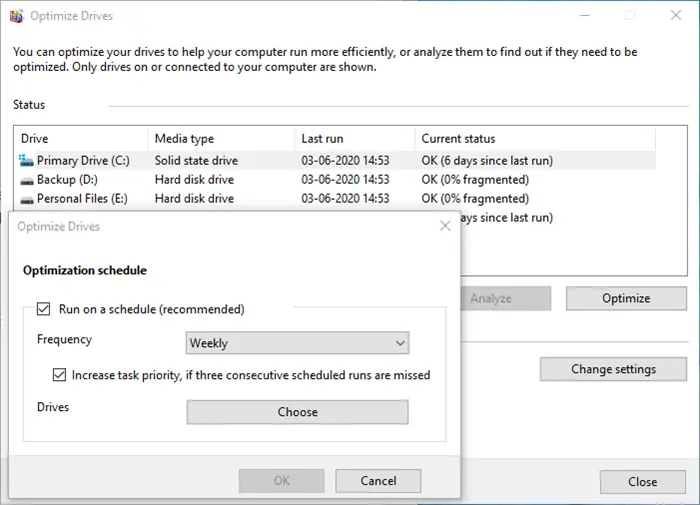
Windows has a Disk Defragmenter tool which has been there for a very long time. It improves performance by rearranging the files in such a way that they can be fetched quickly, i.e., with less movement of the reading head. The tool has been enhanced over the years, and you can also schedule the process. While you can leave everything on Windows, if you have a schedule, you can set it for weekends, but make sure to keep the computer turned on.
2] Enable Write Caching
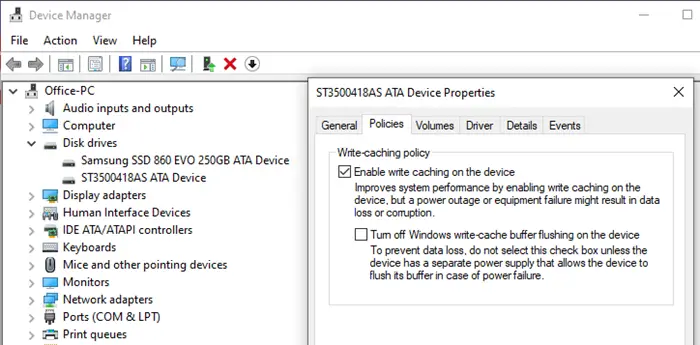
If you enable Write caching, it will take the load off the hard drive by using a cache in between. So when you save a file, it writes all information, including data into a temporary location. As writing to cache is faster than saving to hard disk, it results in better performance. It comes in handy when editing large files, such as images and videos.
3] Optimize Page File
The Page File has been misunderstood for a very long time. Windows users it as a temporary space to hold when the RAM is full. While you may not run out of RAM, thanks to the affordable price, most have more than we need, but removing PageFile.SYS won’t make a difference. In fact, it is better to have it than not have it at all.
So if you are doing a memory-intensive, and you finally run out memory, PageFile.SYS will be handy. Windows will put data back into this, free up memory, and get some more done.
Read: How to improve Windows 11 performance.
4] Optimize Background Services, Apps, and Storage Space
It is a general tip that improves not only HDD performance but also overall computer performance. If you have too many applications, background services, then it will impact as they will keep the hard drive buys, and you may not be able to work as expected. Also, if you are running low on storage space, it may impact performance, as the hard disk will struggle to rearrange files, freeing up space for new files to be saved.
The baseline is to get rid of anything unnecessary and resource-consuming.
That said, if all you want is to improve the overall performance of Windows 11/10, the best way is to switch to a hybrid model.
Install Windows on an SSD, and keep everything else on HDD. You can choose to perform optimization for HDD, and leave the rest on Windows to manage the SSD.
Read: Bad sectors on SSD and HDD
What you should NOT do to optimize Hard Disk Drives
A lot of posts talk about disabling Windows features both for HDD and SSD. Windows has come a long way, and so has the hardware. The same set of optimizations that has been repeated for over a decade will not work. Here is the list of features that you should not disable in them
- Windows Write-Cache Buffer Flushing: It allows applications to run faster by allowing them to proceed without waiting for data write-requests to be written to the disk.
- Windows Indexing, aka Windows Search Service: It only helps to improve the overall performance instead of lowering it. If there is no indexing, the hard disk will have to work even harder to find the data by crawling the entire drive, consuming more resources.
- High Performance: There is no way to improve a hard drive’s performance by keeping it on all the time. Windows Laptops offer a high-performance power plan that keeps the disk active all the time. It doesn’t add to the advantage of improving performance. Windows manages well by turning on the drive when required. The plan is only useful when you are doing intensive CPU/GPU work, such as video editing or gaming.
I hope the post was easy to follow, and you were able to improve hard drive speed and performance. Also, the post dispels many myths about optimizing speed. Do not disable services based on recommendations; it’s best to understand what Windows offers as a solution.
Read: Fix Slow SSD Read or Write Speed on Windows.
