
If when you start your Windows 11/10 PC and it displays the error message SMART Failure Predicted on Hard Disk 0, 2, etc., message and the computer won’t boot, then this post is intended to help you.
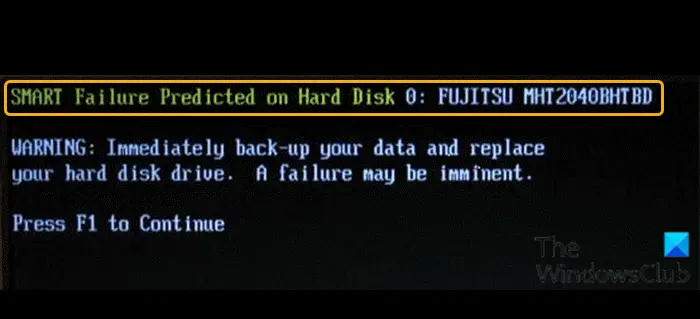
When you encounter this issue, you’ll receive the following similar full error message;
SMART Failure Predicted on Hard Disk 0: FUJITSU MHT2040BHTBD
WARNING: Immediately back-up your data and replace your hard disk drive. A failure may be imminent.
Press FI to Continue
This error indicates that the hard disk present in your personal computer will cease to function properly. It could either take many days in a row or maybe a month or so, but it will happen nevertheless.
You may encounter this error due to one or more of the following reasons:
- Overheating
- Shock
- Bad sectors
- Drive not defragmented
- Improper shutdown of the system
- Virus attack
- Misconfigured or outdated BIOS
- Physical damage to the hard drive
- Failure of SMART hard disk check
- Broken SATA/IDE controller chip is present on the motherboard
SMART is a self-diagnostic tool that is embedded in your hard drive (HDD) or solid-state drive (SSD). It serves the purpose of monitoring continuous drive conditions, including error rates and performance, while reporting its result to the computer system. Using predictive failure analysis, it essentially reports if a failure on the hard disk is about to happen as opposed to an actual failure.
SMART Failure Predicted on Hard Disk
If you’re facing this issue, try the recommended solutions in the order below to resolve it.
- Check Drive Status
- Run CHKDSK
- Defragment Drive
Let’s take a look at the description of the process involved concerning each of the listed solutions.
Since you cannot boot Windows normally, you may have to try and boot in Safe Mode or into Advanced Startup options screen to be able to carry out the fixes. You will need to make use of the Command Prompt. For some strange reason if you can boot in Safe Mode but cannot access the Advanced Startup Options screen, when in Safe Mode, you may use the Command Prompt to boot Windows directly to Advanced Startup Settings screen.
1] Check Drive Status
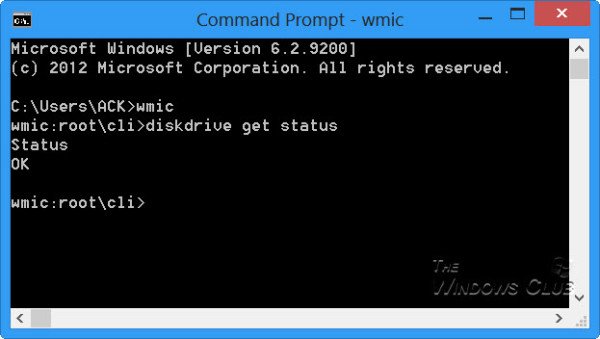
The first thing you should try when you get this SMART Failure Predicted on Hard Disk message on your Windows 11/10 PC is to check the drive Health status – depending on the result, you may have no other option but to back up your data and replace the drive – afterward, you can then reinstall Windows and restore your backed up files/data.
FIX: SMART status Bad, Backup and Replace error
2] Run CHKDSK
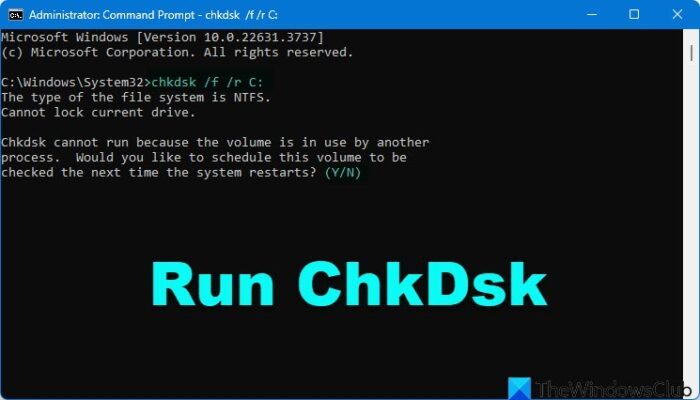
If the result of the drive status is OK, then you can proceed with this solution which is to run CHKDSK to fix bad sectors and see if the issue is resolved.
Fix: SMART Hard Disk Error 301, 302, 309, 30A, 30B, 30C, 3F1, and 3F2.
3] Defragment Drive
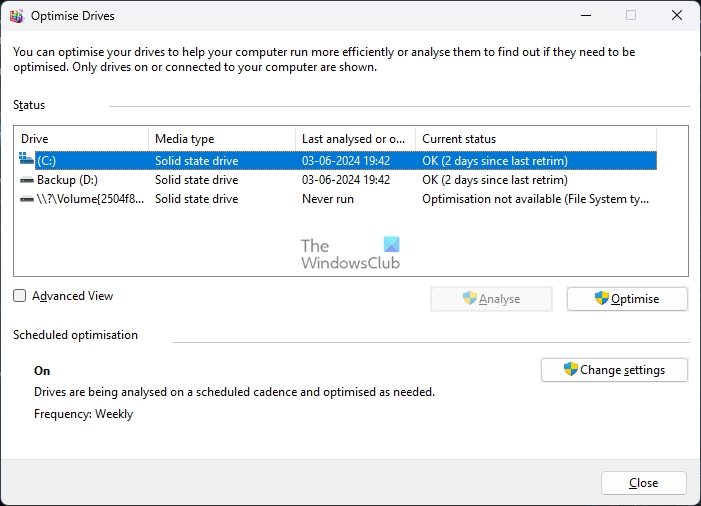
This solution simply requires you to defragment the drive and see if that resolves the issue.
If you continue to see this message, it might be a good idea to check whether you need to replace your hard disk. You should immediately back up your data and replace your hard disk drive, as a failure may be imminent.
Related post: 1720 SMART Hard Drive detects imminent failure.
How to check Drive SMART status?
To check SMART Failure Predict Status of drives on Windows, open Command Prompt and type wmic disk drive get status. Alternatively, use third-party tools like CrystalDiskInfo for a detailed report. Regularly checking SMART status helps detect potential hard drive failures early.
Read: One of your disks is at risk (SMART Event)
How do I check for disk failure in Windows?
To check for disk failure in Windows, right-click the drive, select Properties, and go to the Tools tab. Click “Check” under error checking. For a thorough scan, check both options in the open CHKDSK window. This process works for both Windows 10 and Windows 11.
