
Windows 11 helps us complete our tasks without issues, though it has minor shortcomings at times. Most of the errors we see are at the software level and are usually fixed with a simple restart of the PC. We do not have to bother much about it. However, at times, we see hardware issues that put the entire PC in jeopardy. It is rare, but when it happens, we must act instantly and fix the issue to prevent further damage to the PC. Some Windows users are seeing the One of your disks is at risk (SMART event) error displayed by their Intel software, even on new PCs. In this guide, we show you how to fix the issue easily.
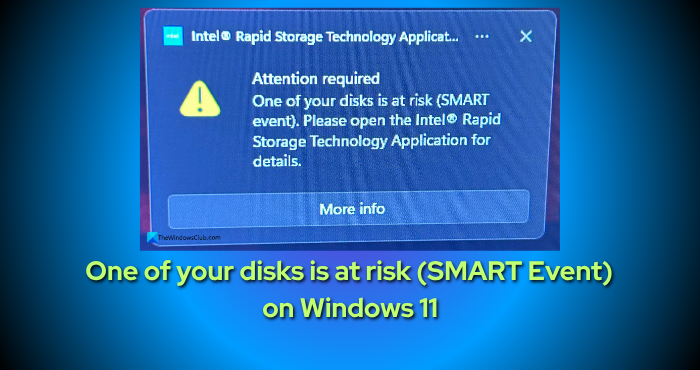
What does it mean when one of my disks is at risk?
When we see this error, the following message shows up:
One of your disks is at risk (SMART event). Please open the Intel Rapid Storage Technology Application for details.
Or
One of your disks is at risk (SMART event). Please open the Intel Optane Memory and Storage Management application for details.
This message is rarely seen, but when you do, it must be a critical one related to the disk. It is shown when your PC detects hardware issues with your drive and warns you of imminent failure.
One of your disks is at risk (SMART Event) on Windows 11
When you see the One of your disks is at risk (SMART event) error displayed by Intel software on your Windows 11, follow the methods below to fix the issue instantly.
- Check SMART status
- Check disk health
- Update Intel Rapid Storage Technology or Intel Optane Memory and Storage Management
- Check Device Manager
- Check for BIOS updates
- Run the Diagnostic App provided by your Manufacturer
Let’s get into the details. Before that, make sure your data on the disk is backed up as a safety measure, since this error is most often seen when your disk is about to fail or has major hardware issues.
1] Check SMART status
When you see the notification saying one of your disks is at risk, the first thing you need to do is check the SMART status. It provides an idea if there is an actual issue with the drive. Self-Monitoring, Analysis, and Reporting Technology, also known as SMART, is a feature of HDDs, SSDs, and eMMC drives. It detects and lets us know the issues in drives when they are about to fail or at risk of failure.
To check the SMART status, open Command Prompt as an administrator and use the following command.
wmic diskdrive get model, status
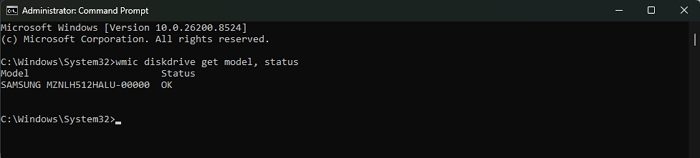
It will show your disk and its health status. If it shows anything other than OK, your disk is at risk of failure. You need to back up your data and change the disk. If it shows OK in the status, follow the methods below.
2] Check disk health
If the error is caused by logical errors or file corruption on the drive, it can be fixed using the chkdsk command on Windows. When you run the command, it checks for any errors on the disk, shows them to you and repairs them. To check disk health on Windows 11, open Command Prompt as an administrator and use the following command.
chkdsk C: /f /r
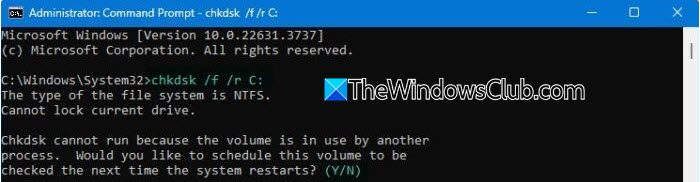
If it finds some issues and repairs them successfully, you need not worry. If it fails to repair the issues, it can mean the disk is on the verge of failure. You need to make sure your data is backed up and replace the failing disk with a new one.
3] Update Intel Rapid Storage Technology or Intel Optane Memory and Storage Management
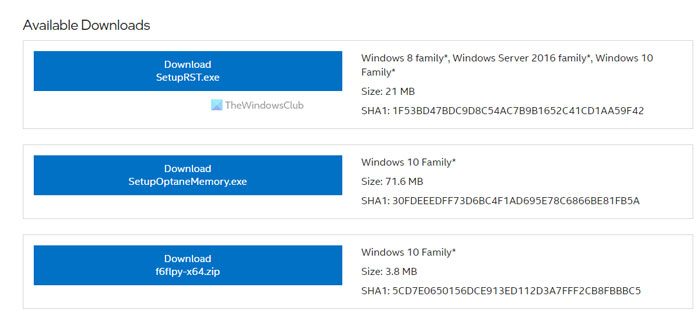
If any files crucial to Intel Rapid Storage Technology or Intel Optane Memory and Storage Management are corrupted or missing, you may see this error. Even the bugs in the previous update may cause this. Make sure you have installed the latest available version of these programs. You can find the latest versions on the Intel official website. Download and install the updated version.
4] Check Device Manager
Every device or accessory connected to a PC is listed in the Device Manager. Open the Device Manager on your PC, and expand Disk drives and Storage controllers. If you see a warning mark or yellow triangle for any device listed there, right-click on it and select Uninstall device.
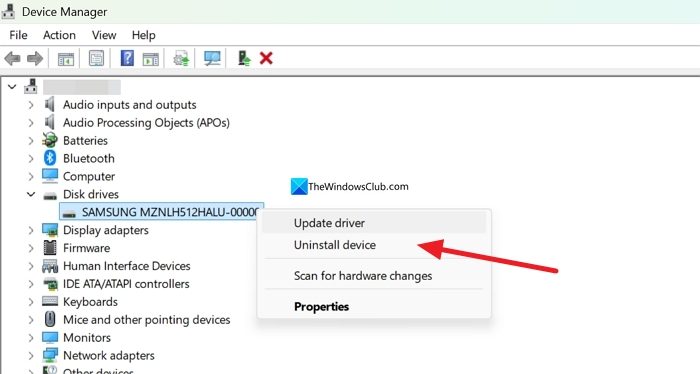
Then, restart your PC to force Windows to install missing devices automatically. It should fix your issue if it is caused by the Device Manager’s inability to recognize the drive properly.
5] Check for BIOS updates
BIOS recognizes all hardware on your PC, relays the information to Windows, and bridges the gap. With a corrupted or outdated BIOS, your PC starts behaving abnormally. It might also cause the “one of your disks is at risk” error. To fix that, you need to update the BIOS on your PC. You can use the tools provided by your PC manufacturer to update the BIOS.
6] Run the Diagnostic App provided by your Manufacturer
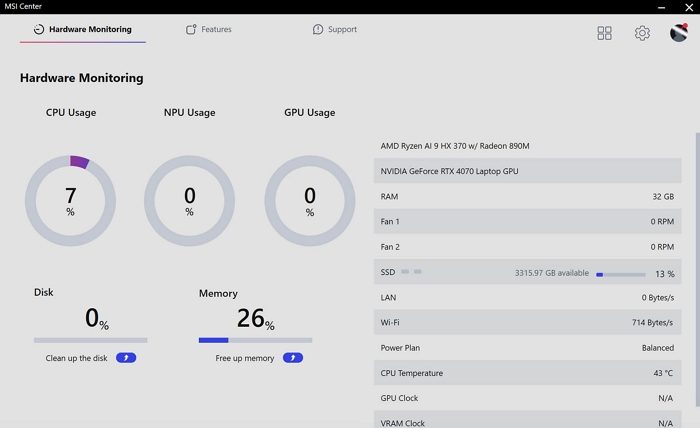
All the major manufacturers provide a diagnostic app for PCs to scan and find issues. You need to install and run it to scan your PC and find issues mainly related to the hardware. You can use the following apps, based on your PC manufacturer.
- HP – HP PC Hardware Diagnostic Tool
- Dell – Dell SupportAssist
- Lenovo – Lenovo Vantage
- Asus – MyASUS
- MSI – MSI Center
They will find the issues and suggest the fixes.
Read: Fix SMART Failure Predicted on Hard Disk error message at boot
Can you fix a SMART error on a hard disk?
If the SMART error is triggered, it means the disk is about to fail. It is just showing a warning for you to back up your data before it is too late. Very rarely, a SMART error can result from heat buildup in and around the drive due to poor ventilation or blocked vents on your PC. Only in such cases can we fix a SMART error by getting the PC serviced by a professional.
Related read: SMART status Bad, Backup and Replace error [Fix]
