
If the Intel Rapid Storage Technology Driver is not installing on Windows 11, here is how to force-install it. At times, you might not be able to install the Intel RST driver on Windows 11 or Windows 10 PC. Here are some possible reasons and solutions to help you resolve the issue and install the driver successfully.
Intel Rapid Storage Technology Driver not installing on Windows 11
If the Intel Rapid Storage Technology Driver is not installing on Windows 11, follow these steps:
- Install in compatibility mode
- Download driver from the Intel website
- Set BIOS to RAID mode
1] Install in compatibility mode
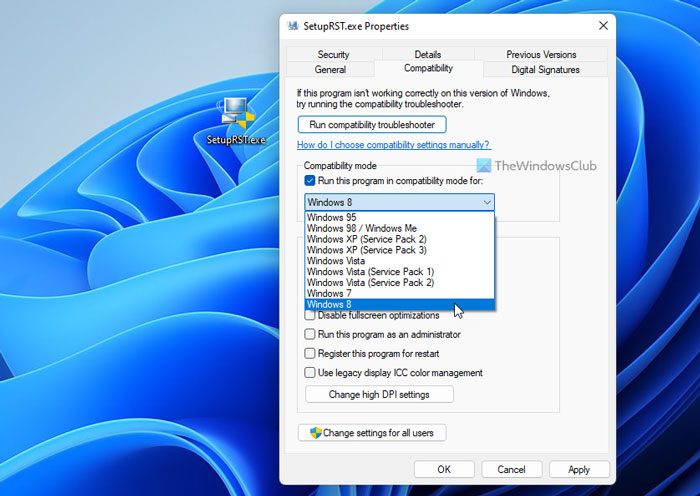
If you are using the Beta or Developer version of Windows 11, you are at high risk of encountering this error on your computer. As these editions come with countless bugs, you might not be able to install all the drivers and apps on your PC while using them. That is why you can try compatibility mode to proceed with the blocked installation.
For your information, Compatibility mode helps you install drivers on your computer when installing them on an older version or a different version of Windows.
To install the Intel Rapid Storage Technology Driver in compatibility mode, do the following:
- Right-click on the driver and select Properties.
- Switch to the Compatibility mode.
- Tick the Run this program in compatibility mode for checkbox.
- Select Windows 8 from the list.
- Click the Apply button.
- Double-click on the driver.
Now you should not have any issues.
2] Download the driver from the Intel website
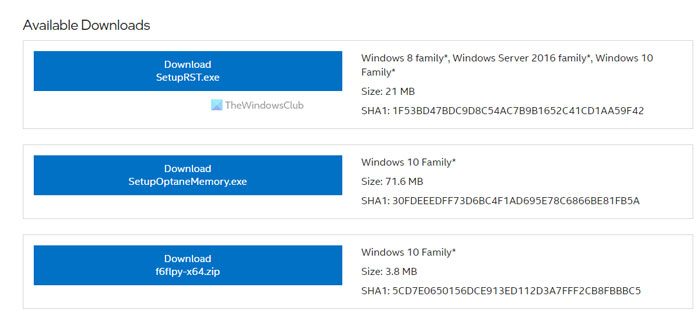
If you downloaded the driver a long time ago or are trying to install it from the motherboard CD on Windows 11, you might encounter the aforementioned issue. Also, the downloaded driver might have been corrupted or damaged by adware or malware. If so, you will be unable to install the driver on your computer.
That is why it is recommended to download the Intel Rapid Storage Technology Driver from Intel’s official website. Intel offers two versions of the driver, and you can download either. However, it is always recommended to download the latest driver version. To download the Intel Rapid Storage Technology Driver, visit intel.com.
3] Set BIOS to RAID mode
At times, you might not be able to install the Intel Rapid Storage Technology Driver in AHCI Mode. That is why you need to opt for the RST/RAID mode before installing the operating system. Depending upon the motherboard, you can find the AHCI and RAID mode in the SATA Mode setting.
That’s all! Hope this guide helped.
Read: Intel Rapid Storage Technology platform is not supported
A newer version of the Intel Rapid Storage Technology driver has been detected
If you receive A newer version of the Intel Rapid Storage Technology driver has been detected, You cannot overwrite the currently installed version with an older version message when trying to install the RST driver, it means that the driver version that you are installing is older than the one installed on your PC, and so the system will now allow you to install an older driver. Should you wish to install the older version, you will need to uninstall the version installed on your PC, then run the new setup file to install the older version.
How do you fix the problem that Cannot find drives when installing Windows 11?
If you are getting No drivers were foundwhen installing Windows 11 or Windows 10, you can get rid of the issue by creating a bootable USB drive. It is a common issue when there are some problems with the hardware or the bootable USB drive. No matter whether you are trying to install Windows 11, Windows 10, or any other version of Windows, you can encounter the same issue on all operating systems.
How do I install Intel Rapid Storage Technology Driver?
To install Intel Rapid Storage Technology Driver or the RST driver on Windows 11 and Windows 10, there are mainly two options. First, you can obtain the driver from the manufacturer’s CD included with the motherboard. Second, you can download the driver from Intel’s official website. If you want to install the latest version of the RST driver or avoid the update process, you can visit the Intel website to download the driver.
