
Docker Desktop is one of the easiest ways to run containers on Windows 11, but installation can sometimes fail or get stuck before setup completes. This can happen because of missing Windows features, an outdated WSL installation, disabled virtualization, or an existing Docker installation interfering with the new setup. If you are unable to install Docker Desktop on Windows 11, try the solutions mentioned in this article to fix the issue.
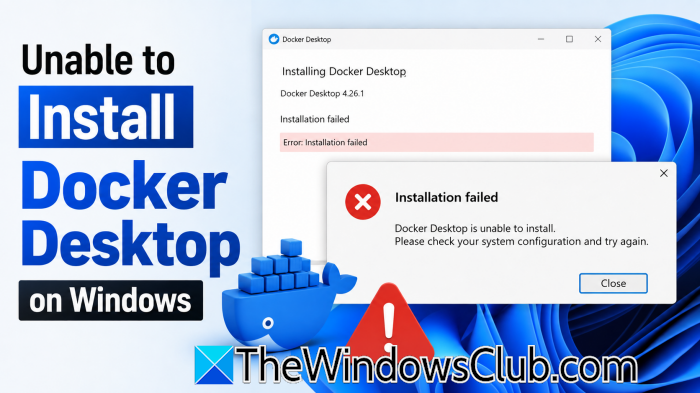
Unable to Install Docker Desktop on Windows 11
Several reasons can cause Docker Desktop to fail to install on Windows 11. The most common one is that hardware virtualization is disabled in the system’s BIOS or UEFI settings. Docker Desktop also depends on WSL 2 and the Virtual Machine Platform to run Linux containers, so an outdated or improperly configured WSL installation can cause problems. In some cases, missing Windows updates, insufficient administrator permissions, or remnants of an older Docker Desktop installation can also interfere with the setup process. So, check these components before trying the installation again.
If you can’t install Docker Desktop on Windows 11, try these steps first. Check if your Windows is up-to-date and try running Docker setup as an administrator. If the issue persists, follow the solutions below.
- Check if virtualization is enabled
- Update WSL
- Enable the required Windows features
- Remove an older Docker installation
- Check for conflicts with virtualization software
Let us go through them in detail.
1] Check if virtualization is enabled
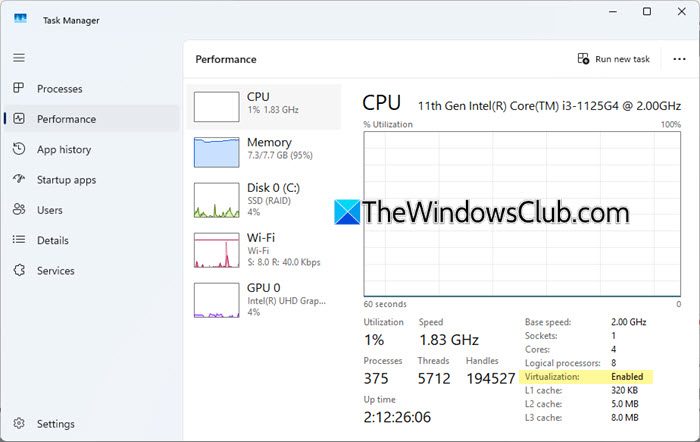
Docker Desktop relies on hardware virtualization to run Linux containers on Windows. If virtualization is disabled in the BIOS or UEFI, the installation may fail, or Docker may refuse to start after installation.
Restart your PC and enter the BIOS/UEFI settings. Depending on your processor, look for an option such as Intel Virtualization Technology (VT-x) or AMD SVM Mode and make sure it is enabled. Save the changes, then reboot into Windows.
You can also check the status from Windows by opening Task Manager > Performance > CPU and looking for Virtualization. It should show Enabled.
This post will show you how to enable Hardware Virtualization in the BIOS.
2] Update WSL
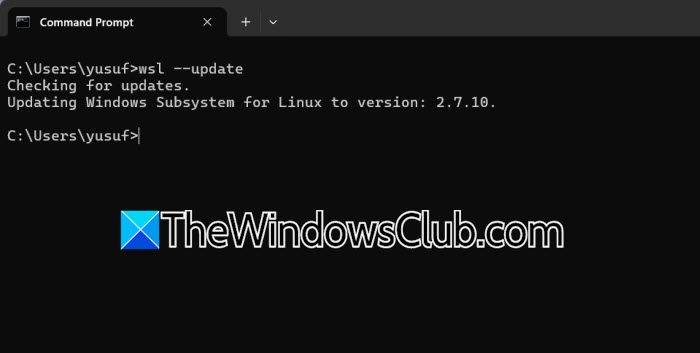
Docker Desktop uses the Windows Subsystem for Linux 2 (WSL 2) backend on Windows 11. An outdated or incorrectly configured WSL installation can prevent Docker Desktop from installing or running properly.
To update WSL, open Windows Terminal or PowerShell as administrator and run the following command.
wsl --update
Then restart Windows and try installing Docker Desktop again.
If WSL is not installed, you can install it with wsl –install.
Restart your computer after the command finishes.
3] Enable the required Windows features
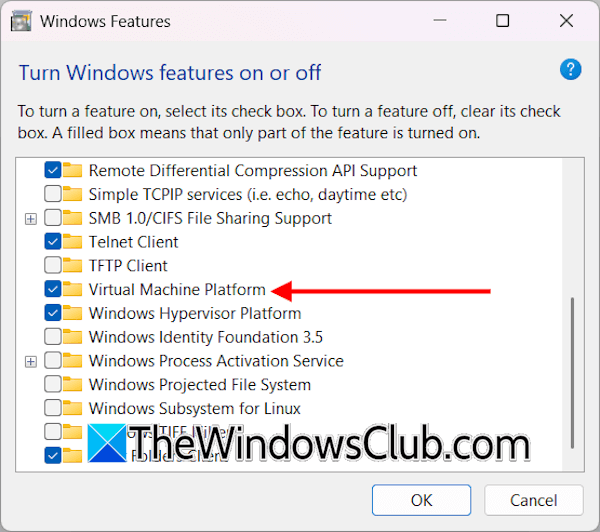
Docker Desktop may require Virtual Machine Platform and Windows Subsystem for Linux to be enabled.
Open Turn Windows features on or off from Windows Search and make sure these two options are selected: Virtual Machine Platform and Windows Subsystem for Linux.
Click OK and restart the computer. You can then run the Docker Desktop installer again.
4] Remove an older Docker installation
If Docker Desktop was previously installed on the computer, remnants of the old installation can sometimes interfere with a new setup. Go to Settings > Apps > Installed apps, search for Docker Desktop, and uninstall it if it is already listed. Restart Windows, then download the latest Docker Desktop installer before trying again.
5] Check for conflicts with virtualization software
Other virtualization software can occasionally interfere with the virtualization features Docker Desktop needs. If you have software such as another hypervisor or virtual machine platform installed, temporarily close it and try the installation again. If Docker Desktop still won’t install, check the installer logs to see whether the issue is related to WSL, virtualization, permissions, or another Windows component.
Hopefully, these solutions resolve your issue.
Read: How to set up and use Docker Desktop on Windows
Does Docker Desktop work on Windows 11 Home?
Yes, Docker Desktop works on Windows 11 Home, as long as your system meets its requirements. It uses the WSL 2 backend to run Linux containers, so WSL 2 and the required virtualization features must be available and enabled. Make sure hardware virtualization is enabled in your BIOS or UEFI settings and that Windows is up to date. If Docker Desktop still fails to install, updating WSL and enabling Virtual Machine Platform can often resolve the problem.
Read: Docker Desktop starting forever in Windows 11
How do I fix Docker Desktop Installation failed?
If Docker Desktop installation fails on Windows 11, first make sure your system meets Docker’s requirements and that hardware virtualization is enabled in BIOS/UEFI. You should also update WSL and enable Virtual Machine Platform and Windows Subsystem for Linux. If an older Docker installation exists, remove it and restart Windows before running the latest installer again. Docker also supports a per-user installation that does not require administrator privileges, so permission issues may not always be the cause.
Also Read: Docker Desktop – Unexpected WSL error in Windows 11.
