
Some users cannot format a USB flash drive to FAT32 using Diskpart because of the “There is no volume selected” error on Windows computers. The FAT32 file system is required for several purposes, such as BIOS recovery and installing software updates on PlayStation. This error usually occurs when you run the Diskpart commands incorrectly. This article shows how to resolve this problem.
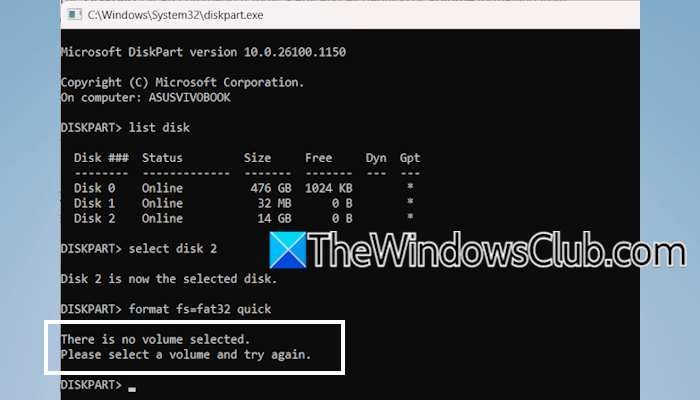
The complete error message is:
There is no volume selected.
Please select a volume and try again.
There is no volume selected in Diskpart error on Windows computer
Use the following fixes if you cannot format your USB flash drive using Diskpart due to the “There is no volume selected” error:
- Use the command correctly
- Select the correct volume
- Format the USB flash drive in File Explorer or Disk Management
- Delete the volume and create a new simple volume
- Use a third-party tool
All these fixes are explained below in detail. Before proceeding, back up all your data from the USB flash drive.
1] Use the command correctly
According to the reports, affected users ran the format command after selecting the target disk. The format command in Diskpart does not work on a disk directly; it works on a selected volume or partition. That’s why if you execute the format command in Diskpart immediately after selecting the target disk, the command fails and shows the “There is no volume selected” error.
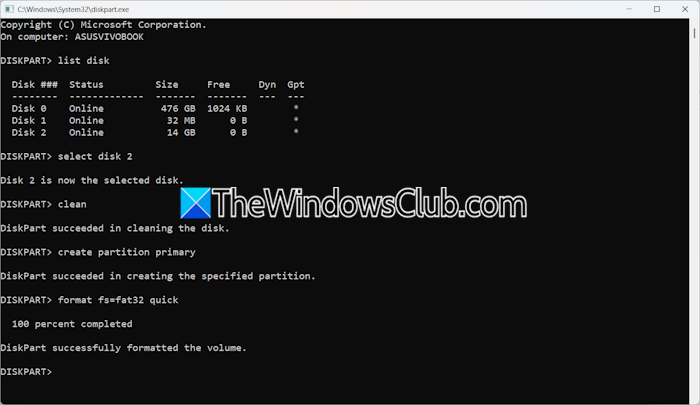
The correct method to use the format command in Diskpart is as follows:
list disk

select disk #

clean

create partition primary

format fs=fat32 quick
In the above commands, replace # with the correct disk number for your USB flash drive. The clean command deletes all the partition tables on the selected disk and creates an unallocated space. That’s why the format command works after running the clean command. After running the above commands, Diskpart will automatically assign a drive letter to your USB flash drive. If this does not happen, run the following command:
assign letter=E
Replace the drive letter E with the letter you want to assign.
2] Select the correct volume
You can also format a USB flash drive in Diskpart. The error message indicates that no volume is selected. Therefore, instead of listing the number of disks on your system, you can use the command to list all volumes.
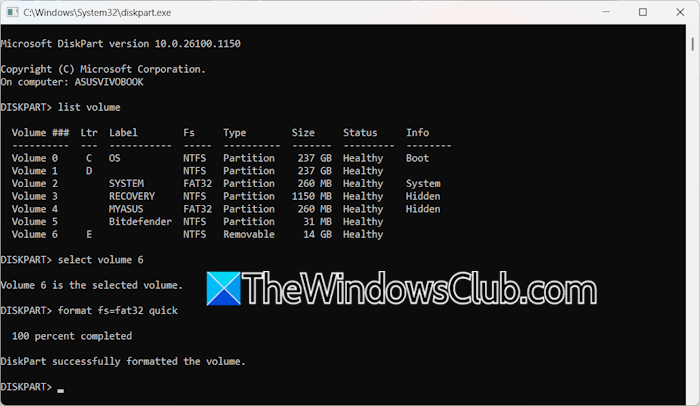
Run the following commands in Diskpart:
list volume

select volume #

format fs=fat32 quick
If you use the above commands, you do not need to clean the USB flash drive.
3] Format the USB flash drive in File Explorer or Disk Management
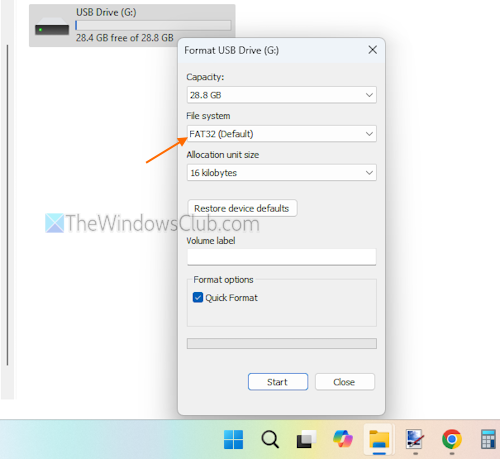
If you encounter an error in Diskpart, you can use alternate ways to format the USB flash drive to the FAT32 file system. Open File Explorer, right-click on your USB flash drive, and select Format. Select FAT32 in the File System drop-down, enable the Quick format checkbox, and click Start.
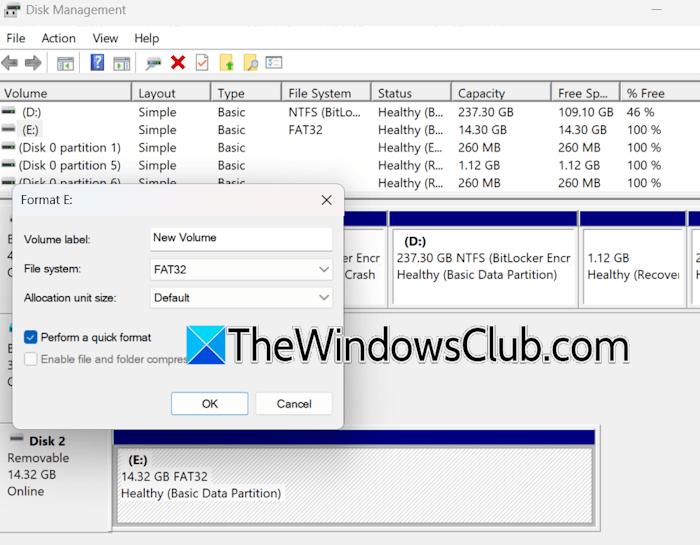
You can also use Disk Management for the same. Open Disk Management, right-click on your USB flash drive, and select Format. Now, select FAT32 as the FIle system, enable the Perform a quick format checkbox, and click OK.
4] Delete the volume and create a new simple volume
You can also try this alternate workaround. Go through the following instructions:
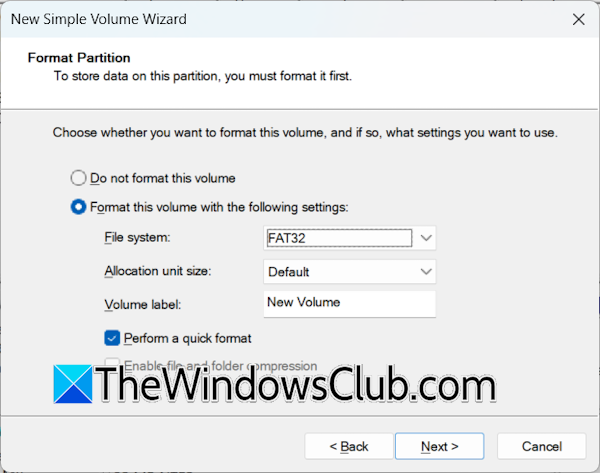
- Open Disk Management.
- Right-click on your USB flash drive and select Delete Volume. Click Yes to confirm.
- An Unallocated space will be created. Now, right-click on the Unallocated space and select New Simple Volume.
- Click Next until you see the screen in the above screenshot.
- Select the Format this volume with the following settings option.
- Set File System to FAT32 and click Next.
- Click Finish on the last screen. Disk Management will create a healthy RAW partition on your USB flash drive.
Now, open File Explorer and double-click on your USB flash drive. You will get a prompt to format it. Format the USB flash drive as FAT32.
5] Use a third-party tool
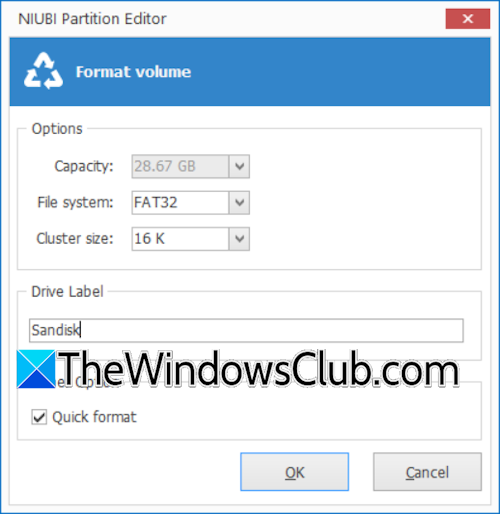
You can also use a third-party tool to format your USB flash drive to the FAT32 file system. Many free tools are available, such as NIUBI Partition Editor, AOMEI Partition Assistant, and MiniTool Partition Wizard. Download and install any of these tools. Launch it and right-click on your USB flash drive. Select the Format option. After that, select the FAT32 file system and format the drive. Now, click Apply to save changes.
That’s it. I hope this helps.
Why does Diskpart say “no volume selected?”
Diskpart says “No volume selected” when you don’t specify the target volume in your command. This error usually occurs when you run the format command in Diskpart immediately after selecting the disk. In that case, first clean the selected hard disk using the clean command. Or, you can use the select volume command directly.
How to use Diskpart to format USB to FAT32?
You can format your USB flash drive to the FAT32 file system easily by running three simple commands. First, type list volume, then type select volume 2. Here, replace 2 with the correct volume number. Now, type format fs=fat32 quick.
Read next: DiskPart has encountered an error: Access is denied.
