
DiskPart is a disk management command-line tool that lets you manage disks. It comes with a Clean option that allows deleting any existing partition, including files. When executing this command, if you get an error— Diskpart Virtual Disk Service Error: Clean is not allowed on the disk, then this post will help you resolve the problem.
Virtual Disk Service Error
Clean is not allowed on the disk containing the current boot, system, pagefile, crashdump or hibernation volume.
Why does this error occur?
While you can delete almost anything from the disk, if the partition you are trying to delete contains system files, pagefile, crashdump or hibernation volume and Windows OS, then it will be restricted to delete. If you are trying to delete the existing partition and set it up on a new one, wewill need to take a different route to fix it.
Diskpart Virtual Disk Service Error: Clean is not allowed on the disk
One thing is sure; you will not be able to clean the disk if you try it from within the Windows OS. If you are trying to switch the disk, you will need to follow alternate methods.
- Run diskpart clean in Recovery Mode
- Custom Install Windows
Since you will be dealing with deletion of partition, ensure to take a complete backup of existing files.
1] Run diskpart clean in recovery mode
In this step, you will need to boot from the Bootable USB and go into Advanced Recovery.
- Insert the Windows installation disc, and make sure the boot order is set to USB
- The next screen will display the Windows installation.
- Click Repair your computer > Troubleshoot > Advanced Options > Command Prompt.
- Then input the diskpart commands to clean the hard disk:
diskpart
list disk
select disk [diskno]
clean
Once done, you can create a new partition on the drive to solve this problem.
2] Custom Install Windows
If the above method doesn’t work and you plan to switch the storage device or hard disk, the only option is to install Windows on the new one. However, if you still have access to your Windows PC, you can use the OEM software to copy the existing Windows to the new SSD and then switch.
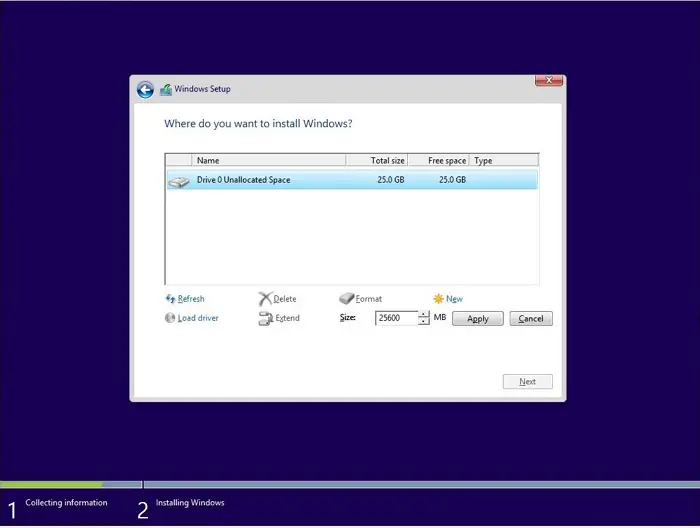
If you don’t have access, you can choose to custom-install Windows on the drive with the issue. Custom Install Windows means you will need to select the drive on which Windows will be installed. During the process, you should be able to delete the drive using the interface. If you can’t, the installation wizard will still wipe everything on that partition and install Windows.
To install Windows, create a bootable USB drive and boot from it.
Follow the wizard to install Windows and wait for it to complete.
Related:
- Diskpart Virtual Disk Service error, The operation timed out
- Diskpart Virtual Disk Service error, There is not enough usable space
- Diskpart Virtual Disk Service error. Delete is not allowed on the current boot, system, pagefile, crashdump or hibernation volume
- Diskpart Virtual Disk Service error, The operation is not supported by the object
- Diskpart Virtual Disk Service error, The specified disk is not convertible
- Diskpart Virtual Disk Service Error, The volume size is too big
- Diskpart Virtual Disk Service Error, The service failed to initialize
How to start your Windows in Recovery Mode?
You can boot into recovery mode from within Windows by going to System > Recovery or using a bootable USB drive, and then choose the Repair My Computer option. The former works when you can still access the PC, while the latter helps with broken or unbootable Windows.
What does the recover command do diskpart?
It refreshes the state of all disks in a disk group, attempts to recover an invalid disk group, and resynchronizes mirrored and RAID-5 volumes with stale data. This command operates on disks that are failed or failing.
