
If you are a Windows 11/10 user, you probably know that you can convert an MBR disk into a GPT one via the Disk Management Console or the Diskpart utility. Both Master Boot Record (MBR) and GUID Partition Table (GPT) are partition styles for a hard disk. The GPT partition style has several advantages over the MBR partition style. That’s why it has replaced MBR. While converting an MBR disk into the GPT one via the Diskpart utility, some users have received the “The specified disk is not convertible” error. In this article, we will examine the causes of this error and how to fix the problem.
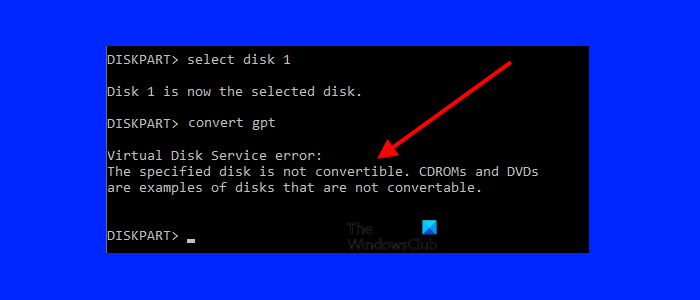
The complete error message displayed by the Diskpart is:
Virtual Disk Service error:
The specified disk is not convertible. CDROMs and DVDs are examples of disks that are not convertible.
Diskpart Virtual Disk Service error: The specified disk is not convertible
Before we discuss fixes for this problem, let’s look at the possible causes of this error. You will receive this error message if:
- There are some partitions on your hard disk. Before converting your hard disk from MBR to GPT, you should delete all the partitions.
- Your BIOS mode is set to legacy mode.
If you are receiving the same error message while converting an MBR disk into a GPT one, the following suggestions may help you fix the problem.
- Check your BIOS mode
- Delete partitions from your hard disk
- Use a third-party software
Let’s see all these solutions in detail.
1] Check your BIOS mode
Before you start converting an MBR disk into a GPT one, you should have some basic information. Both MBR and GPT are partition styles for hard disks. You can view the partition style of your hard disk in the Disk Management Console. To do so, the steps are as follows:
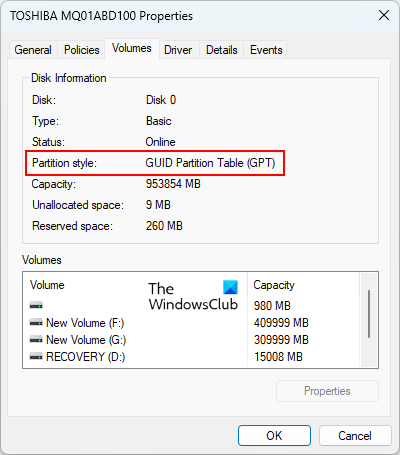
- Open the Disk Management Console.
- Right-click on your hard disk and select Properties.
- Select the Volumes tab. You will see the partition style under the Disk Information section.
The MBR disks use the standard BIOS partition table, commonly known as legacy mode. On the other hand, GPT disks use the Unified Extensible Firmware Interface (UEFI) mode in BIOS. You will be able to convert your hard disk from MBR into GPT if your BIOS is set to UEFI mode. If your BIOS is set to legacy mode, you need to switch it to UEFI mode. To view the BIOS mode, go through the following steps:
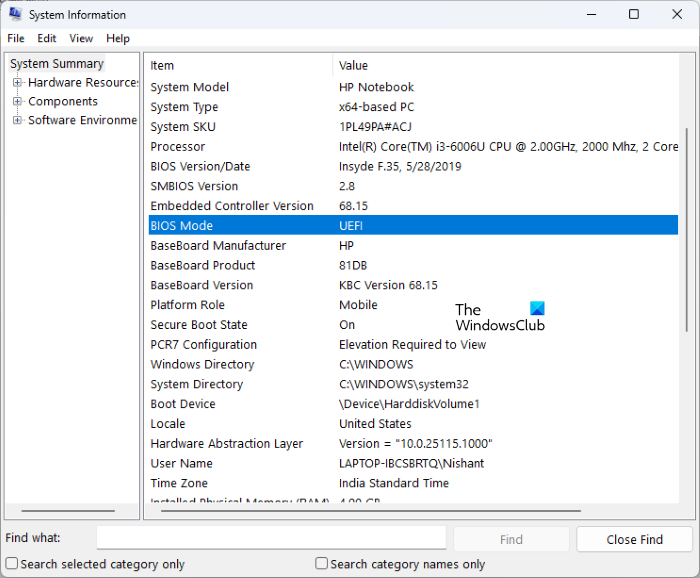
- Click on Windows Search and type System Information.
- Select the System Information app from the search results.
- Select System Summary from the left side. You will see your BIOS mode on the right pane.
If you see the legacy BIOS mode in the System Information, convert it into UEFI mode. But for this, your BIOS should also support UEFI mode. After converting your BIOS from legacy mode to UEFI mode, you should be able to convert the MBR disk into GPT.
Related: Diskpart Virtual Disk Service Error The service failed to initialize
2] Delete partitions from your hard disk
As explained above in this article, if you want to convert your disk partition style from MBR to GPT, it should not have any partitions. If there are any partitions on your hard disk, you will get an error while converting it from MBR to GPT. Therefore, you have to delete all the partitions or volumes created on your hard disk. To do so, follow the steps below:
- Back up all your data to an external hard drive.
- Launch the Command Prompt as an administrator.
- Type diskpart and press Enter.
- Now, type list disk and press Enter. This command will list all the hard disks installed on your system.
- Type select disk # and press Enter. In this command, replace # with the required disk number. For example, if you want to convert disk 0, you have to select it. In this case, type select disk 0.
- Type clean and press Enter. This command will delete all the partitions and volumes from your hard disk. Therefore, all your data will also get deleted.
- Type convert gpt and press Enter.
DiskPart should convert the MBR disk to GPT without displaying the error.
Related: Diskpart Virtual Disk Service error. Delete is not allowed on the current boot, system, pagefile, crashdump or hibernation volume
3] Use a third-party software
Since you are getting the error message “The specified disk is not convertible” while converting an MBR disk into GPT via the Diskpart utility, you can use third-party software as an alternative to the Diskpart. The third-party tools are also helpful if you do not want to clean your hard disk before converting it into GPT.
There are many disk and partition management tools that let you perform various actions on your hard disk, like creating new partitions, deleting the existing partitions, shrinking a partition, formatting your hard drive, etc. Some of these tools or software also let you convert an MBR disk into a GPT. These free tools are helpful when the Diskpart utility fails to perform the requested action.
Hope this helps.
Read: Diskpart Virtual Disk Service error, The operation is not supported by the object.
How do I fix the Diskpart virtual disk service error?
DiskPart virtual disk service errors occur due to various causes. For every cause, Diskpart displays a different error message. To fix the error, read the message carefully and then search for the appropriate solutions. Sometimes, the solution to fix the error is also displayed in the error message.
For example, in the following error message, Diskpart also shows the possible solutions to fix the error.
Virtual Disk Service error:
The operation timed out.DiskPart has referenced an object which is not up-to-date.
Refresh the object by using the RESCAN command.
If the problem persists exit DiskPart, then restart DiskPart or restart the computer.
To fix the above error, you should restart Diskpart or restart your computer. If this does not work, use the RESCAN command to detect the configuration changes on your hard disk.
Related: Diskpart Virtual Disk Service error, The operation is not supported by the object
Can I change MBR to GPT?
You can convert the MBR disk partition style to the GPT partition style via the Diskpart utility or the Disk Management Console. Before converting MBR to GPT, you should backup all your data because this action will delete all the data on your hard disk. If you get an error while converting the MBR to the GPT, check if your hard disk has any partitions. If yes, you have to delete all the partitions. To do so, you can run the clean command in the Diskpart utility. You can convert your disk from MBR to GPT only if your BIOS supports UEFI mode.
How do you fix The Virtual disk service error, There is not enough usable space for this operation?
The Diskpart utility usually shows this error message while creating a new partition on a hard disk. The complete error message is as follows:
Virtual Disk Service error:
There is not enough usable space for this operation.
The two major causes of this error are:
- The partition style of your hard disk is MBR.
- Your disk does not have enough usable space.
When you receive this error, first check the partition style of your hard disk. If it is an MBR disk and it already has 4 partitions, you cannot create more because an MBR disk can have only 4 partitions. To fix this problem, you need to convert your hard disk’s partition style from MBR to GPT.
If the partition style of your hard disk is already GPT but you are still getting this error, you have to shrink the volume. This action will create unallocated space on your hard disk. Now, you can format that unallocated partition and assign it a new drive letter. After that, mark it as active.
Read next: Diskpart Virtual Disk Service error, Delete is not allowed.
