
Some users cannot modify their hard disks or USB flash drives with Diskpart due to the “There are no volumes” error. Some users tried assigning a drive letter with a third-party tool and succeeded, but the issue reappeared after restarting the Windows PC. Diskpart shows this error when the selected disk has unallocated space. If you encounter this error, this article will help.
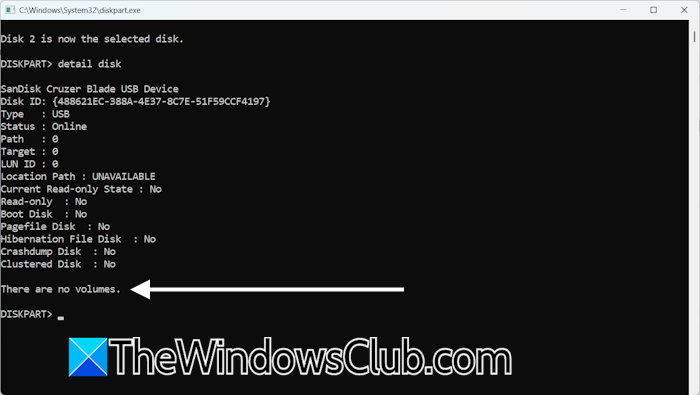
There are no volumes Diskpart error in Windows 11
The following fixes will help you resolve the “There are no volumes” error in Diskpart. Multiple causes can trigger this error, such as malware infection. Some malware can corrupt or destroy a disk’s partition table, causing Windows to show unallocated space on the affected disk.
- Recover data
- Check the disk status in Disk Management
- Create a New Simple Volume
- Run a Chkdsk scan
- Check your disk health
All these fixes are explained in detail below:
1] Recover data
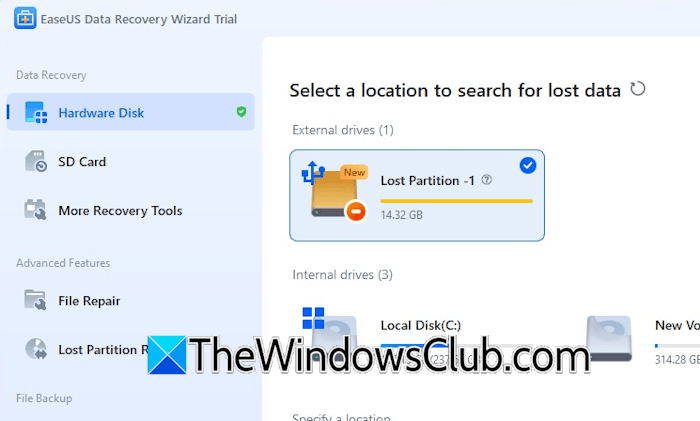
This is the most important step. Therefore, you need to perform it first. Before you try any of the troubleshooting fixes explained here, recover all your data from the disk. Many free third-party data recovery software are available that help you recover data from a lost hard drive partition. You can install and use them. Launch the Data Recovery Software and scan your system. It will show all the disks connected to your system. Now, select the disk with the lost partition and scan it for data recovery. The scan will take time, depending on the number of files stored on that partition. Once the scan is completed, recover your data.
2] Check the disk status in Disk Management
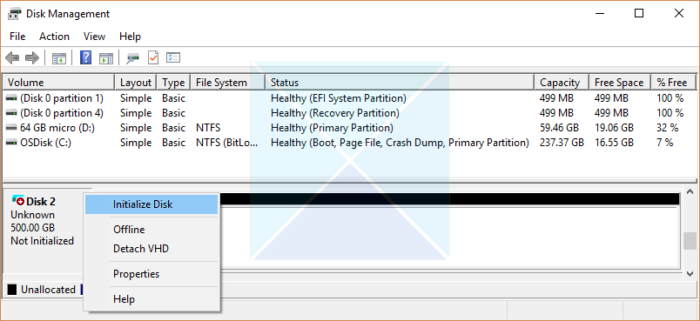
Open Disk Management and check your disk status. If you see the “Unknown Not Initialized” message on your disk along with a red cross, you need to initialize the disk. This will create unallocated space on the disk. Next, create a new partition. If Disk Management shows the disk is already healthy, there is no need to initialize it.
3] Create a New Simple Volume
If Disk Management shows an Unallocated space, creating a New Simple Volume will fix the issue. Follow these steps:
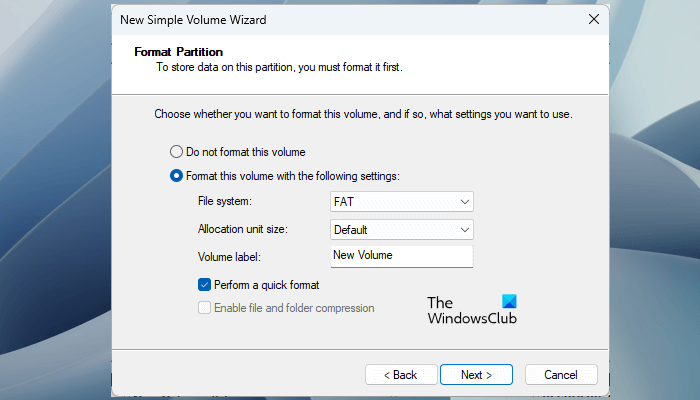
- Open Disk Management.
- Right-click on the Unallocated space and select New Simple Volume.
- The New Simple Volume Wizard will appear. Click Next.
- If you want to create multiple partitions on the disk, enter the size you want to allocate to the first partition. Otherwise, leave it as it is. Click Next.
- Now, assign a drive letter and click Next.
- On the next screen, select the Format this volume with the following settings option. Select the file system for your hard disk and then select the Perform a quick format checkbox. Click Next when you are done.
- Click Finish.
A healthy RAW partition will be created on your disk, and the disk will become visible in File Explorer. But you cannot open the disk now because you have to format it. Double-click on the disk in File Explorer. You will receive a prompt to format it. Format the disk with the required file system.
4] Run a Chkdsk scan
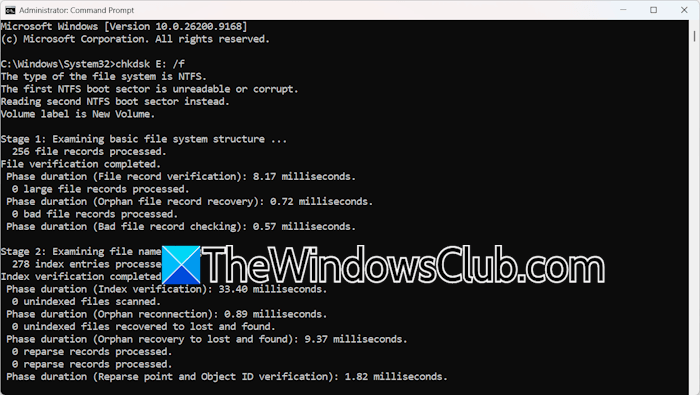
For some users, the disk disappears when they restart their computer. This keeps repeating even after creating partitions and assigning the drive letters to the disk. These signs may indicate the bad health of the disk. In such a case, you can run a Chkdsk scan on your disk. First, create a New Simple Volume on your disk. This will assign a drive letter to the created partition. Now, launch the Chkdsk utility and scan your disk. If the tool finds any errors on the partition, it will fix them. It will also assign a new drive letter to your disk partition.
5] Check your disk health
You should also check the health of your disk. If your disk is in bad health, it may fail anytime, resulting in data loss. In such a case, it is better to back up all your data to another storage device. To test your hard disk health, you can use free hard disk health checker software. Install the software, launch it, and scan your hard disk for issues. The scan may take time. So you’ll need to wait until the scan is complete. If the tool reports any issues with your hard disk, consider replacing it.
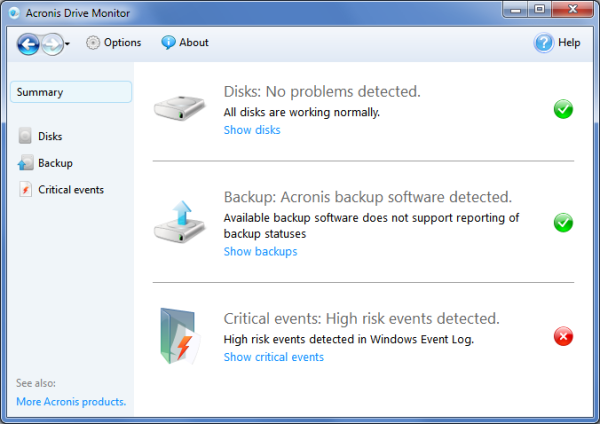
To verify the result, you can scan your hard disk with another free disk health checker.
That’s it. I hope this helps.
Why does Diskpart say “There are no volumes”?
Diskpart says there are no volumes when the Detail Disk command runs and there are no recognized partitions on the disk, the partitions are destroyed by malware, or the disk has unallocated space. To fix this issue, you need to recreate partitions. This step will delete data from the disk. Therefore, before proceeding, recover all your data using a third-party tool.
Why does Diskpart say “There are no fixed disks to show”?
Sometimes, a hard drive is disconnected due to loose connections, causing Diskpart to show the “There are no fixed disks to show” error. Check the connections first. Another possible cause is a corrupted BCD file. Rebuilding the Boot Configuration Data file can help.
Read next: EFI System partition Full repair needed.
