
This post compares Basic Disk and Dynamic Disk and shows how to convert basic disk to dynamic disk and dynamic disk to basic disk, using Disk Management and CMD/diskpart, without losing data in Windows 11/10.
Basic Disk and Dynamic Disk
There are two types of computer hard disks: Basic Disks and Dynamic disks. Basic disks are the commonly used storage media with Windows. They contain partitions like Primary partitions and Logical drives, which are typically formatted with a file system. Dynamic disks can create fault-tolerant volumes that may even span multiple disks, which Basic disks cannot.
Most home personal computers use Basic disks. However, IT professionals usually prefer Dynamic disks because they offer more functionality and improved reliability and performance. While Home editions of Windows support Basic Disks, Enterprise/Pro/Ultimate versions of Windows also support Dynamic Disks.
Microsoft lists the operations that can be performed on each type.
Operations that can be performed on both, Basic and Dynamic disks:
- Check Disk properties, Partition properties, and Volume properties
- Establish drive-letter assignments for disk volumes or partitions
- Support both MBR and GPT partition styles.
- Convert a basic disk to a dynamic disk or a dynamic disk to a basic disk.
Operations that can be performed only on Dynamic disks:
- Create and delete simple, spanned, striped, RAID-5 and mirrored volumes.
- Extend a simple or spanned volume.
- Remove a mirror from a mirrored volume
- Break the mirrored volume into two volumes.
- Repair mirrored or RAID-5 volumes.
- Reactivate a missing or offline disk.
Convert a Basic Disk to Dynamic Disk in Windows 11
Before you start, be aware that this operation may cause data loss, so back up your data to an external hard disk first. So proceed only if you know what you are doing and be careful.
If you are using a basic disk as a storage area for shadow copies and you intend to convert the disk into a dynamic disk, it is important to take the following precaution to avoid data loss. If the disk is a non-boot volume and is a different volume from where the original files reside, you must first dismount and take offline the volume containing the original files before you convert the disk containing shadow copies to a dynamic disk. You must bring the volume containing the original files back online within 20 minutes, otherwise, you will lose the data stored in the existing shadow copies. If the shadow copies are located on a boot volume, you can convert the disk to dynamic without losing shadow copies, states Microsoft.
Also note that converting to Dynamic Disk may affect multi‑boot setups and isn’t supported on removable drives.
1] Using UI
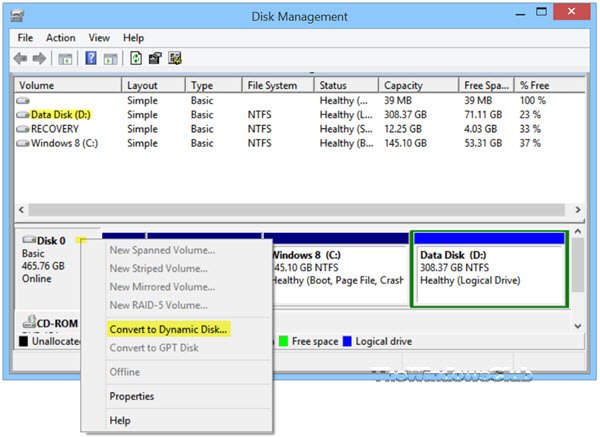
In Windows, open the WinX Menu and select Disk Management. Right-click on the Disk and select Convert to Dynamic Disk. You will be asked to once again confirm the Disk and click on Convert later on. The process will start, and the Disk will be converted to a Dynamic disk.
2] Using Command line
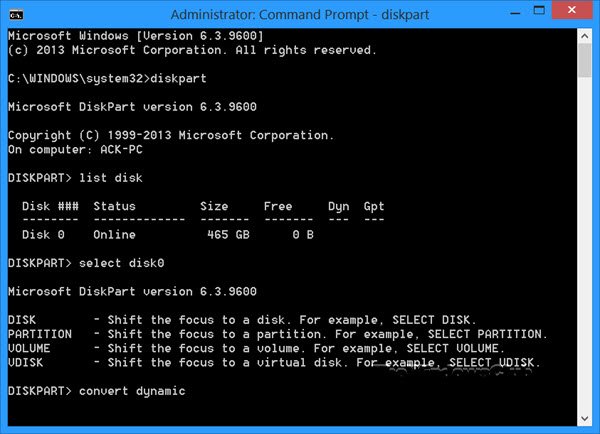
Open an elevated Command Prompt, type diskpart and hit Enter.
Next, type list disk. Make a note of the disk number of the disk you want to convert to Dynamic.
Now type select diskn and press Enter.
Next type convert dynamic and hit Enter.
Comparison table
| Feature | Basic Disk | Dynamic Disk |
|---|---|---|
| Volume Types | Simple, primary, extended, logical | Simple, spanned, striped (RAID 0), mirrored (RAID 1), RAID‑5 |
| Resizing Flexibility | Limited (extend only if contiguous space) | Can extend volumes across multiple disks |
| Fault Tolerance | None | Supported with mirrored and RAID‑5 volumes |
| Performance | Standard | Striped volumes improve read/write speed |
| Compatibility | Widely supported (all OS, removable drives) | Limited (not supported on removable drives, older OS issues) |
| Portability | Easy to move between PCs | May not be recognized if moved |
| Conversion | Default format | Requires conversion; reverting back deletes all volumes |
Read: How to create Mirrored Volume for Instant Hard Drive Backup in Windows.
Convert Dynamic disk to Basic disk in Windows 11
1] Using Disk Management
To change a Dynamic Disk to a Basic disk using Disk Management, right-click each volume you want to convert to a basic disk, and select Delete Volume for each volume on the disk. After you delete all volumes on the disk, right-click the disk and select Convert to Basic Disk. The operation will start.
2] Using CMD
Open an elevated command prompt and type diskpart and hit Enter.
Next type list disk and note the disk number, of the disk you want to convert to basic. Now type each of these and hit Enter, one after the other:
Type select disk <disknumber>.
Type detail disk <disknumber>.
For each volume on the disk, type select volume= <volumenumber> and then type delete volume.
Type select disk <disknumber>.
Specify the disk number of the disk that you want to convert to a basic disk.
Finally, type convert basic and hit Enter. The operation will start.
Remember to always back up first before you carry out any of these operations. And also never convert a Basic disk that contains your operating system to a Dynamic disk, as it could make your system unbootable.
