
If you see the Windows SIM was unable to generate a catalog error while creating a catalog file for a Windows image, there is a high chance that the Windows System Image Manager (WSIM) cannot properly process the WIM file because of an incompatible Windows ADK version, architecture mismatch, or an issue with the image or its permissions. In this post, we’ll cover this issue and what you can do to fix it.
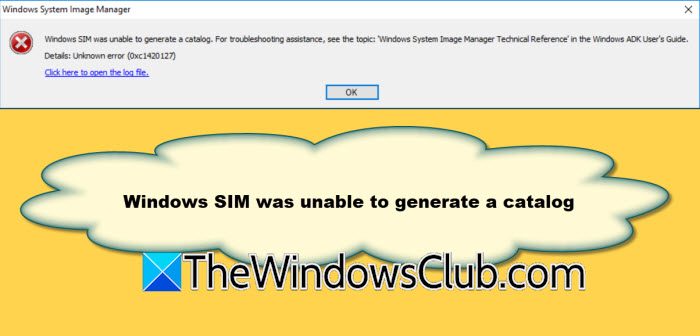
Windows SIM was unable to generate a catalog. For troubleshooting assistance, see the topic: ‘Windows System Image Manager Technical Reference’ in the Windows ADK User’s Guide.
Details: Unknown error (0xc1420127)
Windows SIM was unable to generate a catalog
Windows SIM might not be able to create a catalog file for several reasons. One possible reason is that the installed Windows ADK version doesn’t match the Windows image. If the SIM architecture does not match, that could also cause a problem. Also, if the WIM file doesn’t have the correct read/write permissions, it will not generate a catalog. Microsoft suggests using an ADK version that matches the Windows version you are working with whenever you can. If you have multiple Windows versions in your environment, use the ADK that matches the newest operating system.
If Windows SIM can’t generate a catalog, follow the solutions below.
- Check the Windows ADK Version
- Check the Windows architecture
- Update or repair Windows ADK
- Check WIM file permissions.
1] Check the Windows ADK Version
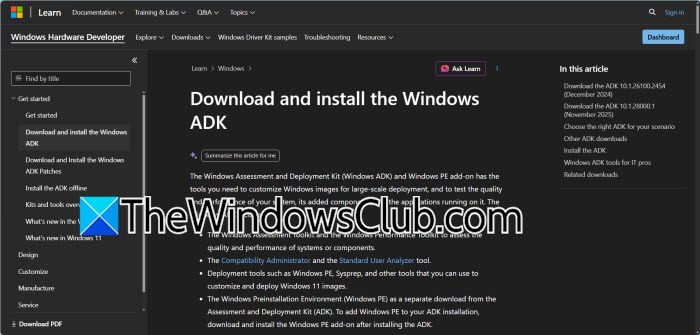
Windows System Image Manager is installed as part of the Windows Assessment and Deployment Kit. It uses the deployment tools included with the ADK to process Windows image files and create catalog files. So, first check whether you have the appropriate ADK installed for the Windows image you are working with. Microsoft recommends using an ADK version that matches the Windows version whenever possible. Current supported ADK releases cover specific Windows releases, so check Microsoft’s ADK documentation before installing or changing versions.
You can check the installed ADK in Windows under Apps > Installed apps. Look for Windows Assessment and Deployment Kit. If you are working with a newer Windows 11 image but have an older ADK installed, download and install the appropriate supported ADK. You can find the latest supported versions on Microsoft’s Windows ADK download page.
2] Check the Windows architecture
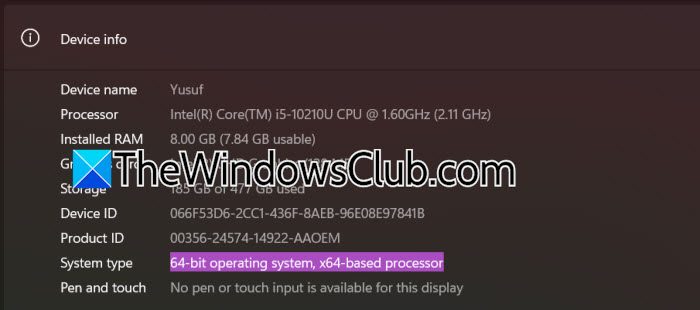
When creating a catalog, consider the architecture of Windows SIM. Microsoft notes that the Windows SIM you use can affect which images you can catalog. For instance, the x64 version of Windows SIM has limitations and cannot create catalogs for all architectures, while the x86 version has different abilities. If you are working with an x64 Windows image, make sure Windows SIM is running in a compatible x64 Windows environment. You can find your system architecture by going to Settings > System > About and checking the System type. This is important if you are using older Windows images or ADK versions.
3] Update or repair Windows ADK
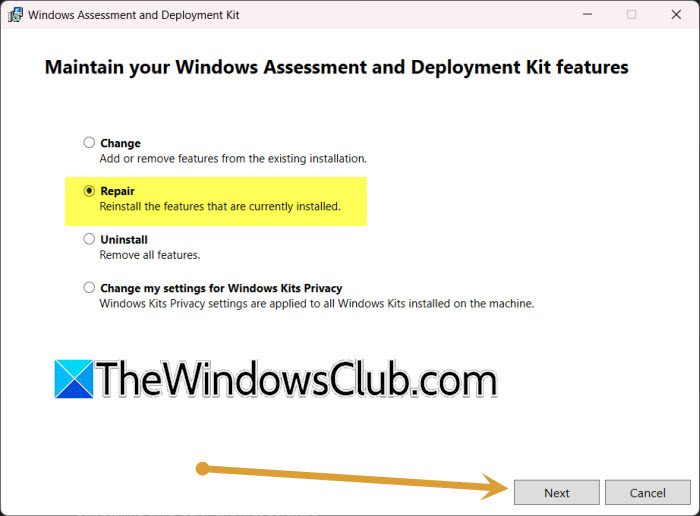
If the correct ADK version is installed but Windows SIM still cannot create the catalog, the installation itself could be damaged or missing required components. Open Settings, go to Apps > Installed apps, search for Windows Assessment and Deployment Kit, click on the three dots, and select Modify. Select Repair > Next. Wait for the process to complete.
Finally, reboot your computer and see.
4] Check WIM file permissions
Windows SIM needs to access the WIM file while generating the catalog. If the file is read-only or you do not have sufficient permissions, catalog generation can fail. Microsoft specifically recommends checking that Install.wim has read/write permissions when troubleshooting catalog creation problems. To check the permissions, follow the steps mentioned below.
- Right-click the WIM file and select Properties.
- Go to the Security tab and make sure your Windows account has the required permissions to access the file.
- It is also a good idea to copy the WIM file from installation media to a local folder before opening it in Windows SIM. For example, create a folder such as C:\WindowsImages.
- Then copy install.wim from the Windows installation media into that folder.
Check if the issue persists.
How to open Windows SIM?
To open Windows System Image Manager, press Start, type Windows System Image Manager, and select it from the search results. You can also open it from the Windows ADK tools installed on your computer.
Read: Windows Assessment and Deployment Kit (ADK) download
Where is Windows SIM located?
Windows SIM is installed with the Windows Assessment and Deployment Kit (ADK). It is usually located under C:\Program Files (x86)\Windows Kits\10\Assessment and Deployment Kit\Deployment Tools\WSIM, although the exact path can vary depending on the ADK version and installation location.
Also Read: Desktop Window Manager dwm.exe High Memory, CPU, GPU.
