
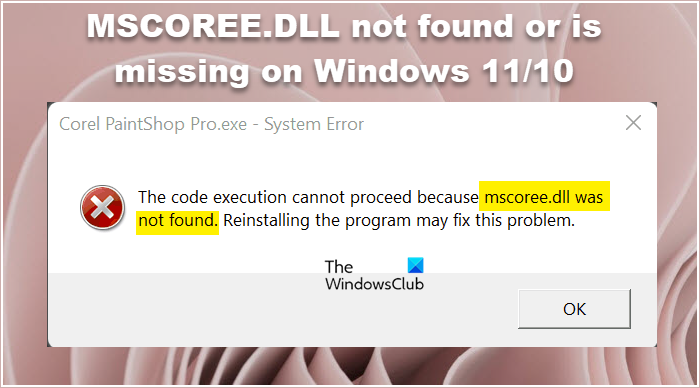
Some users have reported an MSCOREE.DLL-related error. This obviously stops them from launching some applications which is very annoying. The error that appears says MSCOREE.DLL is not found or is missing. However, the error message varies; the following is one of the variants of this error, but it can be different. Whatever the error is if MSCOREE.DLL was not found or was missing, this article is for you.
<Application.exe>- System Error
The code execution cannot proceed because mscoree.dll was not found. Reinstalling the program may fix the problem.
Let’s move on to the troubleshooting guide.
What is the file Mscoree dll?
MSCOREE.DLL is a part of the Microsoft .NET Framework. Many programs need the .NET Framework environment to run. Without it, these programs will crash at startup. The DLL file enables software to connect information, systems, people, and devices.
The issue you are facing may occur because the .NET Framework on your device is corrupted or disabled. The good news is that you can fix it easily by following the solutions below.
Fix MSCOREE.DLL not found or is missing on Windows 11
Is MSCOREE.DLL not found or is missing on your computer? If so, try the following solutions:
- Check if .NET is disabled
- Reinstall the program
- Run System File Checker
- Scan for Viruses and Malware
- Install Optional Updates
- Repair .NET Framework
- Troubleshoot in Clean Boot.
Let us talk about them in detail.
1] Check if .NET is disabled
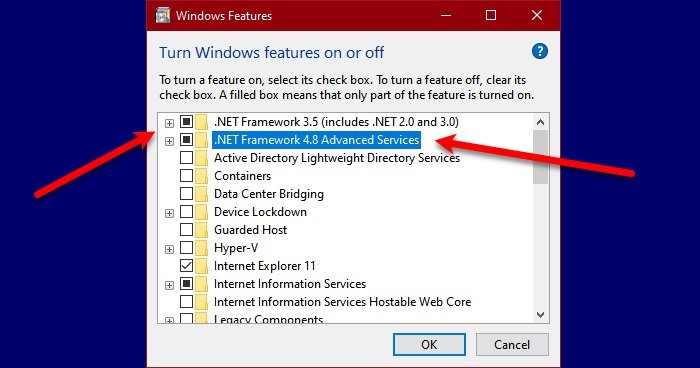
First, check whether .NET is disabled on your computer. MSCOREE.DLL file is related to .NET and if it’s disabled, you will see the error code in question. Let’s follow the steps below to check the .NET feature.
- Open Control Panel.
- Change View by to Large icons.
- Click on Programs & Features > Turn Windows features on or off.
- Check if .NET Framework (all the versions) and make sure that it is enabled. If the option is unticked, tick the box. Also, expand the option if possible and check sub-options as well.
- Click Ok.
Hopefully, this will do the job.
If the option is already enabled, try disabling it and then re-enabling it. This should work for you if .NET files are corrupted.
2] Reinstall the program
When you install a program, it also installs many other required features. If for some reason, your installation package is corrupted or any of those files are missing, the error code in question can appear. That is why, if nothing worked for you, then you should uninstall the program and install its fresh copy.
3] Run System File Checker
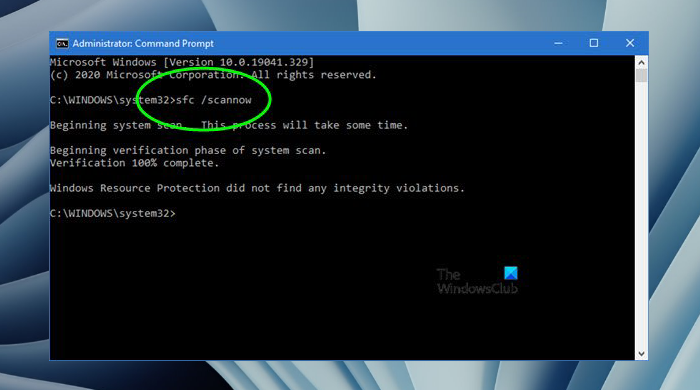
If .NET is enabled, let’s go and run System File Checker. This will scan and repair corrupted system files, which should resolve this issue for you. So, open Command Prompt and run the following command.
sfc /scannow
It may take some time, but when it’s done, your problem should be resolved.
4] Scan for Viruses and Malware
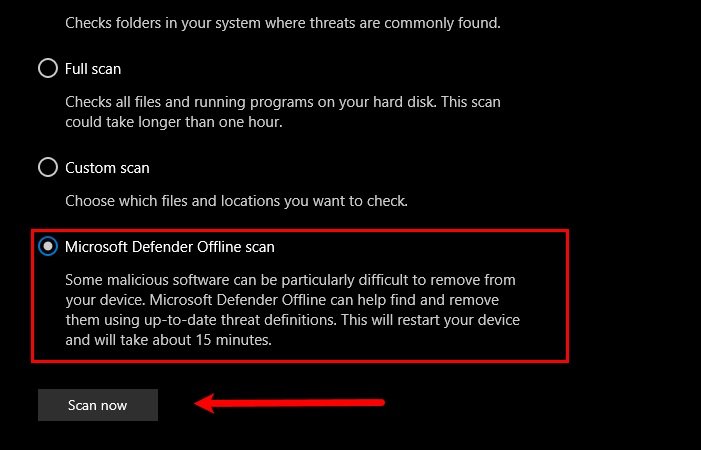
Next, let’s scan for viruses and malware. If they are present on your computer, you may see these kinds of errors. You can use a third-party antivirus if you want. If you don’t have one, follow the steps below to run a Windows Defender Offline Scan.
- Search for Windows Security.
- Click on Virus & threat protection > Scan options.
- Select Microsoft Defender Offline scan and click Scan now.
Let the process complete, then check whether the issue persists.
5] Install Optional Updates
As you may already know, .NET updates come in Optional Updates. These updates can resolve the issue if it’s caused by incompatibility or a bug. So, try installing Optional Updates and see if the issue persists.
6] Repair .NET Framework
Use the Microsoft .NET Framework Repair Tool to repair its installation. Go to microsoft.com and download the tool. Then run it to repair the corrupted .NET installation. If the framework is actually corrupted, repairing it will do the job.
7] Troubleshoot in Clean Boot
You may also see the error code in question because of a third-party app. Since we don’t know which app it is, try performing Clean Boot. Then, enable processes one by one to find out the culprit. Once you have removed the troublemaker, your issue should be resolved.
Similar reads:
Code execution cannot proceed for: ffmpeg.dll | ResampleDmo.DLL | AdbWinApi.dll | edgegdi.dll | MSVCP100.dll | VCOMP110.dll | CRClient.dll.
Hopefully, these solutions will do the job for you.
Read: DLL is either not designed to run on Windows or it contains an error
How do I fix missing Mscoree dll?
If Mscoree.dll is missing, you can not just download the file separately, at least not from the most reliable source. And even if you manage to download the file, you won’t be able to place it at the correct location. However, you can follow the solutions mentioned in this post. Just go through them one by one, and the problem you are facing will be fixed.
