
In this post, we will talk about what you can do if you come across an error message that says Code execution cannot proceed because ffmpeg.dll was not found. The ffmpeg.dll missing error is one of the most common errors Teams users face. Thankfully, it’s very easy to get rid of this problem. So, let’s look at different workarounds you could try if you receive this error message.
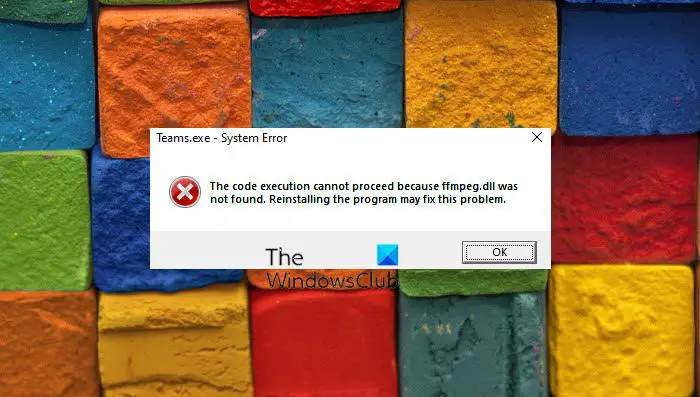
The ffmpeg.dll file is a dynamic link library used by applications like Microsoft Teams, Discord, and media players to handle audio and video decoding, encoding, and streaming.
Fix ffmpeg.dll was not found Teams error
Below is a list of all the effective workaround you can try if you come across Code execution cannot proceed because ffmpeg.dll was not found error in Microsoft Teams:
- Restart the System
- Re-register ffmpeg.dll file
- Reinstall the application that is giving this error
- Run System File Checker
- Copy Files to Older Directory
- Repair System Image
- Create New Account
Let’s take a look at these solutions in detail.
1] Restart the System
From basic to technical issues, restarting is the best way to resolve any problem on Windows. Restart your system and launch the application that was throwing the error message. Check whether you are still encountering the same message. If not, you are good to go. However, if you are still encountering the same message, proceed with the technical workarounds outlined below.
2] Re-register ffmpeg.dll file
Re-register ffmpeg.dll file and see if that works.
3] Reinstall the application
Reinstall the application causing this error. It could be Microsoft Teams, Discord, or any other.
2] Run System File Checker
One of the best ways by which you can get rid of any DLL file missing error on a Windows OS is to run System File Checker. The built-in system file checker will replace the missing system files. Here are the steps you need to follow to get the work done.
Press the Windows key to open the start menu.
In the search bar, type Command Prompt and choose the Command Prompt (Admin) option.
In the command prompt window, copy-paste the below-mentioned command and press the Enter key.
sfc /scannow
That’s it. Windows will take up to 10 minutes to complete the scanning process. Once completed, restart your system. We recommend you to run sfc/ scannow in Safe Mode or Boot Time in order to get better results.
3] Copy Files to Older Directory
All applications leave remnants on your system when you uninstall them. And it stays there until you manually delete it. When you try to reinstall the same application on your system, remnants of the previous installation can cause the issue you’re seeing. If applicable, just copy the application’s installation files to the location where it was previously installed. To do so, here are the steps you need to follow.
Note: For this guide, we will show you how to transfer the file for Discord. The process should be similar for any other application where you encounter the error.
- To begin with, close Discord from your system and end all the related tasks from the Task Manager.
- Press the Windows + R hotkeys to open the Run dialogue box.
- Type %localappdata% and press OK.
- Open the Discord folder.
- In the folder, look for any duplicate Discord folder. For instance, the new installation folder will be named current-S1. At the same time, the default or the older installation will be named current.
- Copy the content of current-S1 to the current folder.
- If asked, tap on the Replace files option.
That’s it. Now reboot your system and check if the problem is fixed or not.
4] Repair System Image
If the problem continues, you can run DISM to repair the system image. It checks for any corrupted files and restores good health. To do so, follow the steps below.
Open the Command Prompt in administrator mode.
In the command prompt window, type the code below and press Enter.
Dism /Online /Cleanup-Image /RestoreHealth
The code will take around 15 minutes to execute. Once it’s done, restart your system and check if the problem continues.
5] Delete the Application Cache Data
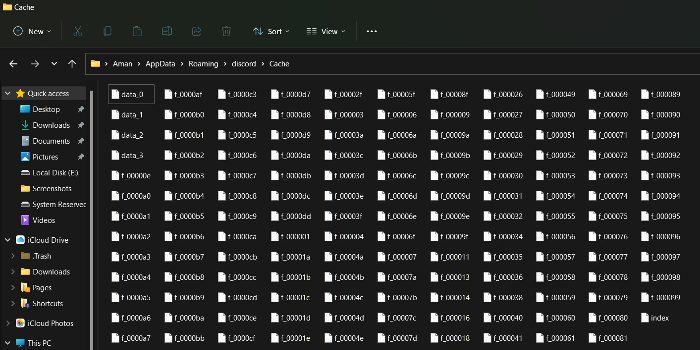
Similar to browsers, installed applications also store cache data. It helps deliver better, faster performance. However, a huge amount of cache data can cause different issues, including ffmpeg.dll was not found error. So, you will have to clear the cache data of the application that is throwing the error. Here are the steps you need to follow.
Note: In this guide, we will show you how to clear Discord’s cache. The process will be similar for any other application showing the error.
- To begin with, close Discord and all the related tasks from the Task Manager.
- Press the Windows + R hotkeys to open the Run dialogue box.
- Type %appdata% and press enter.
- Open the Discord folder.
- Open the Cache folder, and delete everything inside.
Now, restart your system and check if the problem continues. If yes, continue with the next solution.
6] Create New Account
Sometimes, a corrupted user profile can also cause the mentioned issue. In that case, create a new user account to resolve the issue. Make sure you create the account with all administrator privileges.
Once the account is created, launch the application that threw the error and check whether it still shows the message.
7] Reinstall the Application
If none of the above-mentioned workarounds helped you in solving the problem, the last thing you can try is to reinstall the problematic application. Here are the steps you need to follow.
- First off, uninstall the application by visiting the Control Panel.
- Now, open the Run dialogue box and navigate to %localappdata%
- Delete the folder of the problematic app application.
That’s it. Now install that application from its official website.
Similar reads:
Code execution cannot proceed for: ResampleDmo.DLL | AdbWinApi.dll | edgegdi.dll | MSVCP100.dll | MSCOREE.DLL | VCOMP110.dll | CRClient.dll.
What is the ffmpeg.dll file?
The ffmpeg.dll file is a Dynamic Link Library and an external component of applications running on Windows 11/10, used to handle audio and video decoding, encoding, and streaming. The performance of associated software will be negatively affected if ffmpeg. dll file is missing.
What causes DLL errors?
There can be multiple reasons Windows causes DLL errors, but one of the most common is that a DLL is missing or corrupted. DLL or Dynamic Link Library is an essential part of the System files, and sometimes it is shared as well. So if a DLL goes bad, then chances are that more than one thing will fail. This post will show you how to fix missing DLL file errors.
