
A DLL file in Windows contains all the code a program needs to run correctly. Like any other software, the functions in the DLL file need to be compatible with Windows if they are using any built-in service. If you receive an error saying “DLL is either not designed to run on Windows or it contains an error,” then it could be a compatibility issue.
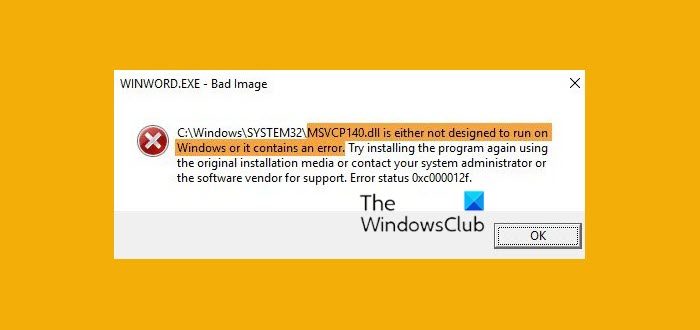
We remember one of our users reported that one of the software stopped working when it was installed on a laptop with the latest version of Windows. The error message pointed to a DLL file. It was either designed to run on a different version of Windows. Or the DLL file is at fault. Here is the complete message
Bad Image – DLL file is either not designed to run on Windows or it contains an error. Try installing the program again using the original installation media or contact your system administrator or the software vendor for support.
DLL files like msvcr100.dll, msvcr110.dll, msvcp140.dll, lmirfsclientnp.dll, etc. are known to throw up this error message.
DLL is either not designed to run on Windows, or it contains an error
We suggest you follow these steps and check if they resolve the problem.
- Update or reinstall the software to the latest version
- Repair Visual C++ Redistributables
- Ask the vendor for the latest version of the DLL
- Run System File Checker.
Before you begin, check your Windows architecture/version as a mismatch can cause this issue.
1] Update/Reinstall the software to the latest version
The version of the DLL might be using a system call that is deprecated. If you had recently updated Windows, we would suggest you check for an update of the software. The update should install the latest version of DLL along with it.
You should also install it on a different computer and check whether it works there. Make sure to check the Windows version if it works.
2] Repair Visual C++ Redistributables
Open Control Panel > Programs > Programs and Features and locate all Microsoft Visual C++ Redistributable entries.
Select each > Modify > Repair.
Restart your PC,
3] Ask the vendor for the latest version of DLL
Sometimes, the software uses an open source version of DLL. E.g., Audacity uses an external DLL to convert audio files to MP3. It is best to ask the vendor if there is a DLL that needs an update. If yes, make sure to register the DLL once you have it. Often, a version change blocks the functionality.
If they don’t have it, check whether any computer has the older version, and replace the file.
Related: Bad Image Error Status 0xc0000006.
4] Run SFC
If the DLL is a corrupt system DLL, you can choose to run System File Checker to fix it. All you need is admin permission to complete it. You can also use our very useful freeware utility FixWin to run SFC with a single click!
I hope these solutions help.
