
Desktop Window Manager, or dwm.exe, in Windows 11 or Windows 10 is a system process responsible, inter alia, for managing visual effects on the desktop. No doubt the application requires some resources to run; however, modern desktops and laptops are well-equipped to handle it easily. Let us learn some more about this Windows process. In this post, we will show you how to fix Desktop Window Manager (dwm.exe) High Memory, CPU, GPU usage on your Windows 11/10 computer.
What is Desktop Window Manager – dwm.exe
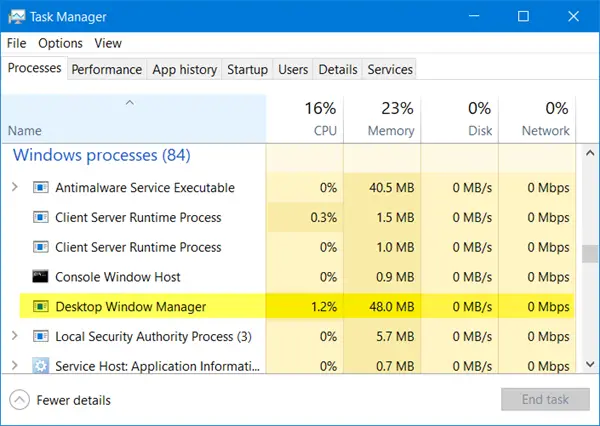
DWM.exe helps render visual effects on the desktop, as well as features such as glass window frames, 3-D window transition animations, high-resolution support, and so on.
Desktop Window Manager helps write each picture on the Windows to a place in the memory and creates a combined view of all of them on the screen and sends it to the display. This way, the operating system can use Hardware Acceleration to create smooth animations. It could also be used for creating transparent effects.
Desktop Window Manager consumes high Memory, CPU, GPU
The file which represents the Desktop Window Manager is dwn.exe. It usually occupies 50-100 MB of memory and around 2-3%CPU – but it all depends on your system. If a large number of windows and animated processes are open, it will use high memory, and thus consequently slow down the system or cause freezes. If you face problems with dwm.exe, here are a few things you could try:
- Disable screensaver
- Adjust the system for best performance
- Switch to the Basic Theme
- Update display drivers
- Update all installed software
- Scan PC with antivirus software
- Run the Performance Troubleshooter
- Troubleshoot in Clean Boot State
- Use Xperf.
1] Disable screensaver
If Desktop Window Manager is consuming high resources you need to change your theme or wallpaper and see if that helps. If you have activated a Screensaver, disable it and see. In fact change all your Personalization settings like Lock Screen, Color Profiles, etc, and see if it makes the problem go away.
2] Adjust the system for best performance
You may also search for and open Performance Options window, and click on the Visual Effects tab. Select the radio button to Adjust the system for best performance. 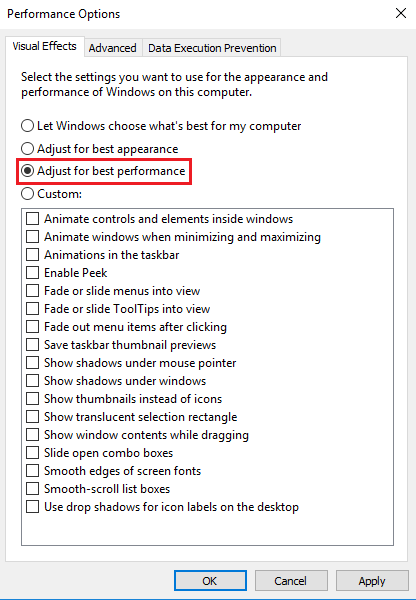
3] Switch to the Basic Theme
Switching to the Basic Theme will greatly reduce the load on the system and the battery. However, it wouldn’t stop the Desktop Window Manager from running.
4] Update display drivers
Some have reported that updating display drivers helped them. So check if you are using the latest device drivers for your computer.
5] Update all installed software
Some installed software are also known to make dwm.exe use high memory. So make sure your Windows operating system and all installed software are updated to the latest versions.
6] Scan PC with antivirus software
The legit dwm.exe process is located in the System32 folder. But if it is located in some other folder, it could well be malware. So do run a full scan with your antivirus software.
Read: Desktop Window Manager stopped working and was closed.
7] Run the Performance Troubleshooter
You need to optimize Windows for better performance. Run the Performance Troubleshooter. Open an elevated Command Prompt, type the following and hit Enter:
msdt.exe /id PerformanceDiagnostic
This troubleshooter helps the user adjust settings to improve operating system speed and performance. If this does not help, you may need to troubleshoot Windows performance issues. Check if your version of Windows has this one.
8] Troubleshoot in Clean Boot State
Perform a Clean Boot and then try to manually find the offending process which is causing dwm.exe to perform inefficiently.
9] Use Xperf
System administrators can make use of Xperf which is a performance tracing tool based on Event Tracing for Windows, and which is a part of Windows Assessment and Deployment Kit.
How to disable Desktop Window Manager?
In Windows 11/10 it is an integral part of the operating system and hence cannot be disabled. In Windows 7 and earlier, you can do so, as it runs as a Service. Type services.msc in Start Search and press Enter to open the Services Manager. Locate the Desktop Window Manager Session Manager service and change its Startup type to Disabled.
Posts about processes using high resources:
- WMI Provider Host High CPU Usage issues
- Wuauserv high CPU usage
- Windows Driver Foundation using high CPU
- Windows Shell Experience Host uses high CPU.
Want to know about these processes, files or file types?
Nvxdsync.exe | Svchost.exe | RuntimeBroker.exe | TrustedInstaller.exe | StorDiag.exe | MOM.exe.
