
The Error resolving driver libraries in DBeaver usually appears when DBeaver cannot download or locate the files required for a database driver. It commonly occurs while creating a new database connection or updating an existing driver. In most cases, the problem is related to missing Maven dependencies, network restrictions, or an incorrect driver configuration.
Error resolving driver libraries
Reason
Error resolving dependencies
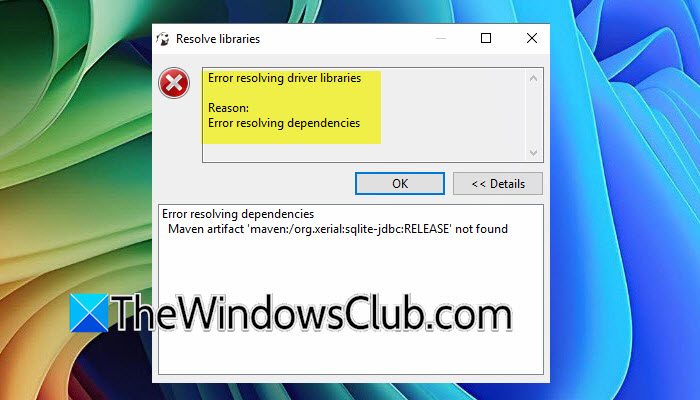
Error resolving driver libraries in DBeaver
This error means the application failed to download one or more driver files needed to connect to a database. In some cases, DBeaver cannot find the Maven artifact org.xerial:sqlite-jdbc:RELEASE, causing dependency resolution to fail. This typically happens because the selected driver version no longer exists, Maven repositories cannot be reached, the local Maven cache is corrupted, or a firewall or proxy is blocking access.
If you encountered an error resolving driver libraries in DBeaver, follow the solutions mentioned below.
- Select a Specific SQLite JDBC Driver Version
- Update DBeaver to the Latest Version
- Clear the Local Drive Cache
- Configure Proxy or allow Maven Access Through the Firewall
- Download the SQLite JDBC JAR Manually
Let us talk about them in detail.
1] Select a Specific SQLite JDBC Driver Version
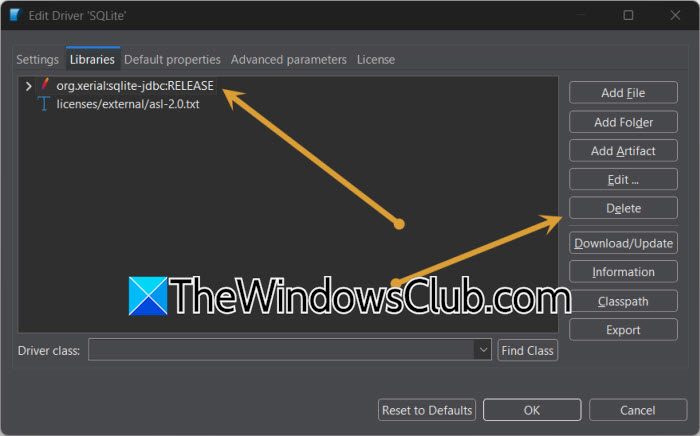
Many Maven repositories no longer support the RELEASE tag. Choosing an actual version forces DBeaver to download a valid driver instead of looking for a non-existent artifact. To do so, follow the steps mentioned below.
- Open DBeaver.
- Go to Database > Driver Manager.
- Select SQLite and click Edit.
- Open the Libraries tab.
- Remove the library ending with: org.xerial:sqlite-jdbc:RELEASE
- Click Add Artifact.
- Search for: org.xerial sqlite-jdbc
- Select a recent stable version (for example, 3.50.x or the latest available).
- Click Download.
- Save the changes and reconnect.
If the download still fails after selecting a stable version, remove all existing SQLite driver libraries from the Libraries tab before downloading again. Keeping multiple or outdated JDBC versions in the same driver configuration can create conflicts and prevent DBeaver from loading the correct library.
2] Update DBeaver to the Latest Version
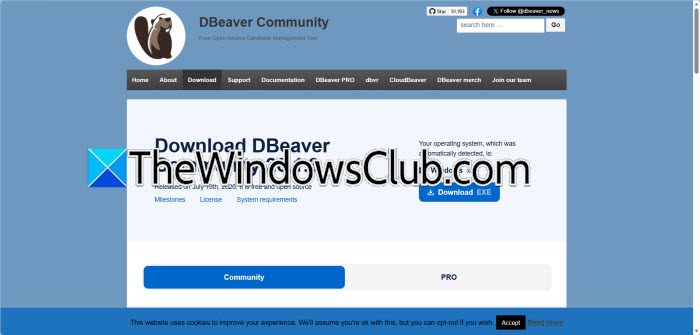
If you are using an older version of DBeaver, it may include outdated Maven artifact versions. To fix this, update DBeaver. This refreshes the driver definitions and ensures you have the right versions. Download the latest DBeaver Community Edition. You can install it over your current version or do a clean install. After installing, open DBeaver, create your database connection again, and let DBeaver download the necessary driver libraries.
After updating, verify that DBeaver is using the updated driver definition by opening Driver Manager and checking the SQLite driver version. If the old definition is still present, delete and recreate the database connection to refresh all associated settings.
3] Clear the Local Driver Cache
If a previous driver download was interrupted, DBeaver may continue using incomplete or corrupted files. Therefore, removing the cached libraries forces a fresh download.
- Close DBeaver.
- Open File Explorer.
- Navigate to C:\Users\<YourUser>\.m2\repository\org\xerial\
- Delete the sqlite-jdbc folder.
- Also check C:\Users\<YourUser>\AppData\Roaming\DBeaverData
- Restart DBeaver.
- Open the SQLite driver settings and download the libraries again.
Now, open DBeaver and see if that helps.
4] Configure Proxy or allow Maven Access Through the Firewall
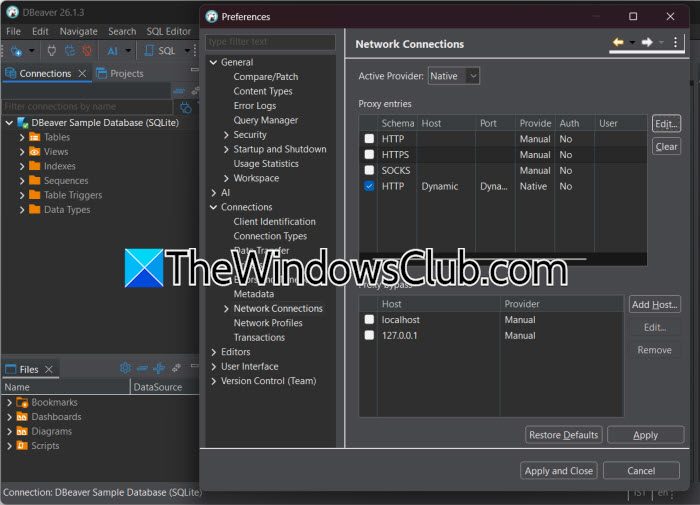
If DBeaver cannot reach Maven Central because of a proxy, VPN, corporate firewall, or antivirus filtering HTTPS traffic, it cannot download driver dependencies.
- Open DBeaver.
- Go to Window > Preferences.
- Open Connections > Network Connections.
- Configure your HTTP or HTTPS proxy if your organization uses one.
- Ensure access to https://repo1.maven.org
- Restart DBeaver.
Finally, download the driver again and see if the issue persists.
5] Download the SQLite JDBC JAR Manually
If Maven downloads are blocked or unavailable, manually adding the JDBC driver bypasses dependency resolution completely.
You need to download the latest sqlite-jdbc JAR from the official Xerial GitHub releases from github.com or Maven Central. Now, open Database > Driver Manager. Select SQLite, click on Edit, and go to the Libraries tab. Remove the failed Maven artifact, click Add File, select the downloaded JAR file, save the changes, and reconnect. This should do the trick for you.
Hopefully, with the help of these solutions, your issue will be resolved.
Read: Failed to load the JNI shared library
Why does DBeaver fail to download JDBC drivers?
DBeaver may fail to download JDBC drivers because it cannot reach the Maven repository that hosts the driver libraries. This can happen due to firewall restrictions, proxy settings, VPN configurations, network outages, or an invalid driver artifact reference. In some cases, a corrupted local Maven cache or an outdated DBeaver installation also prevents successful downloads. Updating the driver configuration and ensuring unrestricted access to Maven repositories usually resolves the problem without affecting your existing database connections.
Read: Windows could not start the SQL Server on Local Computer
Can I install DBeaver drivers without Maven?
Yes, DBeaver allows you to install database drivers manually without relying on Maven. Download the appropriate JDBC driver JAR from the official project or Maven Central, then open Driver Manager, edit the required driver, and use the Add File option to import the JAR. Once the driver is added, save the configuration and reconnect to your database. This method is particularly useful on offline systems or networks where Maven repositories are inaccessible.
Also Read: Best Open Source SQL Clients for Database Management.
